The 12 Best Video Editing Software for Chromebook in 2026
Discover the top video editing software for Chromebook. Our guide covers web apps, Android editors, and AI tools for creators on any budget.
Chromebooks have evolved from simple cloud-based laptops into surprisingly capable creative machines, but finding the right video editing software for Chromebook can still feel like a challenge. The conventional wisdom that these devices are underpowered for video work is outdated. With a mix of powerful Android apps, full-featured browser-based editors, and Progressive Web Apps (PWAs), you have more options than ever before.
This guide cuts through the noise. We've compiled a definitive list of the best tools available, designed to help you find the perfect editor for your specific workflow. Whether you're creating Reels and TikToks, producing educational tutorials, or developing professional marketing content, there's a solution here for you. We'll explore the pros, cons, and ideal use cases for each option, from versatile Android editors like LumaFusion to powerful web platforms like Clipchamp and Kapwing.
Forget the guesswork. Each entry includes practical insights and direct links to get you started immediately. We'll show you exactly how to leverage your ChromeOS device to produce high-quality videos efficiently. You'll learn which tools handle 4K footage best, which are optimized for social media templates, and how to integrate AI for tasks like background removal, all within the Chromebook ecosystem.
1. Google Play Store – Video Editors category
For Chromebook users, the most direct path to powerful video editing software is often the Google Play Store. It acts as a central hub, giving you one-click installation access to a vast library of Android apps specifically designed for video production. This is where you'll find popular, mobile-first editors like CapCut, InShot, and KineMaster, as well as more robust, tablet-optimized options such as LumaFusion and PowerDirector.
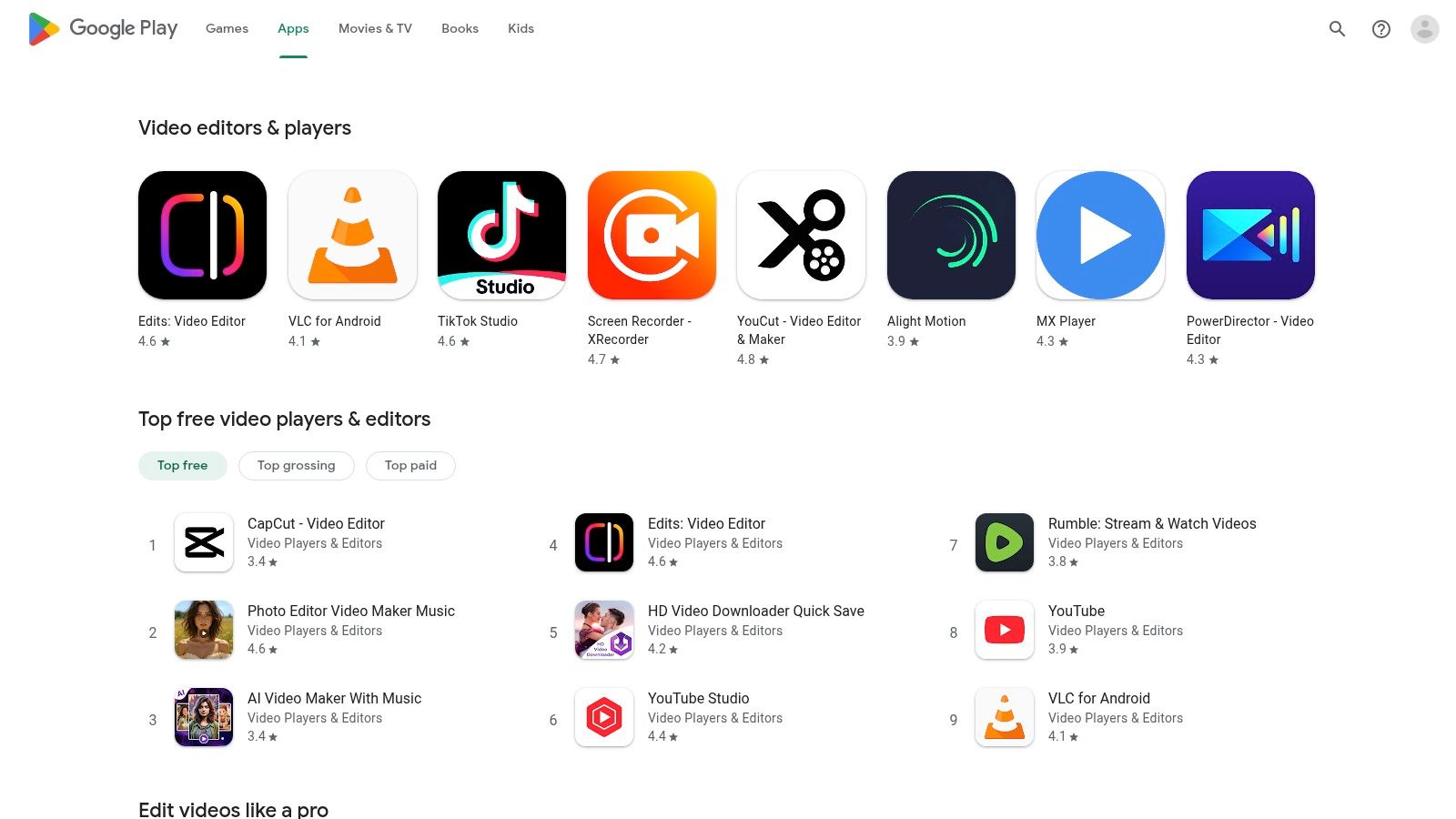
The primary advantage is its seamless integration with the ChromeOS ecosystem. All billing, subscriptions, and refunds are managed securely through your Google account, which simplifies the user experience. You can easily read user reviews and developer update logs to gauge an app's quality and suitability for your device before committing. This integrated approach is a key reason why many creators start their journey here when learning how to edit videos on a Chromebook.
However, it's important to note that app quality can vary significantly. Many apps are designed primarily for phone screens, so their interfaces may not be perfectly optimized for a laptop layout.
Website: Google Play Store - Video Players & Editors
Key Features
- Vast Selection: Access dozens of Android video editors, from simple tools for social media to professional-grade applications.
- One-Click Installation: Apps install directly onto your Chromebook's Android runtime layer with no complex setup.
- Centralized Management: Google handles all subscriptions, payments, and family sharing, providing a trustworthy and convenient system.
| Pros | Cons |
|---|---|
| Simple, integrated installation | App quality and optimization vary |
| Secure and trustworthy billing | Many apps are designed for phones, not laptops |
| User reviews help guide choices | Pricing can change without notice |
2. LumaFusion
LumaFusion is a professional-grade, multi-track editor that brings a desktop-like NLE (non-linear editing) experience to ChromeOS. It stands out as one of the most capable pieces of video editing software for Chromebook users undertaking long-form edits or complex projects. Its touch-optimized interface is powerful yet intuitive, offering a robust toolset that rivals many desktop applications, making it a top choice for serious creators.
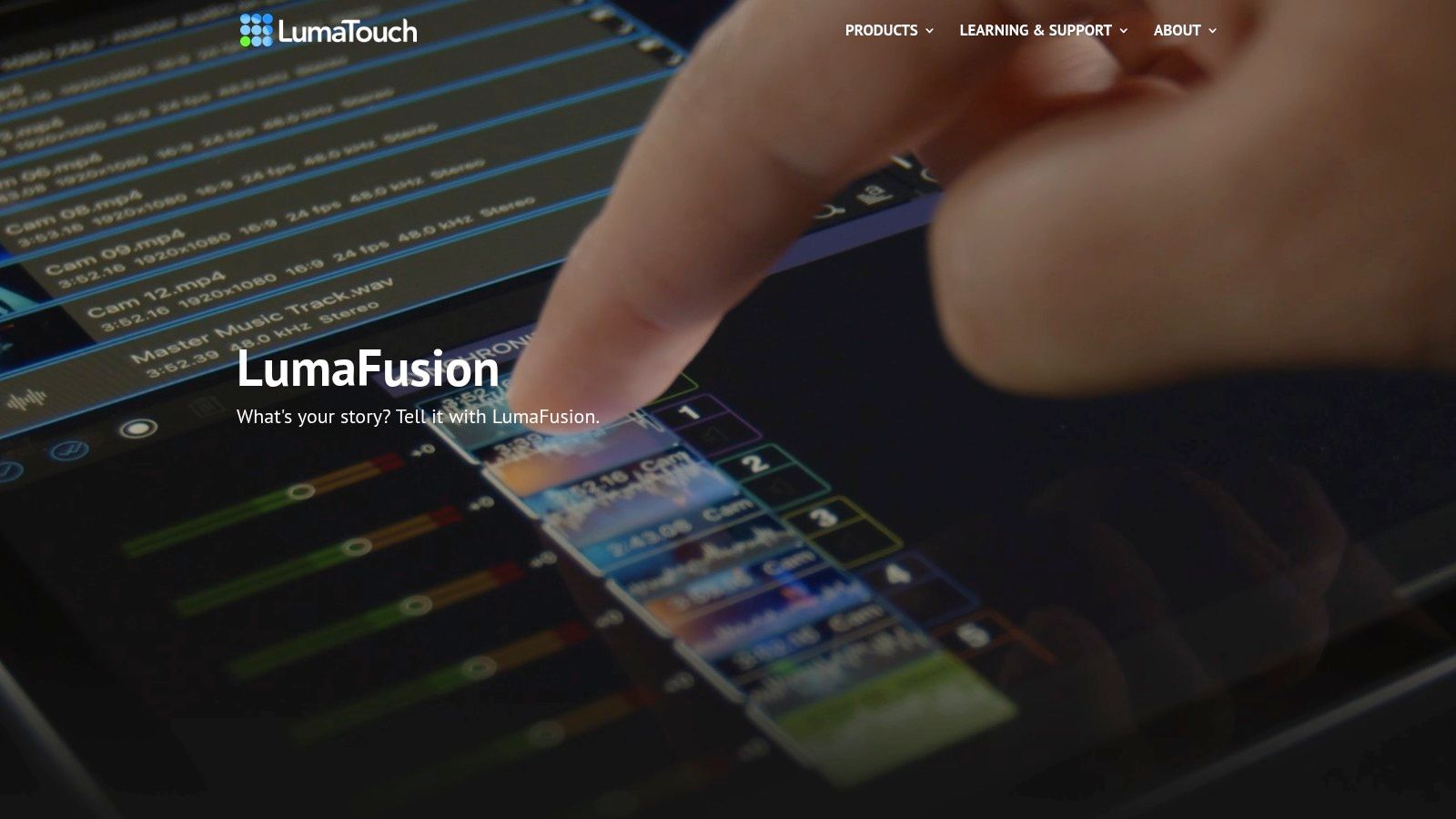
The primary appeal of LumaFusion is its one-time purchase model for the core app, which removes watermarks and unlocks a vast array of professional features from the start. For users who need even more, a Creator Pass subscription and other paid add-ons provide access to features like advanced color correction tools and expanded stock media libraries. While its Android version has sometimes trailed the iOS release in features, regular updates continue to close the gap.
Website: LumaFusion
Key Features
- Multitrack Timeline: Layer multiple video and audio tracks with advanced keyframing for precise control over effects and animations.
- Professional Tooling: Includes LUT support for color grading, speed ramping, and a built-in Storyblocks integration for stock media.
- Optimized Interface: The UI is designed for touch and trackpad use, with helpful in-app tutorials and news panels to guide users.
| Pros | Cons |
|---|---|
| One-time core license with no watermark | Some advanced features require a subscription |
| Robust feature set for professional work | Android version has historically lagged iOS |
| Excellent touch and trackpad controls | Can be resource-intensive on low-end devices |
3. CapCut
CapCut has rapidly become the go-to editor for social media content, offering a powerful suite of tools as both a web-based platform and a popular Android app. Its interface is designed for speed and efficiency, making it an excellent piece of video editing software for Chromebook users focused on creating Shorts, Reels, and TikToks. The platform excels with its vast library of trending templates, effects, and audio, allowing creators to quickly produce high-quality, engaging content.
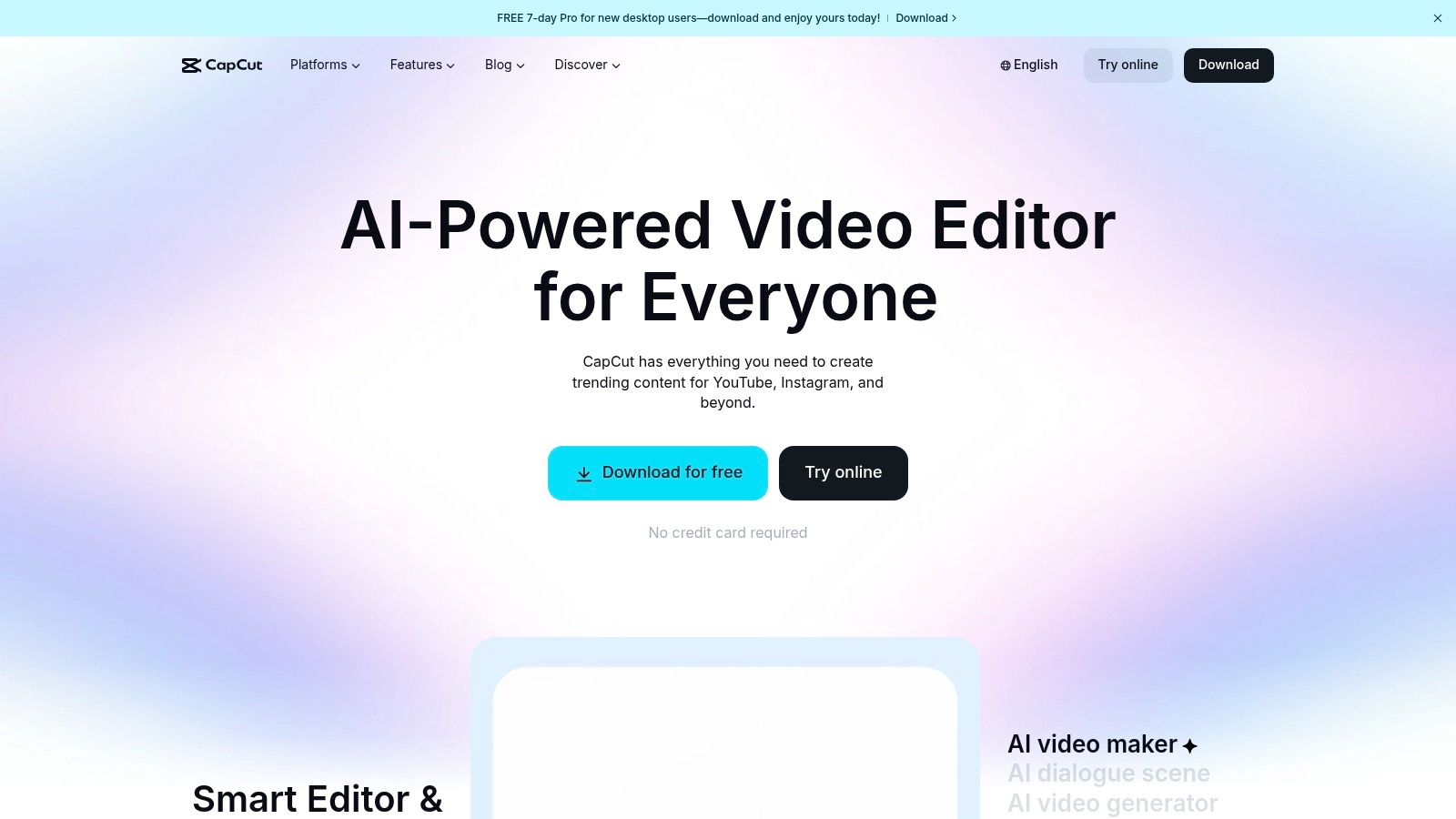
What sets CapCut apart is its seamless integration of AI-powered tools directly into the workflow. Features like auto-captions, text-to-speech, and background removal are easily accessible, streamlining complex tasks that would otherwise require separate applications. While its generous free tier is perfect for most social media tasks, a Pro subscription unlocks more advanced features. For those exploring different options, it's useful to learn about the best CapCut alternative solutions that may better fit specific needs.
Website: CapCut
Key Features
- Web Editor & Android App: Offers flexible access whether you prefer working in a browser tab or a dedicated app on your Chromebook.
- Large Template & Asset Library: A massive, constantly updated collection of templates, effects, and sounds geared toward social media trends.
- Integrated AI Tools: Includes powerful features like auto-captions, script-to-video, and one-click background removal to simplify production.
| Pros | Cons |
|---|---|
| Capable free tier ideal for shorts | Pro pricing can vary by region/platform |
| Abundant community tutorials | Some users report confusing plan differences |
| Tight social publishing integrations | Heavily focused on vertical video formats |
4. KineMaster
As one of the most established and mature mobile nonlinear editors (NLEs), KineMaster provides a robust, layer-based editing experience on ChromeOS via the Google Play Store. It is well-suited for creators who need more granular control than template-based apps offer, allowing for precise timeline editing, multiple video and audio overlays, and a wide range of built-in effects and transitions. Its long-standing presence in the Android ecosystem means there is a wealth of community support and tutorials available.
The interface is optimized for touch but works well with a trackpad, making it a versatile piece of video editing software for Chromebook. The main drawback is the prominent watermark on all free exports; removing it requires a Premium subscription. This subscription also unlocks an extensive asset store filled with professional presets, music, and graphics, alongside project backup and sharing features. All billing is conveniently managed through your Google Play account.
Website: KineMaster
Key Features
- Timeline Editing: Offers multi-track timeline control for precise arrangement of video, audio, text, and effects layers.
- Large Asset Marketplace: A premium store provides access to thousands of royalty-free music tracks, sound effects, stickers, and video templates.
- Advanced Tools: Includes features like chroma key (green screen), keyframe animation, and color adjustments.
| Pros | Cons |
|---|---|
| Mature, feature-rich mobile editor | Free version includes a watermark |
| Lots of tutorials and presets available | Subscription is required for key features |
| Good trackpad and touch optimization | Pricing is managed via Google Play |
5. PowerDirector (CyberLink)
As a long-standing name in consumer video software, CyberLink brings its expertise to ChromeOS with PowerDirector. Available as a highly-rated Android app, it delivers a more traditional, timeline-based editing experience that feels robust on a laptop. It stands out for its stable performance, even on mid-range Chromebooks that might struggle with other intensive applications.
PowerDirector provides a balanced feature set that includes multi-track editing, keyframe controls for effects, and a library of motion titles and templates that are updated frequently. This makes it a dependable choice for users who want more creative control than basic trimmers offer but don't need a full professional suite. It's a solid piece of video editing software for Chromebook users seeking reliability and familiar desktop-style tools.
While the free version is functional, unlocking features like 4K export and removing watermarks requires a subscription. The pricing can sometimes vary by region, so it’s wise to check the Play Store for the most current details.
Website: PowerDirector Mobile
Key Features
- Multi-track Timeline: Layer videos, images, text, and effects with precision on a familiar timeline interface.
- Motion Titles & Effects: Access a regularly updated library of templates, motion graphics, and video effects.
- Keyframe Controls: Animate the position, scale, opacity, and other properties of clips and effects for dynamic results.
| Pros | Cons |
|---|---|
| Good performance on modest hardware | Advanced features and ad removal require a subscription |
| Longstanding consumer brand | Regional differences in pricing and promotions |
| Frequent template and effect updates | The mobile-first interface may feel slightly cramped on some screens |
6. WeVideo
WeVideo is a powerful, cloud-based video editor built from the ground up with collaboration and education in mind, making it an exceptional choice for Chromebook users. As a fully browser-based platform, it requires no installation and is optimized for ChromeOS, even offering a dedicated Chrome Web Store app for easy access. Its standout features are geared towards team-based projects and classroom environments, including shared media libraries and administrative controls for managing student accounts.
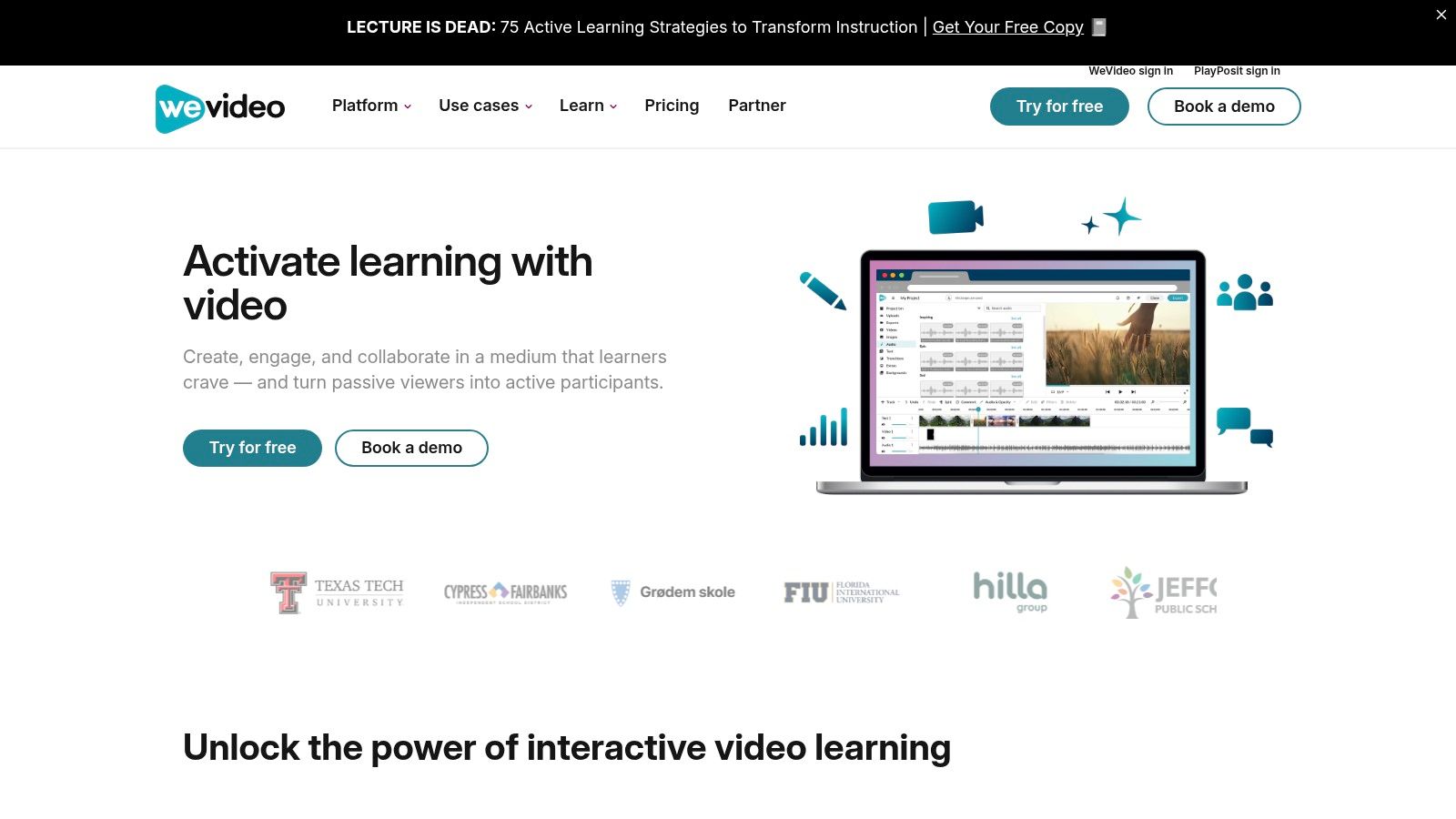
The platform offers a familiar multi-track timeline, a built-in screen and webcam recorder, and creative tools like green screen effects and motion titles. This combination makes it a complete solution for creating anything from simple tutorials to more complex marketing videos. Seamless integration with Google Drive and direct publishing to YouTube streamlines the workflow for creators heavily invested in the Google ecosystem. As a piece of video editing software for Chromebook, its focus on collaborative features truly sets it apart.
However, the free plan is quite restrictive, imposing a watermark and limiting publish time, which may be a significant drawback for many users. To unlock 4K resolution and unlimited cloud storage, a subscription to a higher-priced tier is necessary.
Website: WeVideo
Key Features
- True Browser-Based Editing: Works entirely in the cloud with no software to install, ensuring compatibility and performance on any Chromebook.
- Collaborative Tools: Ideal for teams and schools with shared project folders, media libraries, and administrative controls.
- Integrated Recorders: Includes a screen and webcam recorder, perfect for creating tutorials, presentations, and educational content.
- Creative Suite: Features a multi-track timeline, green screen (chroma key), and a library of motion titles and stock media.
| Pros | Cons |
|---|---|
| Ideal for team collaboration | Free plan includes watermark |
| Optimized for Chromebooks and schools | Limited publish time on free tier |
| Easy integration with Google Drive | 4K and unlimited storage require paid plans |
7. Microsoft Clipchamp
As a browser-based platform, Microsoft Clipchamp is a surprisingly capable and accessible piece of video editing software for Chromebook users. It requires no installation and runs directly in the Chrome browser, making it a great choice for devices with limited storage. Its tight integration with Microsoft accounts and OneDrive is a significant benefit for anyone already invested in that ecosystem, streamlining the process of importing and saving media files.
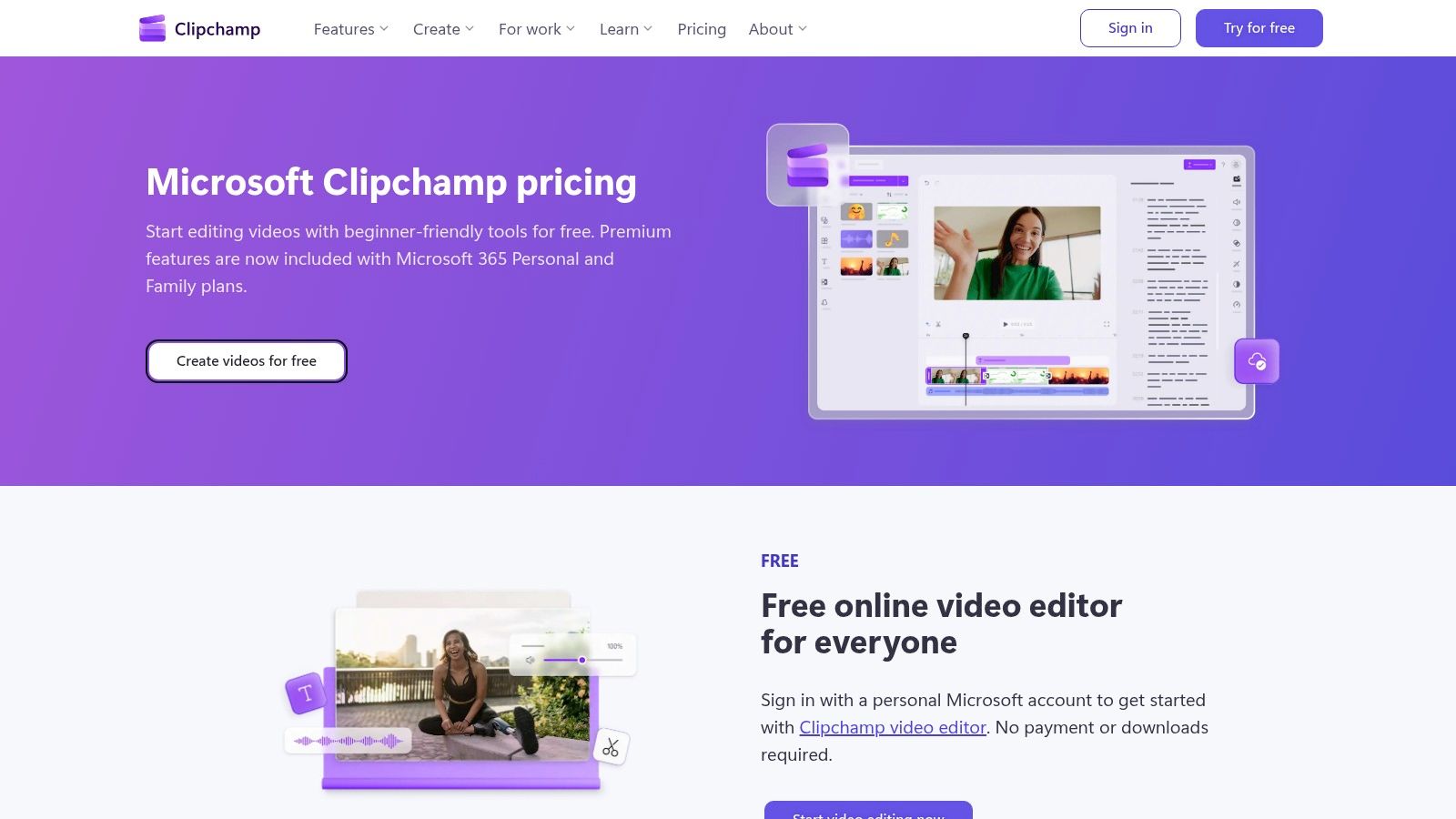
What makes Clipchamp stand out is its generous free tier, which offers essentials like screen and webcam recording, AI-powered subtitles, and crisp 1080p exports without a watermark. This makes it ideal for creating professional-looking content for YouTube or social media without any initial investment. Users with a Microsoft 365 subscription unlock premium features, including 4K exports and access to a larger stock media library.
While it's designed to be beginner-friendly, the interface can sometimes feel sluggish on more complex or longer projects, especially on lower-spec Chromebooks.
Website: Microsoft Clipchamp
Key Features
- Browser-Based Convenience: Runs entirely in Chrome with no software installation required, perfect for any Chromebook.
- Generous Free Tier: Includes 1080p watermark-free exports, screen recording, and AI subtitles.
- Microsoft 365 Integration: Seamlessly connects with OneDrive for cloud storage and unlocks premium features like 4K exports for subscribers.
| Pros | Cons |
|---|---|
| No software install required | Interface can feel sluggish on heavy projects |
| Strong features for Microsoft 365 users | AI auto-editing is limited compared to competitors |
| Watermark-free 1080p on free plan | Heavily reliant on a stable internet connection |
8. Canva Video Editor
Canva has evolved from a simple graphics tool into a comprehensive creative suite, and its browser-based video editor is a powerful component for Chromebook users. It excels at template-driven production, making it incredibly fast to create professional-looking social media content like Reels, TikToks, and Shorts. The platform leverages a massive library of stock assets, fonts, and animations, all accessible within a user-friendly, drag-and-drop interface.
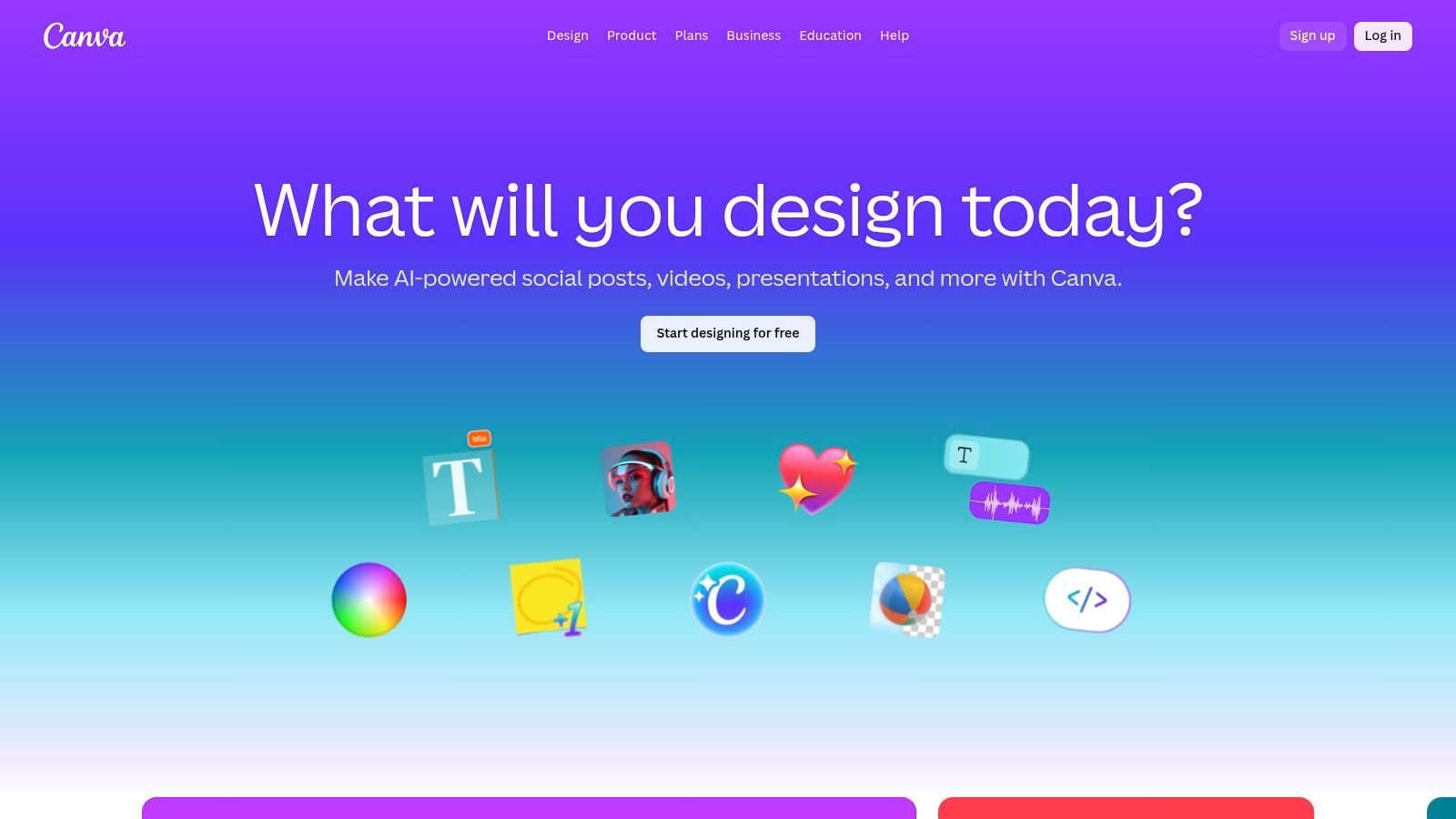
What makes Canva a standout choice is its integration with the broader design ecosystem, including its expanding set of AI-powered "Magic" creative tools. Features like Magic Edit and Magic Design streamline the creation process, while the revamped multi-track editor provides more granular control than its earlier versions. For those just starting, it's an excellent example of capable video editing software for beginners that runs smoothly on ChromeOS. The emphasis on brand kits and team collaboration in its paid plans also makes it a go-to for social media marketers.
Website: Canva Video Editor
Key Features
- Rich Template & Asset Library: Access thousands of pre-made video templates and a vast library of stock footage, music, and graphics.
- AI 'Magic' Creative Tools: Utilize AI-powered features for automated editing, content generation, and media enhancement.
- Integrated Multi-Track Editor: Arrange video clips, audio, text, and graphics on separate layers for more complex compositions.
- Brand Kit & Team Sharing: (Pro/Teams) Maintain brand consistency with shared logos, colors, and fonts for collaborative projects.
| Pros | Cons |
|---|---|
| Very quick for creating social media content | Editor updates have sometimes introduced bugs or regressions |
| Strong team and brand sharing on paid plans | Teams pricing increased significantly in 2024; verify current cost |
| Massive library of templates and assets | Can feel less precise than traditional video editors |
9. VEED
VEED is a powerful, browser-based video editing platform that excels at simplifying complex tasks like subtitling, translation, and screen recording. It’s designed for speed, making it an excellent choice for social media managers, marketers, and educators who need to create and repurpose content quickly. Because it runs entirely online, it is a perfect piece of video editing software for Chromebook users who want to avoid software installation and leverage AI-powered tools.
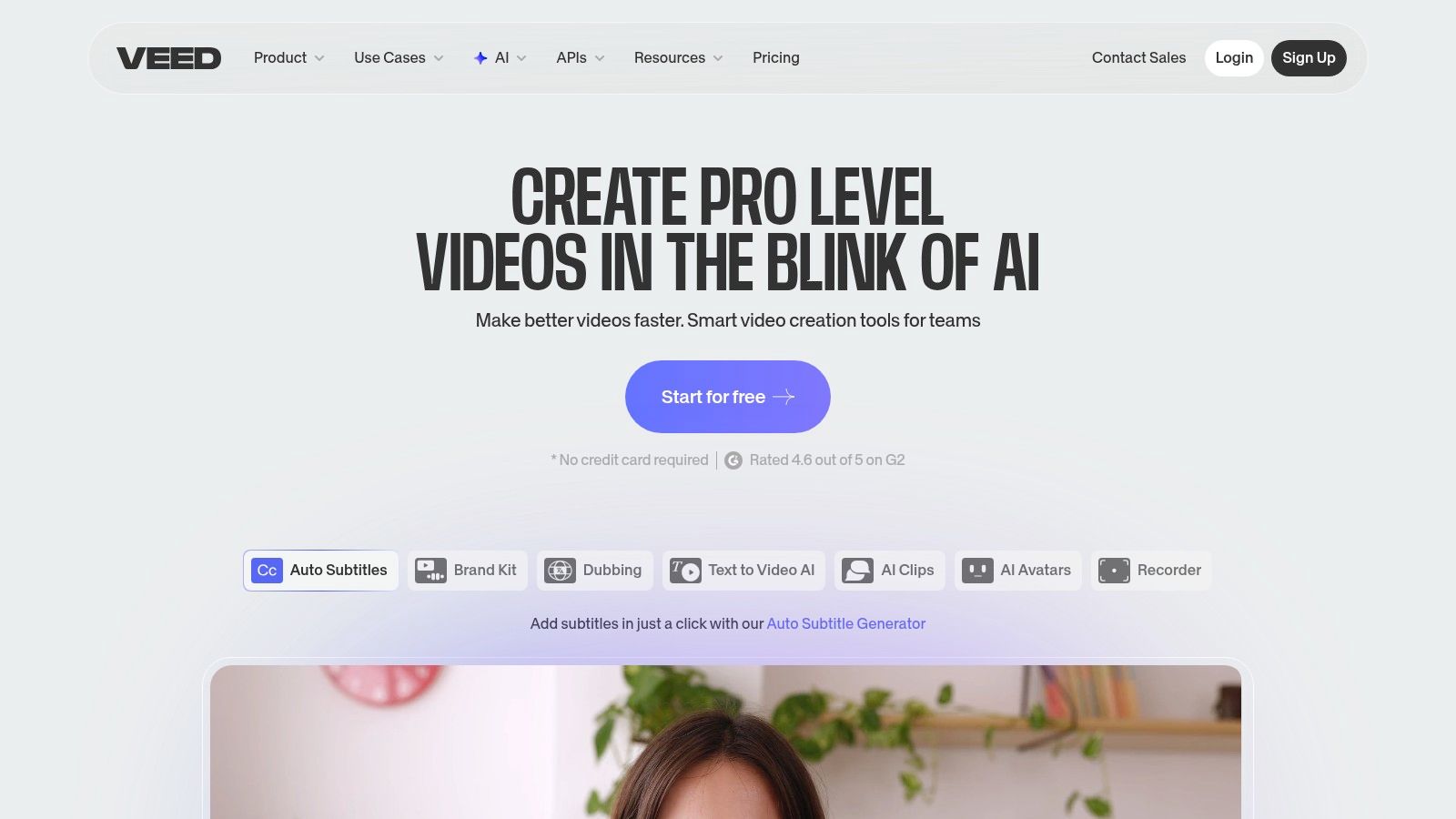
The platform’s strength lies in its AI features, including text-to-speech, AI avatars, and automatic caption generation, which streamline content creation workflows. While it offers a capable freemium plan, the best features and highest quality exports are reserved for its paid tiers. The free version exports videos in 720p with a watermark, making an upgrade necessary for professional use. Higher-tier plans also unlock team collaboration tools and brand kits.
Website: VEED
Key Features
- Strong Subtitle and Translation Tools: Automatically generate, edit, and translate captions with high accuracy to make content more accessible.
- AI-Powered Features: Includes screen recording, text-to-speech generation, and AI avatars to enhance video production.
- Team Collaboration: Pro and Enterprise plans offer shared workspaces, brand kits, and collaborative editing features.
| Pros | Cons |
|---|---|
| Fast workflow for captioning | Free exports are watermarked and limited to 720p |
| No installs required; browser-based | Higher quality requires a paid subscription |
| Powerful AI and screen recording tools | Some users report issues with AI credit usage |
10. Kapwing
Kapwing is a collaborative, browser-based video editor that excels at team-based workflows and social media content creation. It's a powerful piece of online video editing software for Chromebook users focused on efficiency, offering tools for quick repurposing, subtitling, and resizing. The platform's strength lies in its AI-assisted features and simple sharing capabilities, making it ideal for marketing teams and creators who need to produce content quickly.
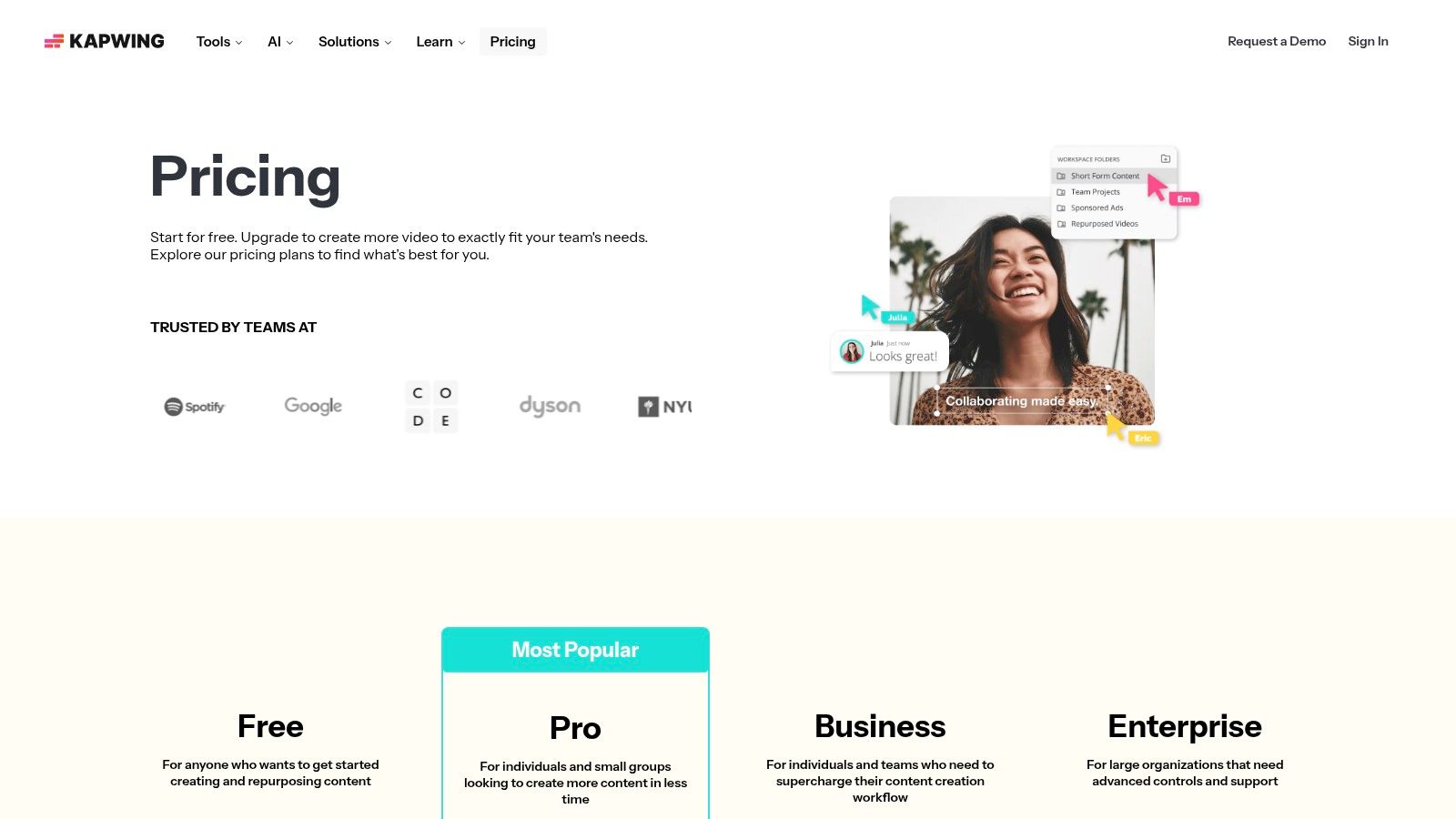
Its interface is clean and modern, designed to reduce the friction of common editing tasks like adding captions, translating text, or trimming clips. Kapwing uses a credit-based system for its advanced AI tools, such as script generation and smart trimming, which are managed through its tiered pricing plans. The free plan is generous enough for casual use, though it includes a watermark and limits export quality, while Pro and Business tiers unlock higher resolutions and more AI credits.
Website: Kapwing
Key Features
- AI-Assisted Tools: Features like automatic subtitling, translation, and a video script generator speed up the creation process.
- Collaborative Workflows: Easily share projects with team members or clients for feedback and real-time editing via a simple link.
- Social Media Resizing: Instantly resize videos for different platforms like TikTok, Instagram Reels, and YouTube Shorts with preset aspect ratios.
| Pros | Cons |
|---|---|
| Strong for subtitling and translations | AI features consume credits, which can be costly |
| Simple sharing and team collaboration | Free exports are limited (watermark, 720p) |
| Intuitive, modern user interface | Heavy use may require the more expensive Business tier |
11. VN – VlogNow
VN Video Editor, often known as VlogNow, is a powerful Android app that has become a favorite among content creators using Chromebooks. It provides a surprisingly robust feature set for a free mobile-first editor, including a multi-track timeline, keyframe animation, and speed curve adjustments. This combination makes it an excellent choice for producing sophisticated social media content like Instagram Reels and YouTube Shorts directly on a Chromebook.
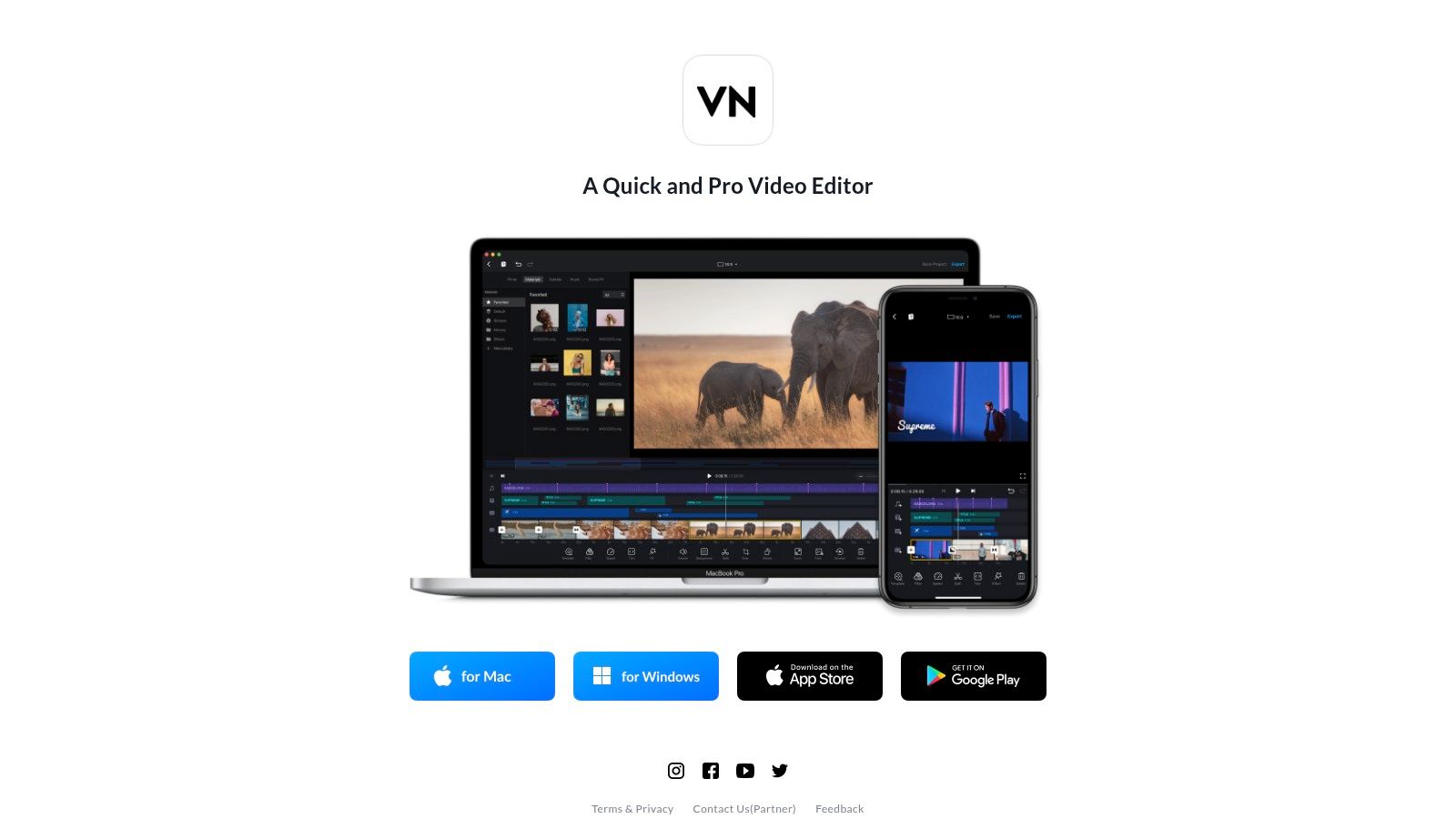
The app's biggest draw is that many of its advanced features are available without requiring a subscription, and exports often come without a watermark. This makes it a highly accessible piece of video editing software for Chromebook users on a budget. While the core experience is free, some advanced assets and features may be offered as in-app purchases. However, users have occasionally noted concerns regarding customer support and the ease of transferring projects between devices.
Website: VN - VlogNow
Key Features
- Multi-Track Timeline: Layer video, text, and effects with picture-in-picture (PiP) and keyframe controls.
- Advanced Speed Controls: Create dynamic slow-motion or fast-forward effects using intuitive speed curves.
- LUT Import Support: Apply custom color look-up tables to achieve a consistent, professional-grade aesthetic across your projects.
- High-Quality Export: Supports up to 4K resolution and 60fps exports on compatible Chromebooks.
| Pros | Cons |
|---|---|
| Robust features for a free app | Customer support has drawn criticism |
| No watermark on many exports | Data portability can be challenging |
| Keyframing and speed curves | In-app purchases may vary by region |
12. Wondershare Filmora
Wondershare Filmora is a popular, consumer-focused editor available as an Android app on many Chromebooks. It provides a polished, intuitive user interface that is well-suited for users looking to quickly create engaging content for social media. The platform is known for its extensive library of templates, effects, and presets that streamline the creative process.
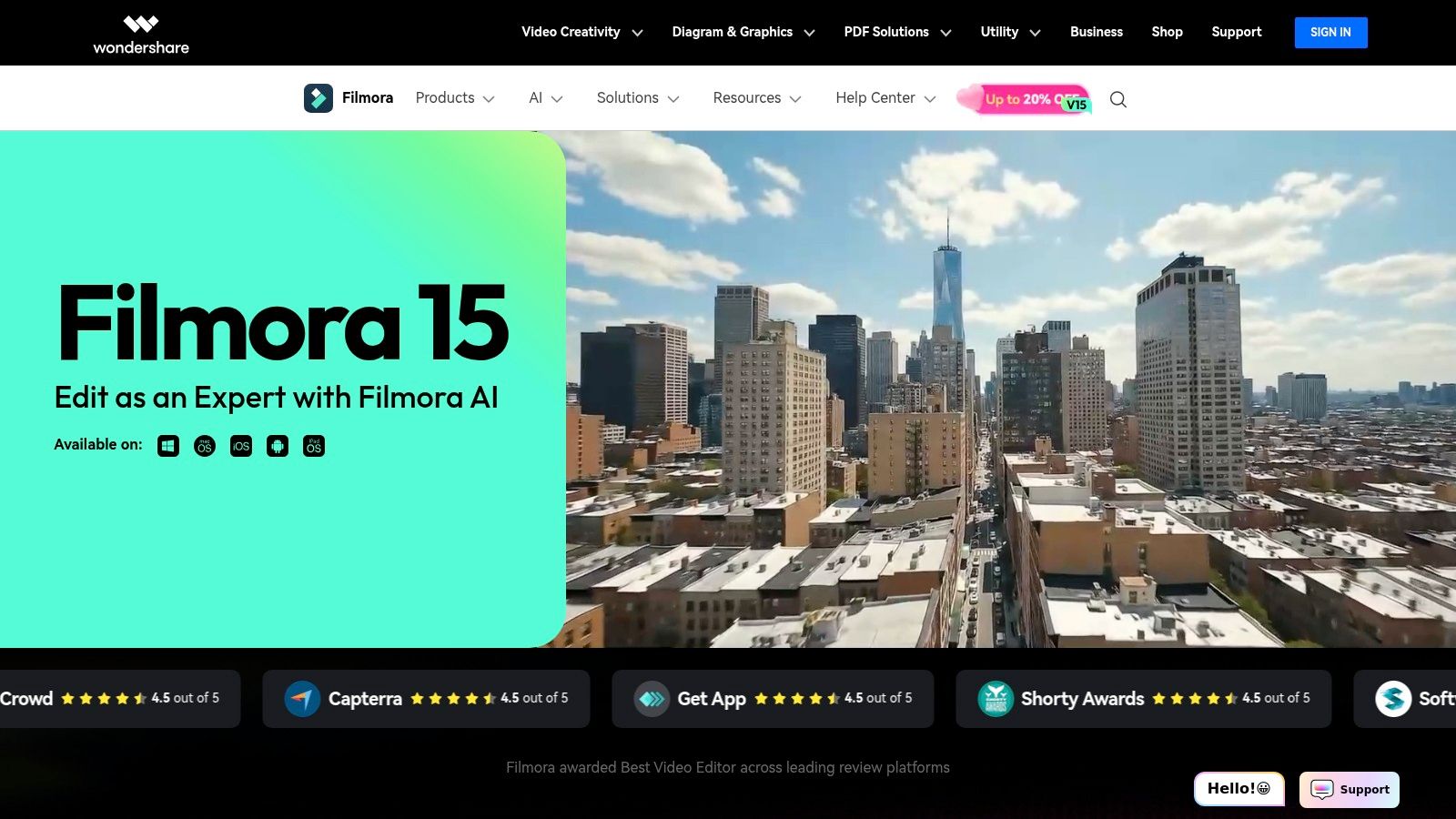
Filmora's strength lies in making advanced features accessible. Many of its AI tools, like smart cutouts and audio editing, are simplified for beginners. While the core experience is solid, it's crucial for users to carefully review the different plans. Subscriptions often come with specific cloud storage quotas, AI credits, and asset limits, which are detailed on their shopping pages but can vary significantly between mobile and desktop bundles. This makes it a capable piece of video editing software for Chromebook, provided you choose the right package.
Website: Wondershare Filmora
Key Features
- Template & Effects Marketplace: Access a large library of pre-made titles, transitions, and effects to speed up editing.
- Simplified Timeline: An intuitive timeline designed for consumer workflows, making it easy to arrange clips and add effects.
- AI-Powered Tools: Includes features like AI Portrait and Auto Reframe, though some may require credit-based purchases.
| Pros | Cons |
|---|---|
| Polished UI with many creative presets | Community reports of confusing plan/licensing issues |
| Transparent listing of cloud/asset quotas | Mobile entitlements and credits can vary; verify before purchase |
| Good for quick, template-based edits | The Android app may be less powerful than the desktop version |
Top 12 Chromebook Video Editors — Feature & Compatibility Comparison
| Product | Core features | UX / Quality ★ | Price / Value 💰 | Target audience 👥 | Unique selling points ✨🏆 |
|---|---|---|---|---|---|
| Google Play Store – Video Editors category | App discovery, one‑click Chromebook installs, reviews & billing | ★★★ (varies) | 💰 Regional/in‑app pricing & subscriptions | 👥 App seekers, Chromebook users, devs | ✨Central marketplace; 🏆 trusted billing & updates |
| LumaFusion | Multitrack NLE, advanced keyframing, LUTs, Storyblocks | ★★★★★ (pro‑grade) | 💰 One‑time core purchase + optional Creator Pass | 👥 Professionals, long‑form editors | ✨Desktop‑like NLE on touch; 🏆 robust pro feature set |
| CapCut | Web + Android editor, templates, AI captions & bg removal | ★★★★ (social‑first) | 💰 Free tier; Pro subscription | 👥 Social creators, short‑form editors | ✨Large template library, integrated AI; 🏆 ease for reels/shorts |
| KineMaster | Timeline editing, overlays, asset marketplace, keyframing | ★★★★ (mature mobile NLE) | 💰 Freemium → Premium removes watermark | 👥 Mobile creators, social editors | ✨Extensive presets & tutorials; reliable mobile workflow |
| PowerDirector (CyberLink) | Multi‑track, keyframing, motion titles, 4K export | ★★★★ (stable on modest hardware) | 💰 Subscription for advanced features/4K | 👥 Consumers on mid‑range Chromebooks | ✨Optimized performance; frequent template updates |
| WeVideo | Browser editing, screen/webcam recorder, green screen | ★★★ (collaboration focus) | 💰 Freemium; edu/team paid tiers | 👥 Schools, teams, Chromebook fleets | ✨Cloud collaboration & admin controls; 🏆 education‑friendly |
| Microsoft Clipchamp | Browser editor, screen/webcam, AI subtitles, OneDrive | ★★★ (beginner‑friendly) | 💰 Free 1080p; premium via Microsoft 365 | 👥 Beginners, Microsoft/OneDrive users | ✨No watermark at 1080p free; MS integration |
| Canva Video Editor | Template‑driven multi‑track, AI "Magic" tools, brand kit | ★★★★ (fast & template‑led) | 💰 Freemium; Pro/Teams subscription | 👥 Marketers, teams, social creators | ✨Huge template/assets + brand sharing; 🏆 speed to publish |
| VEED | Subtitles, translations, TTS, avatars, screen recording | ★★★ (AI & caption focus) | 💰 Freemium; Pro/Enterprise plans | 👥 Captioning workflows, social creators | ✨Best‑in‑class subtitles & quick repurposing |
| Kapwing | Subtitling, resizing, AI tools, collaboration & credits | ★★★ (team‑friendly) | 💰 Freemium; credited AI & tiered plans | 👥 Teams, repurposers, content ops | ✨Clear pricing/credits + easy collaboration |
| VN – VlogNow | Multi‑track timeline, speed curves, LUT import, 4K/60fps | ★★★★ (robust free app) | 💰 Free core app; optional in‑app purchases | 👥 Mobile vloggers, on‑the‑go editors | ✨Powerful free feature set; often no watermark |
| Wondershare Filmora | Templates & effects marketplace, simple timeline, AI tools | ★★★ (polished consumer UI) | 💰 Freemium/subscriptions; credit features | 👥 Consumers & beginner creators | ✨Polished presets and creative marketplace |
Choosing Your Ideal Chromebook Video Editor
The idea that powerful video editing is out of reach on a Chromebook is officially a myth. As we've explored, the modern ChromeOS ecosystem offers a surprisingly diverse and capable range of tools, from robust Android applications to sophisticated browser-based editors. The key isn't finding a single piece of video editing software for chromebook that does everything; it's about building a flexible workflow tailored to your specific projects and creative needs.
Your journey begins with a clear understanding of your goals. Are you a professional editor tackling complex, multi-track projects with precise color grading? An Android powerhouse like LumaFusion is likely your best investment, offering unparalleled control and a feature set that rivals desktop applications. On the other hand, if your focus is on creating trendy, fast-paced content for TikTok or Instagram Reels, the template-driven efficiency of web-based tools like CapCut or Canva will get you from concept to completion in record time.
Matching the Tool to the Task
Making the right choice comes down to balancing performance, features, and workflow convenience.
For Professional Control & Long-Form Content: LumaFusion and PowerDirector stand out. These Android apps leverage your Chromebook's hardware most directly, providing multi-track timelines, advanced effects, and the granular control needed for detailed storytelling. They are ideal for YouTube creators, filmmakers, and editors who require a traditional NLE (non-linear editor) experience.
For Social Media & Quick Edits: Browser-based editors like WeVideo, Canva, and VEED are champions of speed and accessibility. Their strength lies in cloud-based processing, collaborative features, and vast libraries of templates and stock assets, making them perfect for social media managers and content creators focused on high-volume output.
For Specialized AI-Powered Tasks: A modern, efficient workflow often involves using specialized tools for specific tasks. This is where browser-native AI utilities become invaluable. For instance, instead of bogging down your main editor with heavy background removal processing, a tool like VideoBGRemover handles it independently, directly in your Chrome browser. This modular approach keeps your Chromebook running smoothly and saves precious processing power for creative editing.
Ultimately, the best video editing software for chromebook is not a single application but a personalized toolkit. By combining a primary editor with specialized, high-performance web tools, you can construct a workflow that is not only powerful but also perfectly suited to the lightweight, cloud-centric nature of ChromeOS. While these tools are excellent for ChromeOS, many more options exist in the broader market. To explore a comprehensive list of other top-rated options, you can check out guides to the best video editing software and see how they compare.
The platform is more capable than ever. Now it's time to choose your tools, start creating, and show the world what's possible on a Chromebook.
Ready to streamline your workflow and create professional-looking videos without a green screen? Try VideoBGRemover to remove video backgrounds with a single click, right in your browser. It's the perfect, resource-light companion for any Chromebook video editor, giving you clean, transparent exports for any project. Try VideoBGRemover for free today!
Tagged with
Ready to Remove Your Video Background?
See a free preview before you buy.
No credit card required • Free preview on every video