The 12 Best Video Editing Software for Beginners in 2025
Discover the top video editing software for beginners. Our guide reviews 12 easy-to-use tools to help you create stunning videos with no experience.
Stepping into the world of video creation can feel overwhelming, especially when faced with complex software. Finding the right video editing software for beginners is crucial, as the best tool is one that empowers you without a steep learning curve. This guide is designed to demystify that process and help you create professional-looking videos, from viral TikToks and Reels to polished YouTube tutorials.
We will explore a curated list of the top software solutions, breaking down which tools are best suited for different goals. Whether you are a content creator, social media marketer, or educator, our analysis focuses on ease of use, unique features, and pricing models to provide a clear roadmap. We go beyond simple descriptions, offering insights into practical applications, such as using specific tools for creating effective product videos or engaging social media ads.
Each option in our list includes screenshots and direct links, so you can see the interface and explore it for yourself. Our goal is to help you select the perfect software that not only fits your budget but also aligns with your creative vision. Forget the technical jargon and confusing interfaces; this comprehensive resource will guide you directly to the tool that will grow with you, helping you bring your ideas to life, one edit at a time. Let's find your ideal video editor.
1. Adobe Premiere Elements
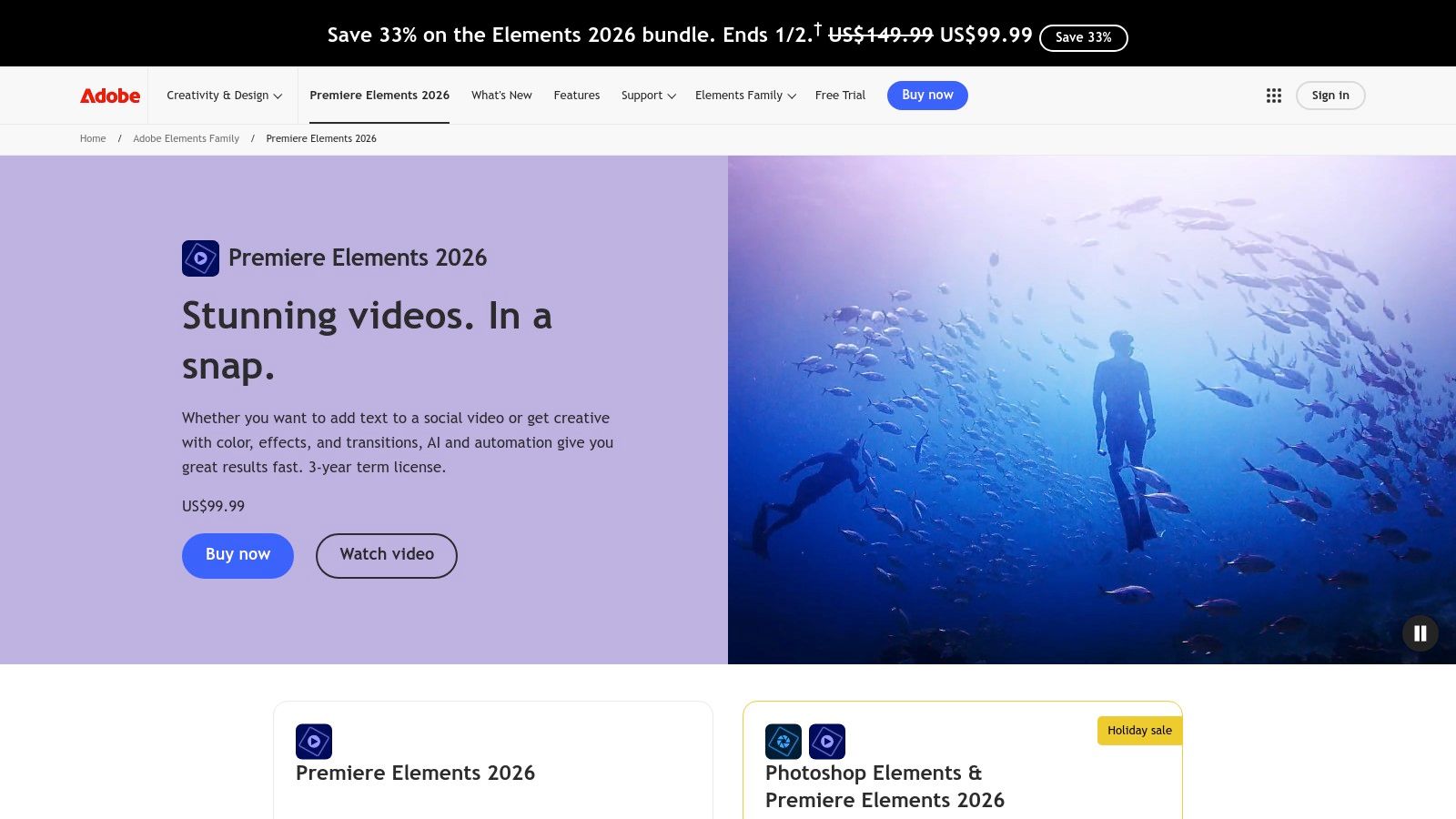
Adobe Premiere Elements stands out as a top choice for those seeking powerful, yet approachable video editing software for beginners without the commitment of a monthly subscription. It bridges the gap between basic, free editors and professional-grade software like Adobe Premiere Pro, offering a structured learning environment. The software's unique three-mode interface (Quick, Guided, and Advanced) allows users to grow their skills, starting with simple edits and progressing to more complex techniques at their own pace.
This tiered approach is its greatest strength. The "Guided Edits" feature is a standout, providing interactive, step-by-step tutorials for creating popular effects like double exposures, animated overlays, and time-lapses. This makes learning complex techniques feel less intimidating and more like a creative exploration. It’s an ideal environment for anyone who wants a clear path from novice to confident editor.
Key Features & User Experience
Unlike subscription models, Premiere Elements is sold as a one-time purchase, which many beginners prefer for its predictable cost. The software is known for its stability and broad file format support, handling everything from smartphone clips to 4K footage reliably. Its AI-powered features, branded as Adobe Sensei, automate tasks like reframing subjects for social media or applying smart trims to find the best moments in your footage. To dive deeper into foundational editing concepts, explore these video editing tips for beginners that can enhance your workflow.
| Feature | Details |
|---|---|
| Pricing | One-time purchase ($99.99 USD) or bundled with Photoshop Elements ($149.99 USD) |
| Best For | Home movies, family videos, social media content, and learning core editing skills. |
| Platform | Windows & macOS |
| Core Strengths | Guided Edits, three-tiered skill interface, no subscription, stable performance. |
| Website | Visit Adobe Premiere Elements |
Pros:
- Excellent guided tutorials for skill development
- No recurring monthly subscription fee
- Strong stability and broad format compatibility
Cons:
- Fewer advanced controls compared to Premiere Pro
- The one-time license may require paid upgrades for major new versions
2. Wondershare Filmora
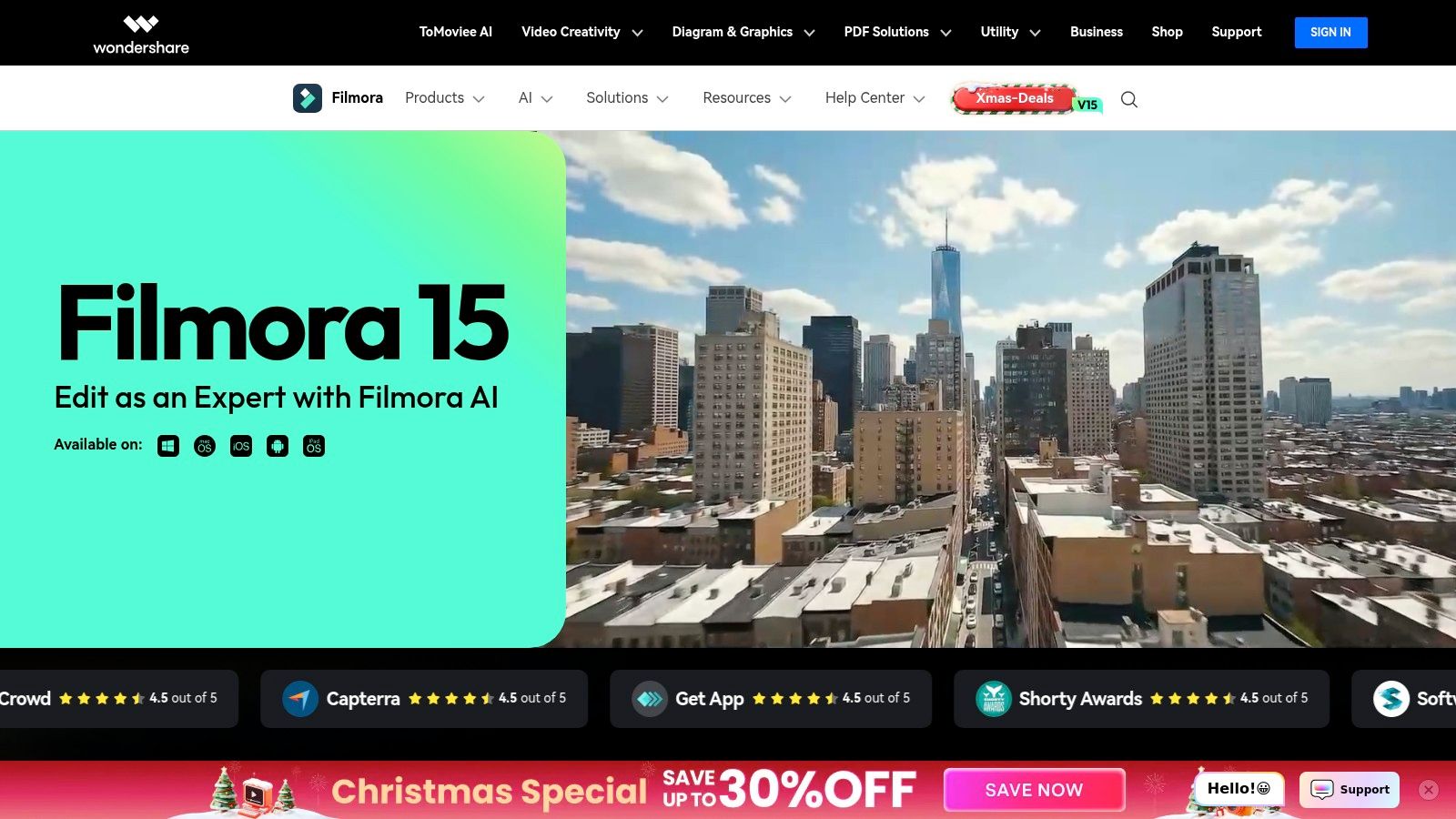
Wondershare Filmora has established itself as a go-to choice for creators looking for intuitive video editing software for beginners that balances simplicity with a rich feature set. It is particularly popular among social media creators and YouTubers for its user-friendly drag-and-drop interface and vast library of built-in effects, transitions, and titles. Filmora successfully lowers the barrier to entry, making it possible to produce polished, eye-catching videos without a steep learning curve.
Its strength lies in its accessibility and speed. Users can quickly assemble clips, add trendy effects, and export high-quality videos, often in a fraction of the time it would take in more complex software. The integrated Filmstock library provides a wealth of creative assets, while optional AI tools for tasks like speech-to-text and subject masking further streamline the editing process. This makes Filmora an excellent starting point for anyone eager to create engaging content right away.
Key Features & User Experience
Filmora offers flexible pricing with both annual subscriptions and a one-time perpetual license, appealing to different user budgets. Its performance is generally smooth, supporting 4K footage and providing a clean, organized timeline that is easy to navigate. The platform's emphasis on pre-made templates and effects allows beginners to achieve professional-looking results without deep technical knowledge. For a closer look at how it stacks up against other editors, see this detailed video editing software comparison to help inform your choice.
| Feature | Details |
|---|---|
| Pricing | Annual Plan (from $49.99/year) or Perpetual License ($79.99 USD) |
| Best For | YouTube videos, social media content, tutorials, and anyone wanting creative effects easily. |
| Platform | Windows, macOS, Android, & iOS |
| Core Strengths | Extremely intuitive UI, large built-in effects library, affordable pricing options. |
| Website | Visit Wondershare Filmora |
Pros:
- Very approachable UI and templates great for beginners
- Affordable entry pricing and frequent promotions
- Lots of ready-made titles and effects for social media
Cons:
- Some advanced features are gated behind add-ons or AI credits
- Users report mixed experiences with trials and billing; always verify plan terms
3. CyberLink PowerDirector
CyberLink PowerDirector has long been a heavyweight contender in the consumer space, delivering a powerful suite of tools that appeal to new users and experienced editors alike. It strikes a rare balance, offering both a simple, guided editing experience and a full-featured timeline mode packed with advanced options. This makes it a fantastic piece of video editing software for beginners who anticipate their skills and project complexity will grow over time.
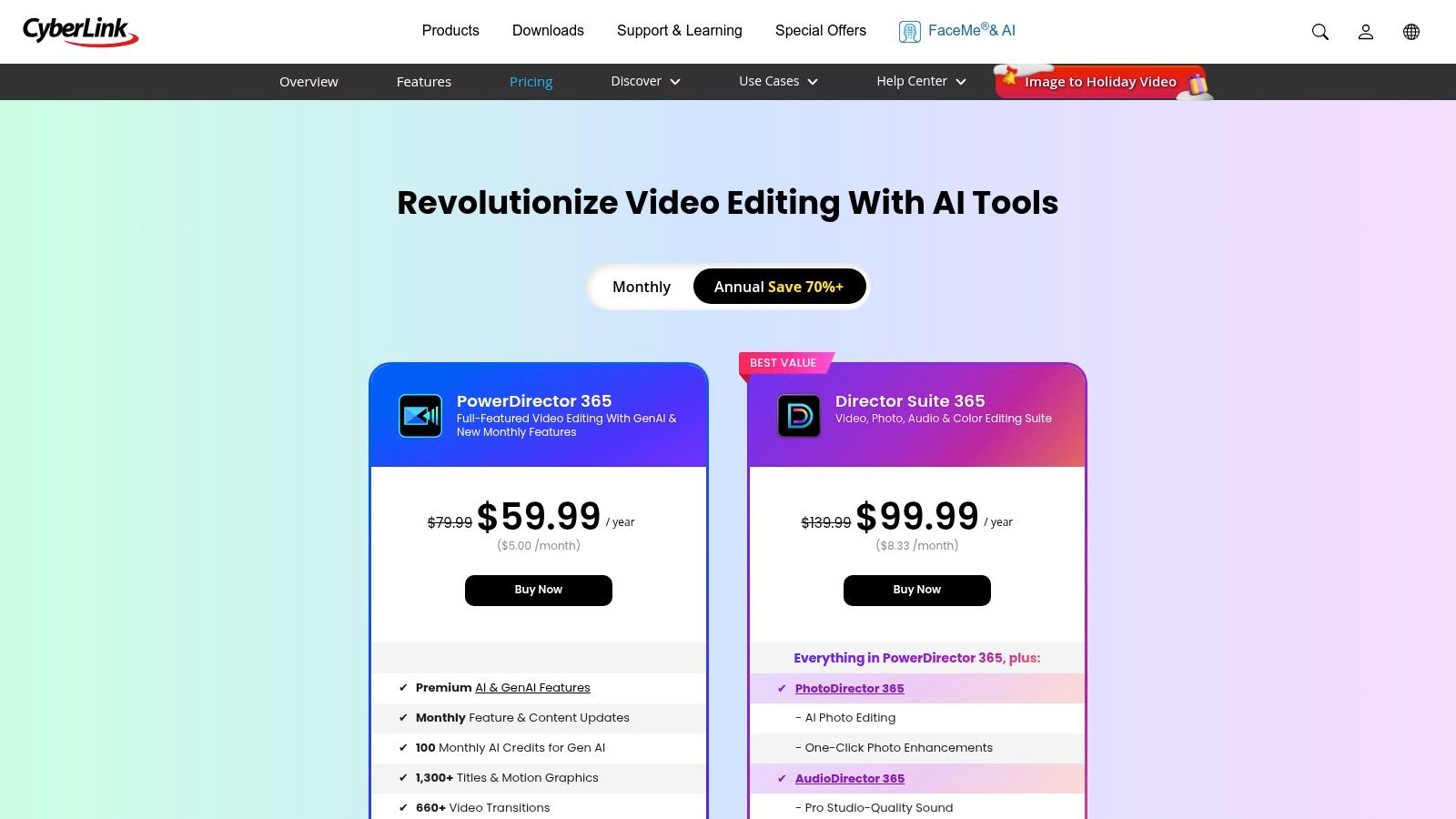
The software is particularly known for its fast rendering speeds and a vast library of creative effects, transitions, and templates. The PowerDirector 365 subscription model sweetens the deal by including access to an extensive stock library of videos, photos, and music from providers like Shutterstock. This integrated asset library is a huge time-saver, allowing creators to find high-quality B-roll and background music without ever leaving the application.
Key Features & User Experience
PowerDirector offers flexible purchasing options: a one-time perpetual license for those who dislike subscriptions, or the PowerDirector 365 plan for continuous updates and stock asset access. Its interface is clean and intuitive, with guided tools to help create slideshows and assemble clips quickly. For more complex projects, the advanced timeline provides multi-track editing, keyframing, and powerful AI tools for tasks like speech-to-text transcription, sky replacement, and object detection.
| Feature | Details |
|---|---|
| Pricing | Subscription (PowerDirector 365 from $51.99/year) or one-time purchase (from $99.99 USD). |
| Best For | Action camera footage, YouTube content, and users wanting both simple and advanced modes. |
| Platform | Windows & macOS |
| Core Strengths | Fast rendering, large effects library, integrated stock assets (365 plan), flexible pricing. |
| Website | Visit CyberLink PowerDirector |
Pros:
- Excellent balance of beginner-friendly and advanced features
- Both perpetual and subscription licenses are available
- Subscription includes a rich library of stock content and effects
Cons:
- The different pricing tiers and included features can be confusing to navigate
- Some users report issues with software updates and customer support
4. Movavi Video Editor
Movavi Video Editor carves out its niche by offering one of the most intuitive and fastest learning curves among video editing software for beginners. It’s designed for users who want to create polished, modern-looking videos quickly without getting bogged down in technical complexities. The interface is clean and uncluttered, prioritizing drag-and-drop functionality for everything from adding clips to applying titles and transitions, making the entire process feel straightforward from the start.
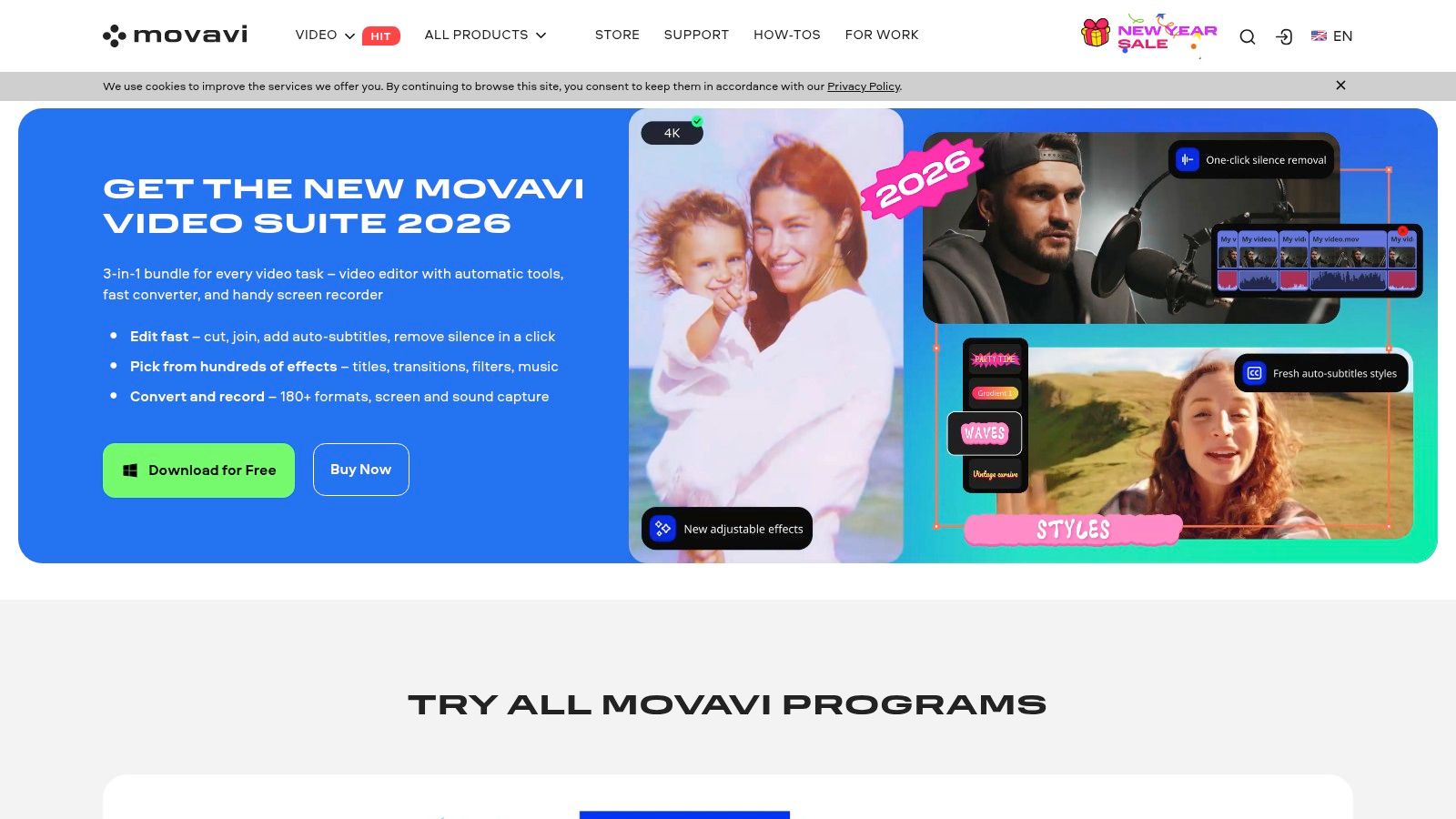
This emphasis on speed and simplicity is its core advantage. Movavi excels at providing sensible defaults and quick tools that deliver impressive results with minimal effort. Features like one-click silence removal and stylish auto-subtitles help automate tedious tasks, allowing creators to focus on the creative aspects of their projects. It's the ideal choice for anyone who needs to produce content like tutorials, vlogs, or social media clips efficiently and with a professional flair.
Key Features & User Experience
Movavi offers flexible licensing with options for a 1-year subscription or a lifetime purchase, catering to different user preferences and budgets. The software is remarkably well-optimized, performing smoothly even on modest PC hardware, which is a significant plus for users without high-end editing rigs. Its core toolset includes all the essentials, such as stabilization for shaky footage, chroma key (green screen) for creative backgrounds, and support for 4K video processing, ensuring your final output is high quality.
| Feature | Details |
|---|---|
| Pricing | 1-year license ($54.95 USD) or Lifetime license ($79.95 USD) |
| Best For | Quick social media edits, YouTube tutorials, vlogs, and general-purpose video creation. |
| Platform | Windows & macOS |
| Core Strengths | Extremely user-friendly interface, great performance on average computers, lifetime license option. |
| Website | Visit Movavi Video Editor |
Pros:
- Incredibly fast to learn with a simple, intuitive layout
- Lifetime license option provides great long-term value
- Good performance and stability on modest PCs
Cons:
- Lacks the advanced feature set of professional-grade editors
- Many extra effects and assets are sold separately as upsells
5. Blackmagic Design DaVinci Resolve
Blackmagic Design DaVinci Resolve offers an unparalleled entry point into professional-grade video editing software for beginners, primarily because its incredibly powerful free version has no watermarks or major functional limitations. It's famous in Hollywood for color grading, but its streamlined "Cut" page provides a simplified, intuitive workspace perfect for newcomers. This allows users to perform essential edits quickly without being overwhelmed by the software's immense depth.
The real advantage of starting with Resolve is its scalability. As your skills grow, you can seamlessly transition from the simple Cut page to the more traditional "Edit" page, then explore industry-leading tools for visual effects (Fusion), color correction, and audio post-production (Fairlight), all within the same application. This all-in-one design eliminates the need to learn new software as your projects become more ambitious, making it a tool that can truly last a lifetime.
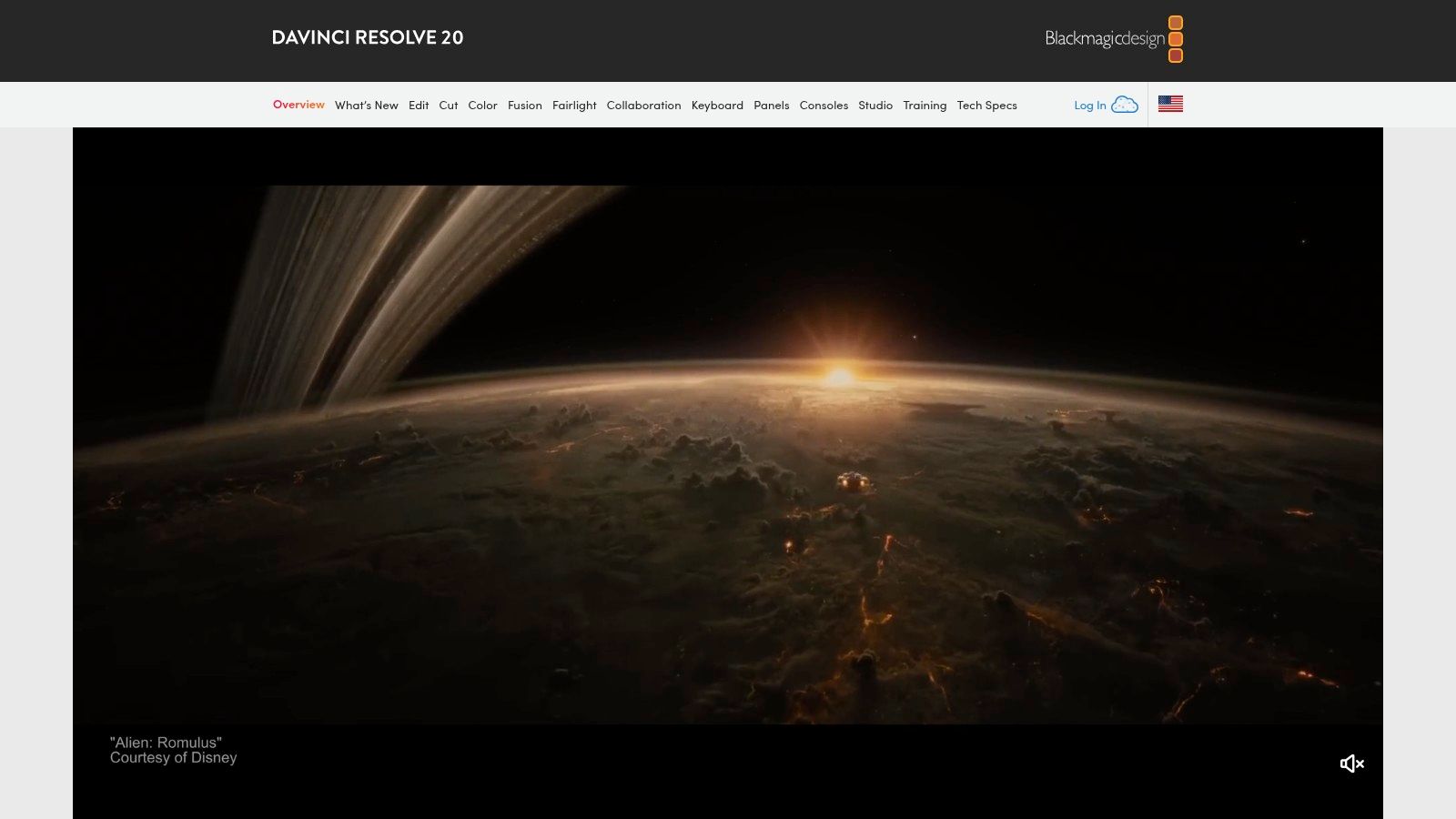
Key Features & User Experience
DaVinci Resolve's free version is astonishingly generous, supporting resolutions up to Ultra HD 4K at 60 frames per second. The user experience is clean and professional, though it demands more powerful computer hardware than some basic editors. For those who eventually need more, the paid Studio version is a one-time purchase that unlocks advanced AI-powered tools, more effects, and higher resolution support, representing incredible long-term value.
| Feature | Details |
|---|---|
| Pricing | Free version is fully featured; Studio version is a one-time purchase ($295 USD) |
| Best For | Ambitious beginners, YouTube content, short films, and learning professional workflows. |
| Platform | Windows, macOS & Linux |
| Core Strengths | Best-in-class free version, all-in-one workflow, professional color grading tools. |
| Website | Visit DaVinci Resolve |
Pros:
- Most powerful free video editor available, with no watermarks
- Grows with your skills from beginner to professional
- Studio version is a one-time purchase, not a subscription
Cons:
- Steeper learning curve than template-focused software
- Requires a more powerful computer to run smoothly
6. Apple iMovie
For users within the Apple ecosystem, iMovie is the definitive starting point for video editing software for beginners. It comes pre-installed and completely free on every Mac, iPhone, and iPad, offering a polished, intuitive experience that feels like a natural extension of the operating system. Its streamlined interface and powerful underlying technology make creating high-quality videos surprisingly simple, removing the technical barriers that often intimidate newcomers.
The software shines with features like Magic Movie and Storyboards, which provide templates and automated workflows to jump-start the creative process. Magic Movie can instantly create a polished video from your selected clips and photos, complete with transitions and music. Storyboards offer guided templates for popular video types like tutorials or product reviews, making it an excellent learning tool for structuring a narrative. This focus on ease of use makes it perfect for school projects, family videos, and first-time creators.
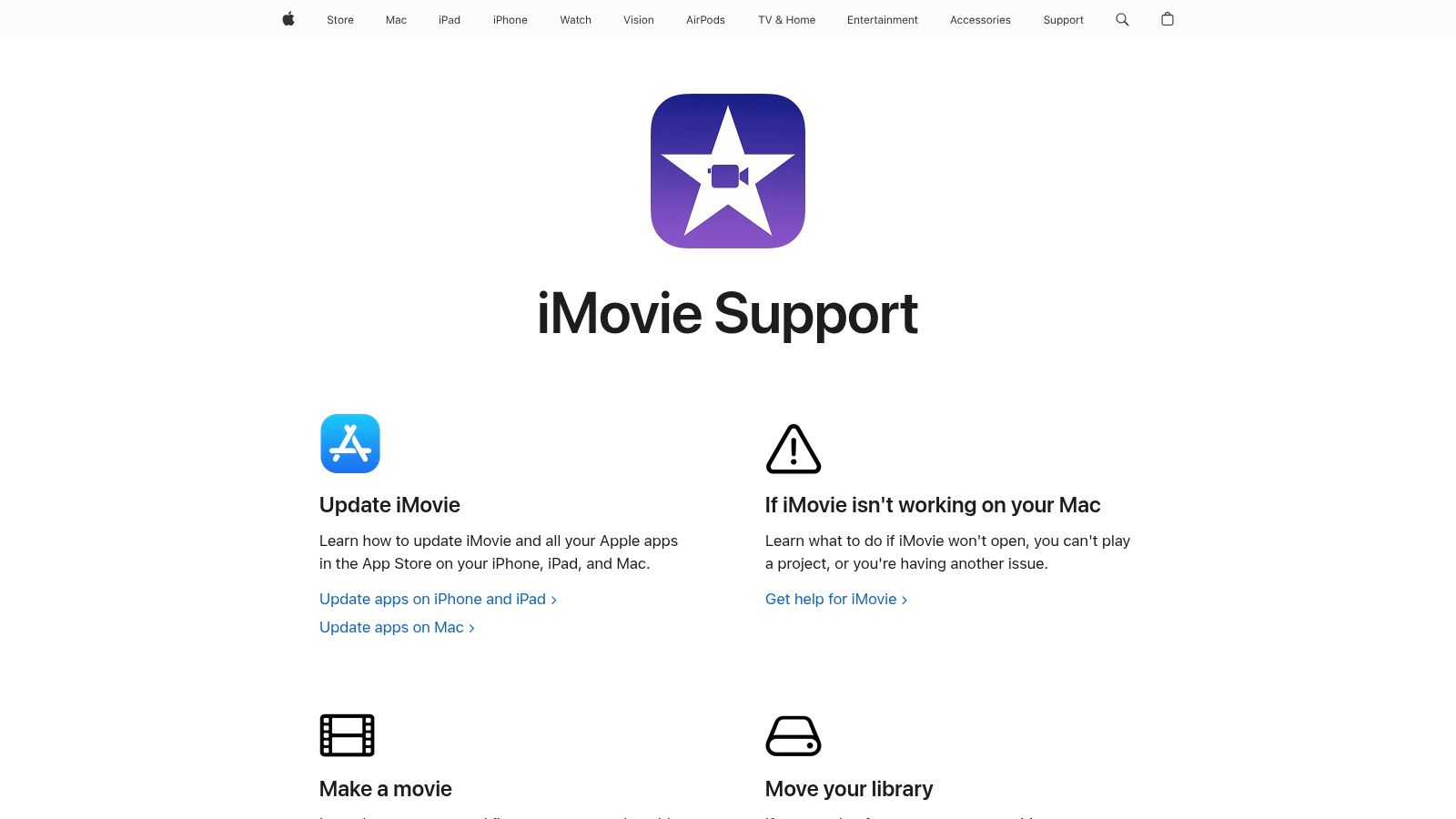
Key Features & User Experience
The user experience is seamless, especially for those already familiar with Apple's design philosophy. You can start a project on your iPhone during a trip and seamlessly hand it off to your Mac for more detailed editing at home. The drag-and-drop timeline supports 4K footage, and the software includes a well-curated library of titles, soundtracks, and templates. Its tight integration with Apple Photos and a clear upgrade path to Final Cut Pro provide a complete, scalable workflow for aspiring editors.
| Feature | Details |
|---|---|
| Pricing | Free (included with macOS, iOS, and iPadOS) |
| Best For | First-time editors, family movies, school projects, and basic YouTube content. |
| Platform | macOS, iOS & iPadOS |
| Core Strengths | Completely free, seamless Apple ecosystem integration, simple UI, Storyboards. |
| Website | Visit Apple iMovie |
Pros:
- Polished, stable, and completely free on Apple devices
- Excellent for first projects and learning fundamentals
- Tight integration with Photos and a clear path to Final Cut Pro
Cons:
- Exclusive to the Apple ecosystem (no Windows or Android version)
- Lacks advanced controls and has a limited plugin ecosystem
7. Microsoft Clipchamp
Microsoft Clipchamp makes its mark as a uniquely accessible video editing software for beginners by operating entirely within a web browser. This approach eliminates the need for installation and makes it an ideal starting point for quick social media content, tutorials, and promotional videos. Its intuitive, template-driven workflow allows users to create polished videos with minimal effort, leveraging a library of stock media and pre-designed formats for platforms like TikTok and Instagram.
The platform is especially appealing for users within the Microsoft ecosystem, as its premium features are bundled with many Microsoft 365 subscriptions. The free tier is surprisingly robust, offering 1080p exports without watermarks, a feature often locked behind a paywall in competing online editors. This combination of accessibility, a generous free plan, and seamless integration with Microsoft services makes it a standout choice for casual users and small businesses alike.
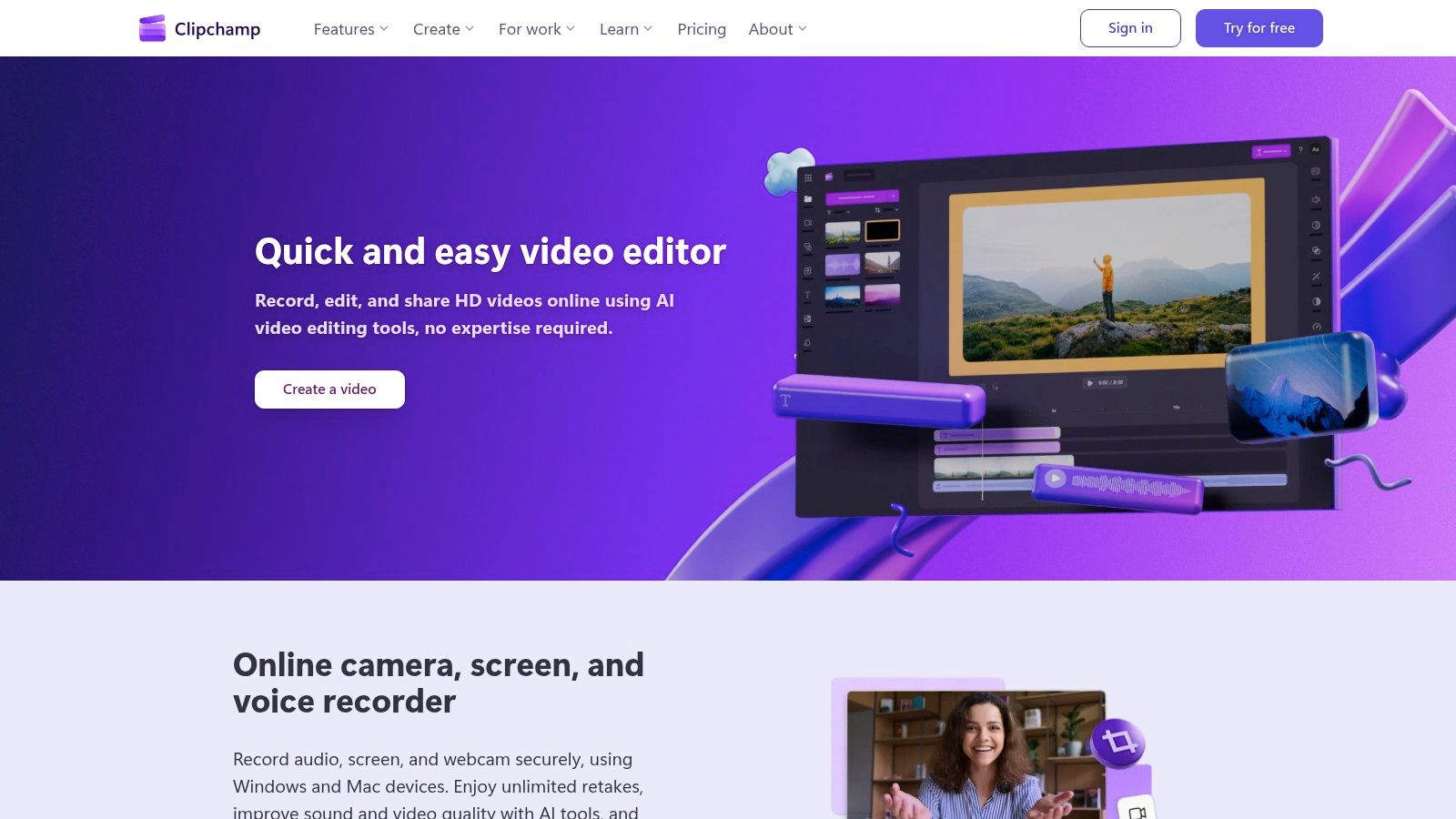
Key Features & User Experience
Clipchamp’s user experience is built around simplicity and speed. The interface is clean, with drag-and-drop functionality and clear presets for aspect ratios, making it easy to format videos for any social platform. While the browser-based nature means performance can vary based on your computer's hardware and internet speed, it handles basic editing tasks smoothly. The inclusion of AI-powered features like auto-compose and text-to-speech further streamlines the creative process for beginners.
| Feature | Details |
|---|---|
| Pricing | Free tier available; Premium features included with Microsoft 365 subscriptions. |
| Best For | Quick social media videos, corporate presentations, and educational content. |
| Platform | Web-based (works on Windows, macOS, ChromeOS) |
| Core Strengths | Browser-based access, generous free tier, strong template library, Microsoft 365 integration. |
| Website | Visit Microsoft Clipchamp |
Pros:
- No installation required; works directly in the browser
- Included with many Microsoft 365 subscriptions
- Simple learning curve perfect for quick edits
Cons:
- Browser performance depends on hardware and internet connection
- Some advanced assets and features require a Microsoft 365 subscription
8. CapCut
CapCut has rapidly become the go-to video editing software for beginners focused on creating short-form content for platforms like TikTok, Reels, and YouTube Shorts. Originally a mobile-first app, its expansion to a capable desktop version offers a seamless, cross-platform experience. Its biggest draw is the massive library of trending templates, effects, and sounds that allow users to produce professional-looking social media videos in minutes.
The platform excels at simplifying complex tasks that are crucial for modern video. Features like automatic captions, text-to-speech, and one-click background removal make it incredibly efficient. Instead of spending hours on tedious edits, creators can focus on storytelling and creativity, making it an ideal starting point for anyone new to video content creation who wants fast, impressive results.
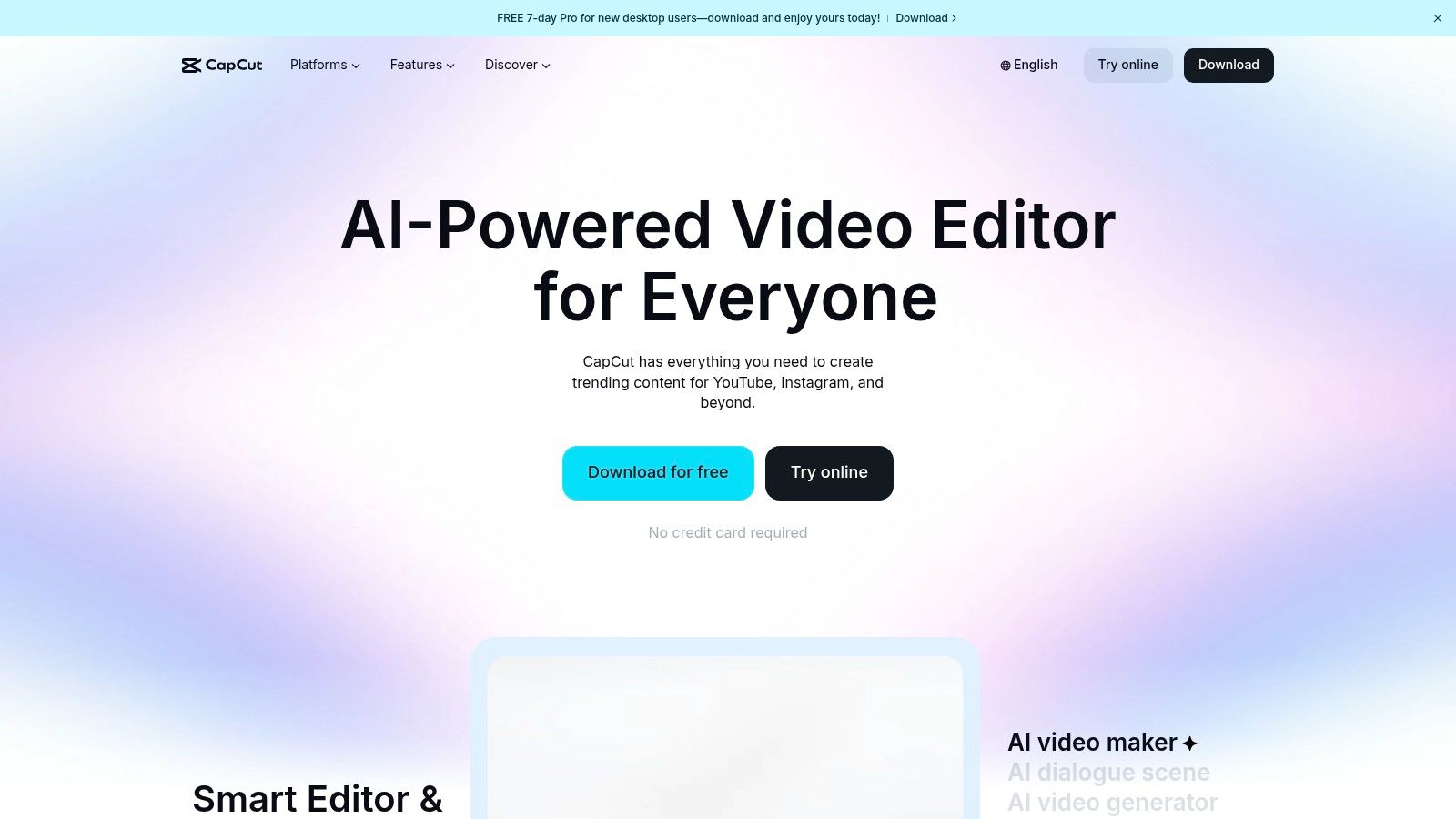
Key Features & User Experience
CapCut's user experience is designed for speed, with an intuitive timeline and drag-and-drop functionality that feels natural on both mobile and desktop. Its AI-powered tools are a major advantage, especially the integrated background remover, which is perfect for creating clean product shots or dynamic visual effects. For more advanced techniques, you can explore how to change a video background without a green screen to elevate your edits further. The free version is remarkably robust, covering most beginners' needs without immediate pressure to upgrade.
| Feature | Details |
|---|---|
| Pricing | Generous free version; Pro subscription for advanced features (~$7.99/month USD) |
| Best For | TikToks, Instagram Reels, YouTube Shorts, and quick social media ads. |
| Platform | Windows, macOS, iOS, Android & Web |
| Core Strengths | Trending templates, auto-captions, integrated AI tools, cross-platform sync. |
| Website | Visit CapCut |
Pros:
- Excellent for creating trending social media content quickly
- Powerful and feature-rich free version
- Seamless workflow between mobile and desktop apps
Cons:
- Some advanced features are locked behind a Pro subscription
- Availability and features can sometimes vary by region
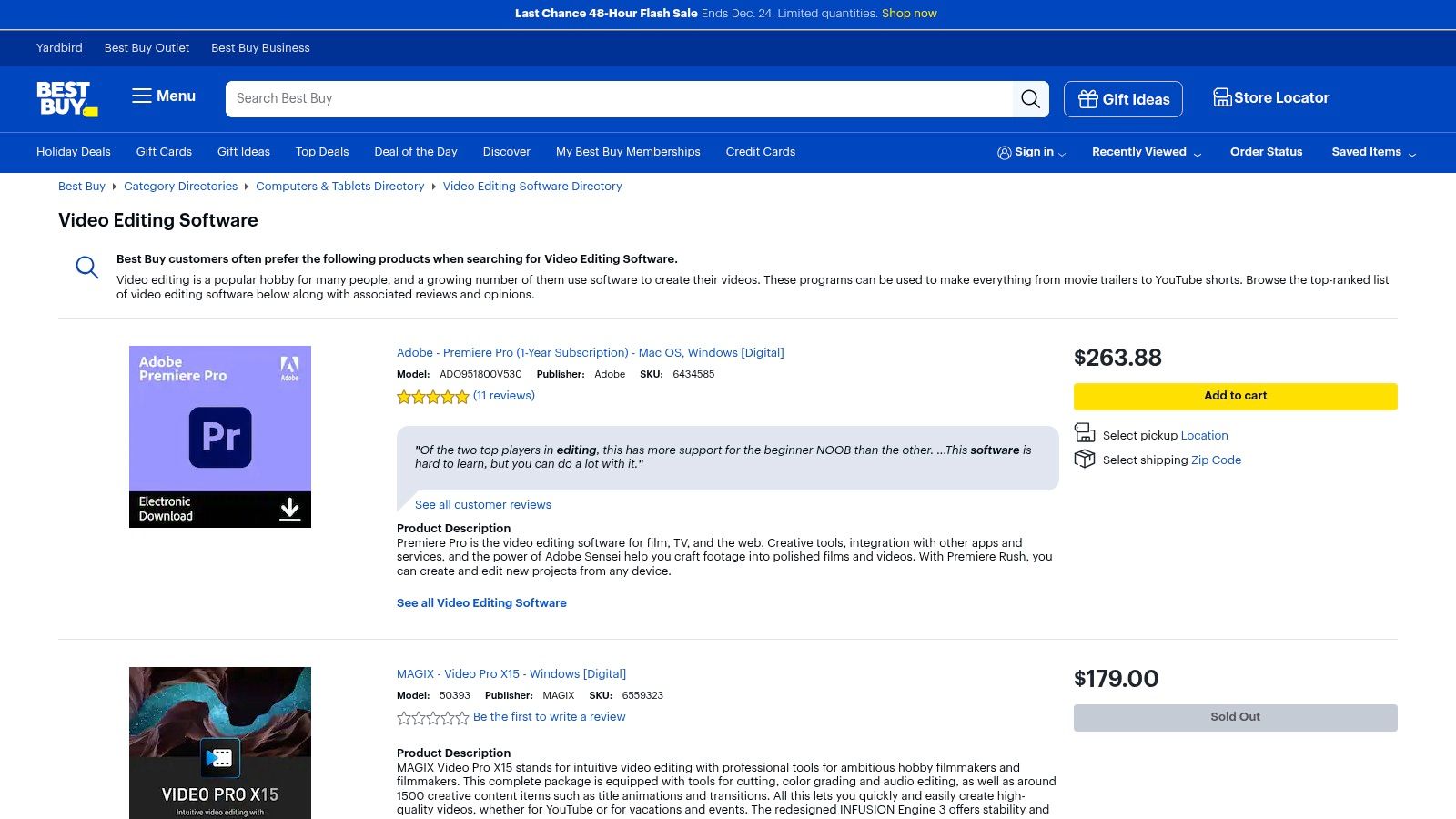
9. Best Buy (Video Editing Software Category)
While not a software itself, Best Buy's digital download section is a valuable resource for finding and purchasing video editing software for beginners from a trusted retailer. It serves as a centralized marketplace where you can compare different one-time purchase options like Adobe Premiere Elements, Pinnacle Studio, and MAGIX Movie Studio. This is especially useful for users who prefer to own their software licenses outright rather than commit to a monthly subscription.
The primary advantage is the opportunity to catch seasonal sales, bundle deals, and promotions that may not be available directly from the software developers. As a major US retailer, Best Buy provides a familiar purchasing process, customer support, and the ability to read user reviews directly on the product pages, offering insights from other beginners. It simplifies the process of acquiring a legitimate digital license, often delivering the download code and installation instructions instantly via email.
Key Features & User Experience
The platform allows you to filter software by brand, price, and customer rating, making it easy to see which programs are popular and well-regarded. For beginners, this is an excellent way to discover and compare the features of different editors in a single shopping environment. The digital delivery system is typically seamless, providing a product key you can use to activate your software on the developer's official website, ensuring you get a legitimate copy.
| Feature | Details |
|---|---|
| Pricing | Varies by product; frequent sales and bundle deals on popular editing software. |
| Best For | Purchasing perpetual software licenses, finding discounts, and comparing beginner tools. |
| Platform | N/A (Retailer for Windows & macOS software) |
| Core Strengths | Trusted retailer, official licenses, frequent promotions, and aggregated user reviews. |
| Website | Visit Best Buy's Video Editing Software |
Pros:
- Convenient place to find and compare multiple beginner editors
- Frequent seasonal sales and potential for bundle savings
- Trusted US retailer with established customer support
Cons:
- Software selection can be limited and vary by availability
- Return policies for digital downloads are often restrictive
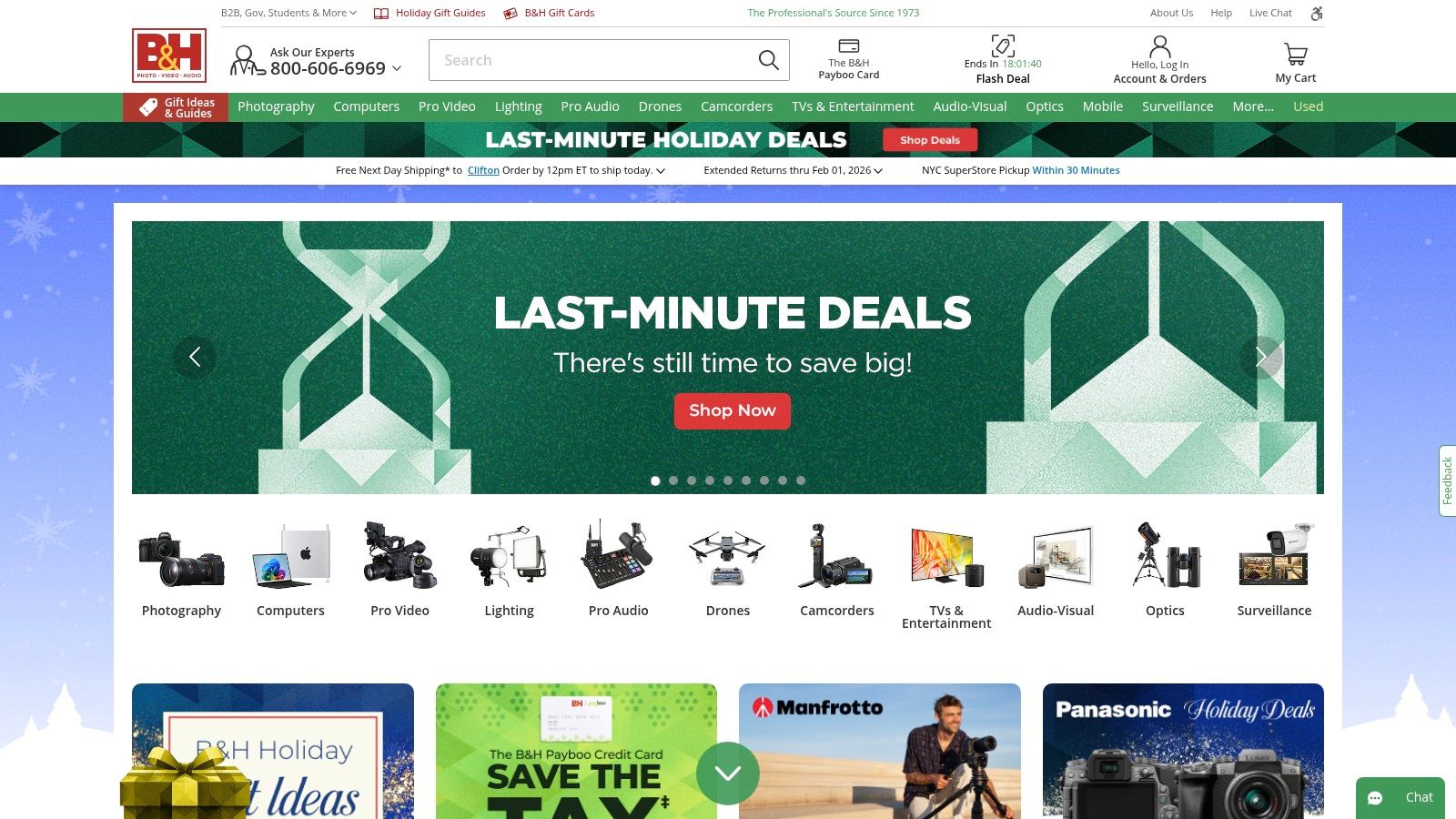
10. B&H Photo Video (software selection)
While not a software developer itself, B&H Photo Video is an essential resource for finding and purchasing video editing software for beginners at competitive prices. As a highly respected retailer in the creative technology space, B&H offers a curated selection of downloadable licenses for top-tier consumer editors like Adobe Premiere Elements, Pinnacle Studio, and CyberLink PowerDirector. This makes it an excellent one-stop shop where you can compare different perpetual license options side-by-side.
The primary benefit of shopping through B&H is the frequent sale pricing and instant savings that often beat buying directly from the developer. The platform provides exceptionally clear system requirements, detailed feature lists, and user reviews, empowering beginners to make an informed decision without feeling overwhelmed. The option for electronic software delivery means you get your license key via email quickly, letting you install and start editing almost immediately.
Key Features & User Experience
B&H's website is a trusted hub for photo and video professionals, and that level of detail carries over to its software listings. You can easily access product Q&As answered by B&H staff and other users, which is invaluable for clarifying specific features before you buy. This is particularly helpful for beginners trying to understand the differences between various software packages and find the one that best fits their editing goals and computer hardware.
| Feature | Details |
|---|---|
| Pricing | Varies by product; frequent sales and instant savings on popular software. |
| Best For | Securing one-time purchase licenses for popular editing software at a discount. |
| Platform | A retailer for Windows & macOS software. |
| Core Strengths | Competitive pricing, trusted reputation, detailed product info, fast electronic delivery. |
| Website | Visit B&H Photo Video |
Pros:
- Often has better prices than direct-from-developer
- Trusted retailer with excellent customer support and product information
- Electronic delivery for fast access to software licenses
Cons:
- Some digital software sales are final and non-returnable
- Deals and inventory can change frequently
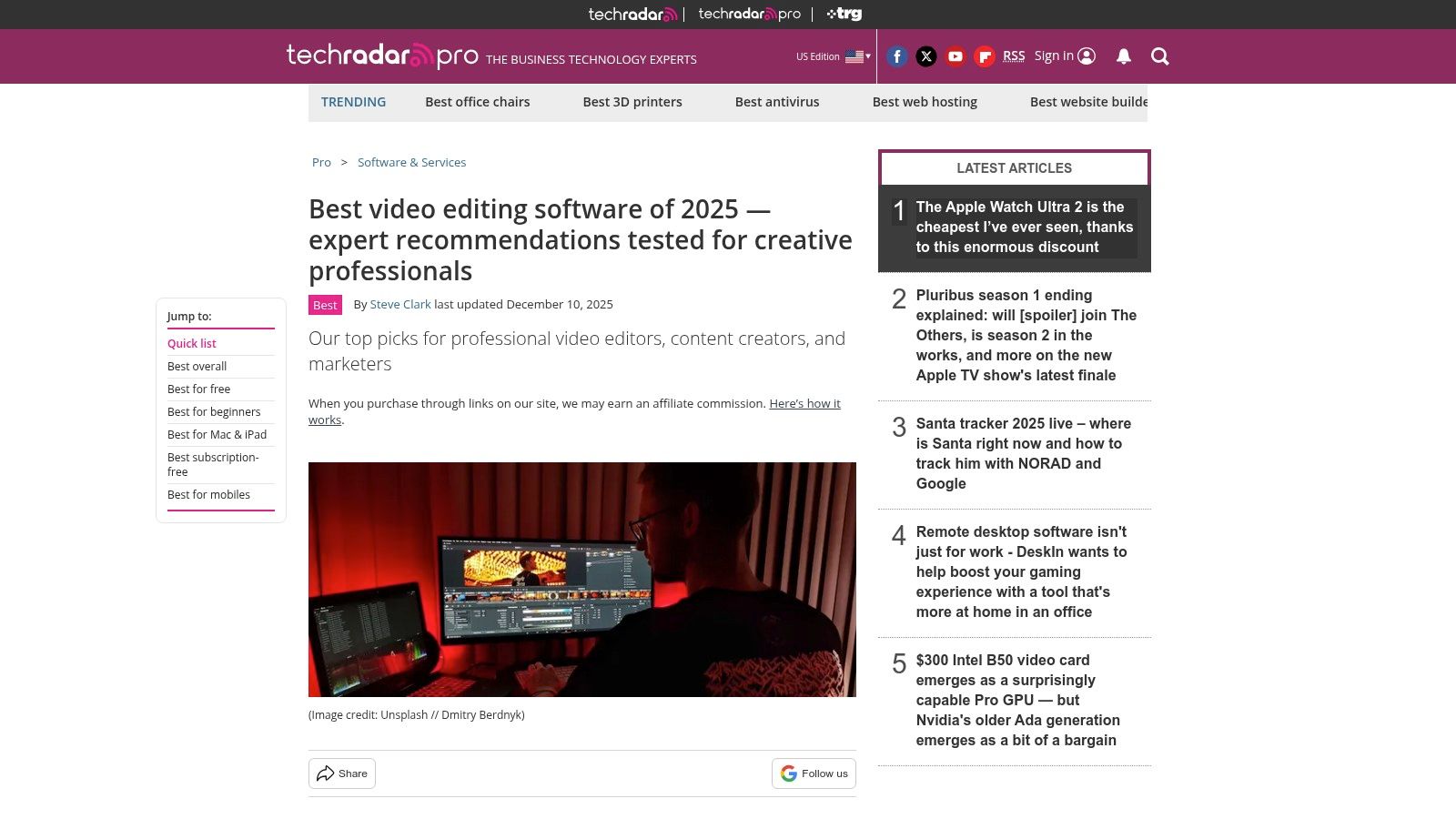
11. TechRadar (Best Video Editing Software guides)
Instead of a single piece of software, TechRadar offers a vital resource for anyone trying to choose the right tool. As an independent tech site, it provides regularly updated, lab-tested roundups and buyer’s guides that help you compare the best video editing software for beginners. This is the perfect starting point if you feel overwhelmed by the options and want unbiased, clear-cut advice before committing to a purchase or download.
What makes TechRadar so valuable is its approach to clarifying value. Its guides break down complex features into beginner-friendly explanations, helping you understand which tools are best suited for specific needs, whether it's for YouTube, social media, or family videos. They maintain separate, dedicated lists for both free and paid software, ensuring there are recommendations for every budget and confidence level.
Key Features & User Experience
TechRadar's guides are easy to navigate, with concise summaries, pros and cons, and context on pricing for each recommended editor. The recommendations are based on hands-on testing, giving you real-world insights into performance, usability, and standout features. It’s an educational hub that empowers you to make an informed decision rather than just picking the most popular name. This approach removes the guesswork from finding software that truly matches your skill level and project goals.
| Feature | Details |
|---|---|
| Pricing | Free to access |
| Best For | Researching and comparing software, understanding features, finding free alternatives. |
| Platform | Web-based (accessible on any device) |
| Core Strengths | Independent reviews, clear pros/cons, regularly updated, separate free/paid guides. |
| Website | Visit TechRadar |
Pros:
- Independent, test-based recommendations you can trust
- Excellent at clarifying which tool is best for different users
- Highlights great free options for those not ready to buy
Cons:
- Not a direct download source; it links out to vendors
- Recommendations change over time as new software is released and tested
12. MAGIX Movie Studio (via authorized US resellers)
MAGIX Movie Studio emerges as a strong contender for Windows users searching for capable video editing software for beginners without a subscription. Formerly part of the Vegas Movie Studio family, it offers a perpetual license that is often available at a discount through authorized resellers, making it a very cost-effective entry point. The software focuses on providing a simplified yet powerful editing experience, perfect for those who find professional suites overly complex.
Its core appeal lies in its balance of accessibility and robust features. Beginners can quickly get started using templates and a streamlined timeline, while more advanced tools like multicam support and video stabilization are available as skills grow. The 2025 version introduces AI-powered features for style transfer and colorization, adding modern creative options. For Windows users who want a one-time purchase that performs well on mid-range PCs, Movie Studio presents a compelling and affordable alternative.
Key Features & User Experience
MAGIX Movie Studio is designed exclusively for the Windows platform, delivering a stable and intuitive interface that feels familiar to PC users. It supports a wide range of formats and includes essential tools like LUT support for color grading and a solid library of effects and transitions. The Suite edition enhances this by bundling professional-grade add-ons like BorisFX BCC Chroma Key Studio, offering significant value for those interested in green screen work and advanced visual effects.
| Feature | Details |
|---|---|
| Pricing | One-time purchase (perpetual license), pricing varies by reseller and version. |
| Best For | Hobbyists, YouTubers, and anyone on Windows looking for a one-time purchase. |
| Platform | Windows only |
| Core Strengths | Perpetual license model, easy-to-learn interface, good performance on standard PCs. |
| Website | Visit MAGIX |
Pros:
- Affordable perpetual licenses are often on sale
- Easy to learn for beginners on the Windows platform
- Performs well without requiring high-end hardware
Cons:
- Not available for macOS users
- Fewer advanced tools compared to professional-grade suites
Top 12 Beginner Video Editors — Feature Comparison
| Product | Core features ✨ | Quality / UX ★ | Price / Value 💰 | Target audience 👥 | Notable strength 🏆 |
|---|---|---|---|---|---|
| Adobe Premiere Elements | ✨ Guided edits, AI effects, 4K, templates | ★★★★ | 💰 Multi‑year one‑time license (predictable) | 👥 Beginners & hobbyists | 🏆 Clear learning path, stable |
| Wondershare Filmora | ✨ Drag‑drop timeline, Filmstock, AI add‑ons, 4K | ★★★★ | 💰 Annual or perpetual; inexpensive but add‑ons cost extra | 👥 Social creators & novices | 🏆 Large effects library, very approachable |
| CyberLink PowerDirector | ✨ Guided + advanced timeline, AI effects, stock (365) | ★★★★ | 💰 Perpetual or PowerDirector 365 subscription | 👥 Enthusiasts / prosumers | 🏆 Good balance of ease and depth |
| Movavi Video Editor | ✨ Quick trim, stabilization, chroma key, 4K | ★★★ | 💰 1‑yr or lifetime; extras often upsold | 👥 Fast editors & beginners | 🏆 Fast workflow; lightweight on modest PCs |
| Blackmagic DaVinci Resolve | ✨ Edit + color + VFX + audio; generous free tier | ★★★★★ | 💰 Free tier; Studio one‑time purchase | 👥 Beginners → professional users | 🏆 Best‑in‑class free tools; pro features |
| Apple iMovie | ✨ Magic Movie, Storyboards, 4K, device handoff | ★★★★ | 💰 Free on macOS/iOS/iPadOS | 👥 Apple users, schools, families | 🏆 Polished, seamless Apple integration |
| Microsoft Clipchamp | ✨ Web editor, templates, social presets, stock media | ★★★ | 💰 Free tier; premium via Microsoft 365 | 👥 Casual editors & Microsoft 365 users | 🏆 No install — browser convenience |
| CapCut | ✨ Templates, auto‑captions, BG removal, cloud sync | ★★★★ | 💰 Generous free plan; in‑app purchases/subs | 👥 Short‑form social creators | 🏆 Fast social workflow; strong free tools |
| Best Buy (software) | ✨ Digital delivery, promos, customer reviews | ★★★ | 💰 Retailer deals & bundles; variable pricing | 👥 Buyers seeking retail deals/licenses | 🏆 Convenient place to compare & buy licenses |
| B&H Photo Video | ✨ E‑delivery, clear specs, sale pricing, support | ★★★★ | 💰 Competitive sales; financing options | 👥 Photo/video buyers & pros | 🏆 Trusted retailer with detailed specs |
| TechRadar (guides) | ✨ Lab‑tested roundups, buyer’s guides, updates | ★★★★ | 💰 Free guidance; links to vendors | 👥 Researching buyers & beginners | 🏆 Independent, up‑to‑date recommendations |
| MAGIX Movie Studio | ✨ Simplified timeline, AI style/color, stabilization | ★★★ | 💰 Perpetual licenses; often low sale price | 👥 Windows beginners wanting one‑time buy | 🏆 Cost‑effective Windows entry option |
Next Steps: Enhancing Your Workflow and Making a Final Choice
You've just navigated a comprehensive landscape of the best video editing software for beginners. From the streamlined simplicity of iMovie and Clipchamp to the professional-grade power of DaVinci Resolve, the options are vast. But the goal isn't to master every tool; it's to find the one that removes friction between your creative idea and the final, polished video. The journey to becoming a proficient video creator starts with choosing a platform that feels like a natural extension of your creative process, not a technical hurdle.
Reflecting on the tools we've explored, remember that the "best" software is entirely subjective and tied to your specific goals. A UGC creator focused on producing viral TikToks will have different needs than an educator crafting detailed course modules. Don't get paralyzed by the sheer number of features. Instead, revisit the "Best For" sections in our guide and align them with your primary video creation objectives.
Making Your Final Decision: An Actionable Checklist
Choosing your first editor is a significant step. To move from analysis to action, use this simple framework to guide your decision-making process.
Define Your Primary Goal: Are you creating quick, engaging social media content (Reels, Shorts)? If so, mobile-first editors like CapCut or the accessible Microsoft Clipchamp might be your best bet. Are you aiming to build a foundation for a future career in video production? Starting with the free version of DaVinci Resolve will pay dividends in the long run.
Test Drive Before You Commit: Nearly every paid software on our list, including Filmora, PowerDirector, and Movavi, offers a free trial. Dedicate a few hours to each of your top two or three contenders. Import the same set of clips and try to perform basic tasks: trimming, adding text, and applying a simple transition. Which interface feels the most intuitive to you? This hands-on experience is more valuable than any review.
Assess Your Budget and System: Be realistic about your hardware. A powerful program like DaVinci Resolve will be frustrating to use on an older, underpowered computer. Lighter-weight options like Premiere Elements or even web-based editors can provide a much smoother experience. Likewise, determine if a one-time purchase (like Movavi) is more appealing than a subscription model.
Beyond the Editor: Streamlining Your Creative Workflow
Your primary video editor is the centerpiece of your toolkit, but it doesn't have to do everything alone. As you become more comfortable, you'll discover that specialized, AI-powered tools can handle specific, time-consuming tasks far more efficiently. This is the secret to a professional and scalable workflow.
Consider a common challenge for content creators: isolating a subject from its background. You might want to place a product shot on a clean, branded background for a promotional ad, or create a transparent overlay of yourself for a tutorial video. Traditionally, this required a physical green screen and complex keying techniques within your editor.
This is where integrating a dedicated tool can save you hours of tedious work. For instance, a service like VideoBGRemover is designed to do one thing exceptionally well: remove video backgrounds with precision. Instead of wrestling with masking tools, you can upload your clip and get a professional-quality transparent video in minutes. You can then import this clean asset directly into any of the editors we've discussed, from CapCut to PowerDirector, streamlining your process and elevating the production value of your content. The smartest workflow combines a user-friendly editor with smart, specialized tools that accelerate your path from raw footage to a stunning final product.
Ready to elevate your videos with professional, background-free footage? VideoBGRemover makes it incredibly simple to remove backgrounds from any video without a green screen, perfect for creating clean overlays, product shots, and dynamic social content. Try it for free and see how easily you can enhance your projects by visiting VideoBGRemover.
Tagged with
Ready to Remove Your Video Background?
See a free preview before you buy.
No credit card required • Free preview on every video