The Complete IG Story Specs Guide for Flawless Content
Master the latest IG Story specs. Get the exact dimensions, aspect ratio, file size, and formats for perfect, professional-level Instagram content every time.
To get that perfect, crisp upload every time, you'll want to aim for a resolution of 1080 x 1920 pixels with a 9:16 aspect ratio. And remember, keep individual video clips to 60 seconds or less and your images under 30MB.
Your Essential IG Story Specs Cheat Sheet
Getting your Instagram Story specs right is the first step to creating content that looks sharp and professional on every screen. If you ignore these core requirements, you're leaving it up to Instagram to automatically crop, stretch, or compress your visuals. That's a recipe for blurry media and, even worse, cut-off text or graphics.
Think of these numbers not as annoying rules, but as the blueprint for creating a flawless, full-screen vertical experience that grabs your audience's attention.
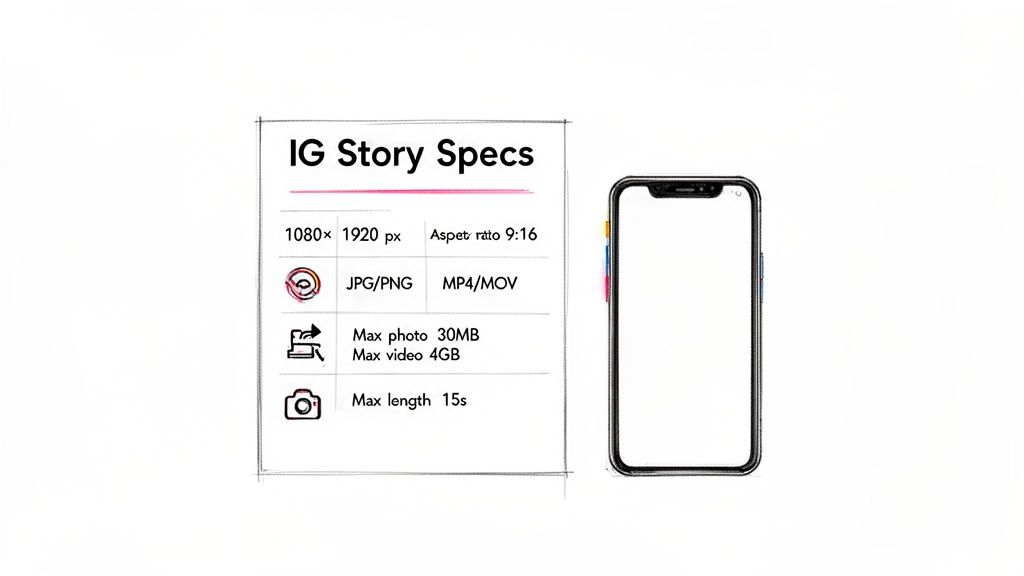
To save you from the headache of a bad upload, I've put together this quick reference guide. Keep it handy, and you'll nail the technical side of your Stories every single time.
Instagram Story Quick Specs Reference Table
Here's a quick summary of the most important technical specifications you need to know for your Instagram Story content.
| Specification | Requirement |
|---|---|
| Dimensions | 1080 x 1920 pixels |
| Aspect Ratio | 9:16 |
| Video Formats | MP4, MOV |
| Photo Formats | JPG, PNG |
| Max Video Length | 60 seconds per clip |
| Max Video File Size | 4GB |
| Max Photo File Size | 30MB |
Bookmark this page or save this table. It covers the foundational elements you absolutely need to master to ensure your content always looks its best.
Getting the Core Dimensions and File Formats Right
The first step to a killer Instagram Story is nailing the technical details. If you get the core specs right from the start, you can avoid Instagram's dreaded automatic cropping and compression, making sure your content looks sharp and professional every single time.
The ideal dimension you should be working with is 1080 x 1920 pixels. This translates to a 9:16 aspect ratio—the tall, vertical format that’s designed to fill a modern smartphone screen completely. Using this size makes your content feel immersive and native to the platform, without any distracting black bars.
Recommended File Types and Sizes
When it comes to file formats, keep it simple. For images, JPG and PNG are your best bets. For video, Instagram works best with MP4 or MOV files.
Here’s a quick breakdown of the size limits:
- Images (JPG, PNG): Max file size of 30MB.
- Videos (MP4, MOV): Max file size of 4GB.
Sticking to these formats and sizes is non-negotiable. They provide the best balance between quality and file size, which means smoother uploads for you and better playback for your audience. If your file is too big, Instagram might reject it or, worse, compress it so much that your video quality takes a serious hit.
This idea of getting dimensions right isn't just for Instagram, either. It's a fundamental skill for mastering content dimensions for visual platforms of all kinds.
Why Sticking to the Specs Matters
If you upload a Story with the wrong dimensions, Instagram has to make a choice: either crop parts of your content or zoom in to make it fit. Both outcomes are bad, as you can easily lose important visual information or text. You lose control over how your audience sees your work.
To avoid this, always set up your project with the correct specs from the beginning. If you've already created something and need to adjust it, you'll want to resize it properly before uploading. For more on that, check out our guide on how to change video dimensions: https://videobgremover.com/blog/how-to-change-video-dimensions.
Advanced Video Specs for Pro-Level Stories
If you're ready to move beyond casual uploads and start creating truly professional content, the basic specs are just the starting point. To get that crisp, smooth look you see from top creators, you need to dig into the more technical side of video export settings.
Getting these details right is what separates a sharp, polished Story from one that looks pixelated and jerky after Instagram runs it through its compression algorithms. For anyone creating ads, detailed tutorials, or high-production content, nailing your export settings is non-negotiable.
Codecs and Frame Rates: The Nitty-Gritty Details
The single most important setting here is the video codec—the technology that compresses your video file. For Instagram (and pretty much the entire web), H.264 is the undisputed king. It strikes the perfect balance between high visual quality and a reasonable file size, which is exactly what you want.
For your audio, stick with the AAC (Advanced Audio Coding) codec. An audio bitrate of 128 kbps is plenty to deliver clear, crisp sound without making your file unnecessarily large.
Next up is the frame rate, or FPS (frames per second). While Instagram technically supports up to 60 FPS, you'll find that 30 FPS is the sweet spot for most content. It looks smooth and natural to the human eye. Only bump it up to 60 FPS if you're working with slow-motion footage or capturing really fast action where every bit of motion clarity counts.
Pro Tip: When you export, don't just use a constant bitrate. A variable bitrate with a target of around 3,500 kbps (or 3.5 Mbps) will give you much better results. This lets your editing software intelligently assign more data to complex, high-motion scenes, which helps prevent those ugly compression artifacts and keeps your video looking clean.
Designing Within Instagram Story Safe Zones
Getting the technical specs right is a huge step, but the real test is designing around Instagram’s user interface. Safe zones are the parts of the screen that won’t get covered up by UI elements like your profile icon, the reply bar at the bottom, or other buttons. If you ignore these, you risk key parts of your message getting cut off.
Think of it this way: keep anything important—text, logos, swipe-up arrows, or calls-to-action—away from the absolute top and bottom edges. As a rule of thumb, Instagram suggests leaving a safety margin of about 250 pixels at the top and another 250 pixels at the bottom. This buffer guarantees your content stays clean, clear, and fully interactive.
This diagram shows how the technical specs work together to create a high-quality video.
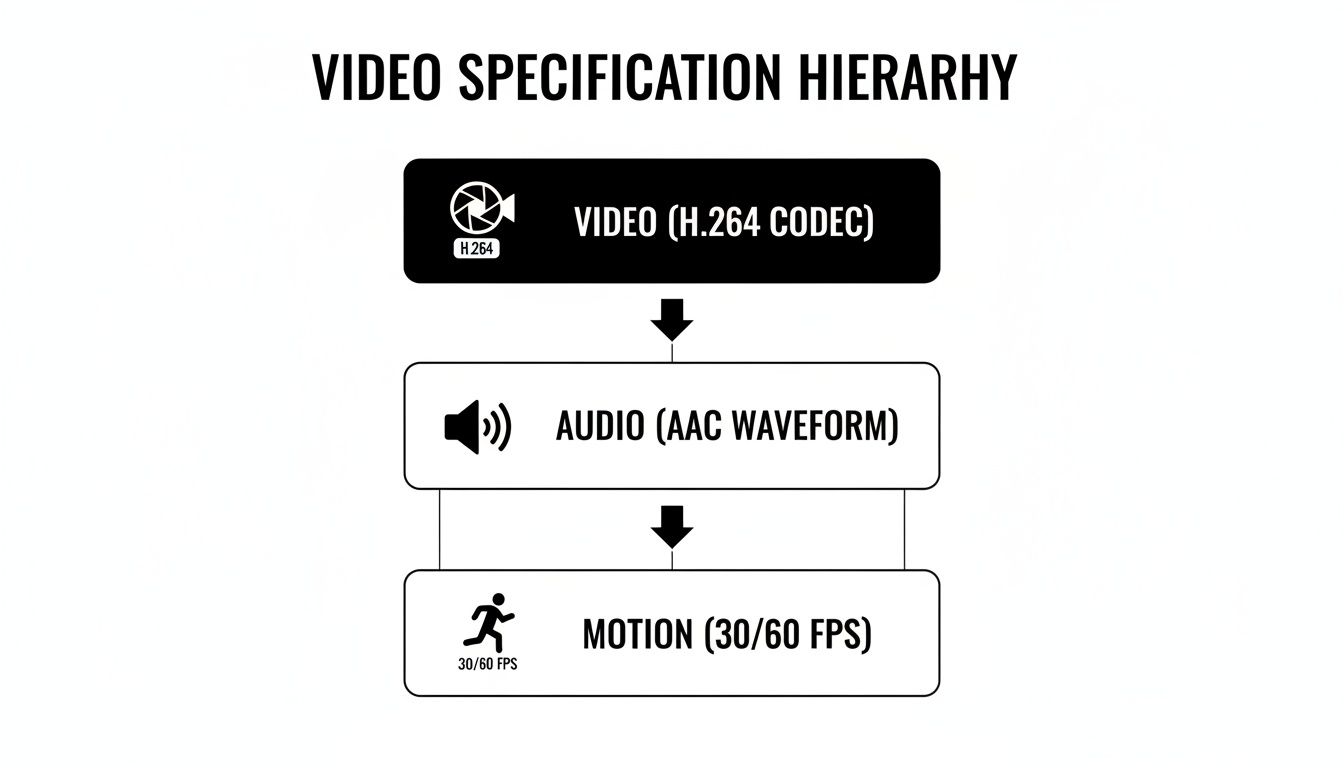
You can see how a solid video file is built from the right codec (H.264), crisp audio (AAC), and a smooth frame rate for fluid motion.
The Dimensions of Safety
So, what does this mean in practice? For a standard 1080 x 1920 px Story, your core content should sit comfortably within a central area of about 1080 x 1420 px. This is your true creative canvas. For instance, if you're running a promotion, make sure the discount code or product image is smack in the middle of this zone, where it’s guaranteed to be seen.
Why Bother With IG Story Specs? It's All About Engagement and Growth
Let's be clear: getting your Instagram Story specs right isn't just about ticking a technical box. It’s one of the most direct ways to boost your audience engagement and, ultimately, grow your account.
When your content fits the screen perfectly, it delivers that seamless, full-screen experience that pulls viewers in and stops them from swiping away. Think of it as the foundation of your content—if the quality is off, people won't stick around long enough to see how great your message is.
This professional polish has a real impact on your metrics. A crisp, correctly sized video is far more likely to be watched all the way through. That completion rate is a powerful signal to the Instagram algorithm, telling it your content is valuable and worth showing to more people.
Connecting Specs to Your Audience
The numbers don't lie. With over 500 million people watching Stories every single day, the opportunity is huge. For businesses, it's even more compelling: a third of the most-viewed Stories come from brands, and one in five of those gets a direct message from a viewer.
Nailing the technical specs is how you make sure you’re tapping into that potential. It makes every post look professional and builds trust. You can dig into more of the data by checking out these recent Instagram Stories statistics and trends.
When you optimize every technical detail, you're removing any friction that gets between your message and your audience. A perfectly rendered Story feels like it belongs on the platform, making your content more inviting and your calls-to-action more effective.
At the end of the day, this dedication to quality shapes how people see your brand and helps build real trust with your followers. For more on this, check out our guide on video marketing best practices.
Optimizing Your Export Workflow For Perfect Stories
If you want to save yourself a ton of headaches, creating a solid, repeatable system for exporting your content is a must. A polished workflow doesn't just save time—it takes the guesswork out of the equation and guarantees every Story you post looks crisp and professional.
For anyone who creates content regularly, standardizing your export settings in apps like Adobe Premiere Pro or Final Cut Pro is a total game-changer. Just build a preset that locks in the essentials: 1080x1920 dimensions, the H.264 codec, and a 30 FPS frame rate. This consistency is your best defense against annoying issues like compression artifacts or weirdly stretched videos.
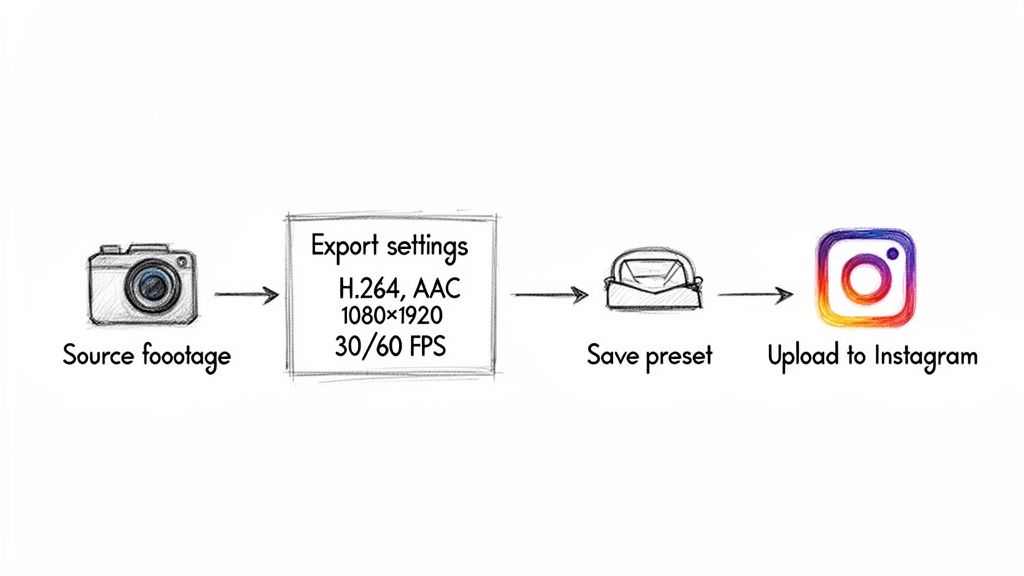
Once you get your basic workflow down, you can start experimenting with more advanced creative techniques. A great example is exporting short, 15-second clips as transparent MOV files using the ProRes 4444 codec. This lets you create slick, studio-quality overlays that float over your video, all without needing a green screen. It's a pro move that can really elevate your content.
To really nail this process, having the right software makes all the difference. Check out some of the best tools for content creators to see what might work for you. And if you're looking for more specific editing tricks, this guide on how to edit videos for Instagram is a great next step.
Got Questions? Here Are Some Quick Answers
Even when you've got all the specs right, things can still go sideways. Let's tackle some of the most common headaches creators run into with Instagram Stories.
Why Does My Instagram Story Look Blurry or Pixelated?
This is a classic problem, and it almost always comes down to compression. Instagram will compress anything you upload, but if your file doesn't match its ideal specs, that compression gets way more aggressive, resulting in that blurry look.
The best way to fight back is to give Instagram a file it loves. Make sure you're exporting with the H.264 codec and always start your project in the correct 1080x1920 resolution. A higher bitrate on export also helps preserve quality.
How Can I Post a Video Longer Than 60 Seconds?
Instagram will automatically chop up any video longer than 60 seconds into separate Story clips. While this works in a pinch, it often creates awkward cuts that can ruin the flow of your video.
For a much cleaner, more professional result, do the editing yourself. Cut your video into seamless 60-second segments before you upload. This way, you control exactly where each clip begins and ends, making the transitions feel intentional.
Does the File Format Really Matter That Much?
Yes, it absolutely does. Sticking to the recommended formats—MP4 for video and JPG for images—is non-negotiable if you want consistent results. Using the right format ensures your media is compatible with Instagram's system and gets compressed as cleanly as possible.
If you try to upload an unsupported format, you're asking for trouble. You might face upload errors, weird visual glitches, or unexpected color shifts. It's just not worth the headache.
Ready to create some seriously cool Stories with unique visual effects? You can use VideoBGRemover to instantly strip the background from your videos. This lets you create transparent overlays that will make your content pop. Give it a try for free on videobgremover.com.
Tagged with
Ready to Remove Your Video Background?
See a free preview before you buy.
No credit card required • Free preview on every video