Mastering the Transparent Video Background A Practical Guide
Discover how to create, export, and use a transparent video background. This guide provides actionable tips for After Effects, web, and social media.
A transparent video background isn't as complicated as it sounds. It’s simply a video where the background is gone, letting you see whatever you place behind it. This is all made possible by something called an alpha channel—a special layer of data in the video file that dictates what’s see-through and what isn’t.
This allows you to pop animations, graphics, or text right on top of other videos or web content, without that ugly, solid-colored box around your subject.
What Is a Transparent Video Background?
When we talk about transparent video, we're not trying to make the entire clip invisible. The goal is to isolate a specific subject—a person, a product, maybe an animated logo—from its original environment. This creates a clean, independent layer that you can place over anything else, whether it's a solid color, a photo, or even another moving video.
The best analogy is a moving digital sticker. A sticker has a defined shape and a clear background, letting it sit cleanly on any surface. A transparent video does the exact same thing, but with motion. This simple concept unlocks a ton of creative freedom that a standard, rectangular video just can't offer.
So, how does it work? A typical video pixel has three values: Red, Green, and Blue (RGB). A video with transparency adds a fourth: Alpha. This alpha channel is the secret sauce. It acts as a mask, telling the software which pixels should be opaque, which should be see-through, and everything in between.
The Power of Alpha Channels
That alpha channel is what makes this technique so much cleaner than old-school green screen effects. With a green screen (or chroma keying), you have to film against a specific color and then digitally remove it in post-production. An alpha channel, on the other hand, bakes the transparency information directly into the video file itself. The result? Much crisper edges and a more professional look, without the dreaded green spill.
This tech has come a long way. Transparent videos, or "alpha channel videos," really started hitting their stride in the early 2000s. A huge step forward was when Apple introduced the ProRes 4444 codec, which was one of the first widely adopted formats to natively support high-quality alpha channels. By 2010, its use had exploded; some reports from that time showed that 65% of motion graphics professionals were relying on alpha channel exports for their work.
Thankfully, you don't need a Hollywood budget or a green screen studio anymore. Modern tools have made this incredibly accessible. You can see just how far the technology has come in our guide on AI video background removers.
Key Takeaway: A transparent video isn't just a clip with the background cut out. It's a specific file type built to hold transparency data. This makes it a powerful, versatile asset for layering and creating dynamic effects that blend perfectly with other visuals.
Real-World Applications and Use Cases
The technical details are interesting, but where this really gets exciting is in its practical application. This isn't just a neat visual trick; it's a fundamental technique for anyone creating modern digital content.
Here are just a few scenarios where transparent videos are game-changers:
- Dynamic Web Design: Picture a website where an animated product demo plays over a static banner image. Or a person who seems to walk across the screen as you scroll down the page. This is how you make a site feel alive and interactive.
- Professional Video Overlays: News broadcasts use this for their lower-third graphics to introduce speakers. YouTubers use it for those slick, animated subscribe buttons or logos that float on screen without a clunky frame.
- Engaging Social Media Content: Ever see a TikTok where a creator is dancing in front of a wild, moving background? They're often using a transparent video of themselves layered over another clip to create a surreal or hilarious effect that stops the scroll.
- E-commerce Product Showcases: An online clothing store can show a 360-degree video of a model wearing an outfit against the website’s clean, minimal background. This puts the focus entirely on the product, not a distracting studio set.
In every one of these examples, the mission is the same: seamlessly integrate a moving subject into a new environment for a polished, professional finish.
Getting Your Footage Ready for a Flawless Result
Making a great transparent video isn’t just about the final export settings. It all starts with the source footage. If you begin with a poor-quality clip, you’ll be fighting an uphill battle the entire time. It's like trying to build a house on a shaky foundation—it just won't work.
How you prep your video really boils down to what you're starting with. You’re either building motion graphics from the ground up or you’re trying to cut the background out of a live-action video. Each path has its own set of rules for getting a clean, professional result without any weird artifacts.
With motion graphics made in a program like Adobe After Effects, you have a huge advantage. You’re in full control from the start. The trick is to think about transparency from the moment you create your project, making sure you don’t accidentally bake in a solid background.
Crafting Clean Motion Graphics
When you’re designing an animated logo, a lower third for a video, or some text callouts, you're already in the right mindset. The main challenge is just preserving the transparency you already have all the way to the final render.
- Start with a Transparent Comp: In After Effects, the first thing you should do is make sure your composition background is transparent. You'll know it's right when you see the classic checkerboard pattern. This is your visual confirmation that you aren't building your graphics on top of a solid color that will ruin the effect later.
- Watch Your Edges: Be careful with effects like glows or drop shadows. They can look great, but if you're not careful, they can create a hard, boxy outline around your graphic instead of feathering out smoothly.
- Pre-Compose for Sanity: If you're building a complex animation with tons of layers, do yourself a favor and pre-compose them. This packages everything into one neat layer, making it way easier to manage effects and transparency without getting lost in a sea of individual elements.
Removing Backgrounds from Live-Action Video
This is where things get tricky, and good preparation is non-negotiable. Cutting a person or object out of a real-world video is a whole different beast than working with digital graphics. Your success here completely depends on how you shot the footage in the first place.
For decades, the undisputed champion for this has been the green screen (or chroma keying). The whole idea is to film your subject against a solid, brightly lit color—usually that unmistakable green—so that software can easily single out that color and make it disappear.
So many people get hyper-focused on lighting the green screen perfectly, but they forget about the person standing in front of it. If the light on your subject doesn't match the background you plan to drop in later, the whole shot will look fake. It's one of the most common giveaways of a bad composite.
To get the best possible results from your green screen shoot, keep these things in mind:
- Even Lighting is Everything: This is the big one. You need to light the screen itself as evenly as possible. If you have bright hotspots or dark, shadowy corners, the software will struggle to remove the background cleanly, leaving you with a blotchy, unprofessional mess.
- Distance is Your Friend: Try to place your subject as far from the green screen as you can. This helps prevent "color spill"—that annoying green halo you sometimes see on a subject's hair or shoulders. The further away they are, the less green light can bounce off the screen and onto them.
- Check the Wardrobe: This sounds obvious, but make sure your subject isn't wearing anything green. Even a small green logo or piece of jewelry can become transparent right along with the background.
The New Kid on the Block: AI Rotoscoping
But what if you didn't use a green screen? Don't panic. In the last few years, AI rotoscoping tools have become a legitimate game-changer. Browser-based tools like VideoBGRemover or features like Adobe's Roto Brush use AI to analyze the video and automatically draw a mask around your subject, frame by painstaking frame.
While these tools can feel like pure magic, they're not infallible. They work best when you give them good footage to work with. Even without a green screen, filming against a plain, uncluttered wall will give the AI a much better chance of success than a busy, chaotic background. These tools are shockingly good at handling the stuff that used to take artists days to fix, like wisps of hair or motion blur.
How To Export Transparent Video From Editing Software
You've done the hard work of prepping your footage or designing your motion graphics. Now comes the moment of truth: exporting it with that precious transparency intact. This is where so many projects go wrong. One incorrect setting, and you're left with a flat video slapped onto a black or white background.
The entire goal here is to choose a file format and a video codec that can actually hold transparency data. You're essentially telling your software, "Don't just save the color, save the see-through parts, too." This is what we call exporting with an alpha channel, or "RGB + Alpha".
This workflow really boils down to three core stages: getting clean footage, isolating your subject, and then bringing it all together.
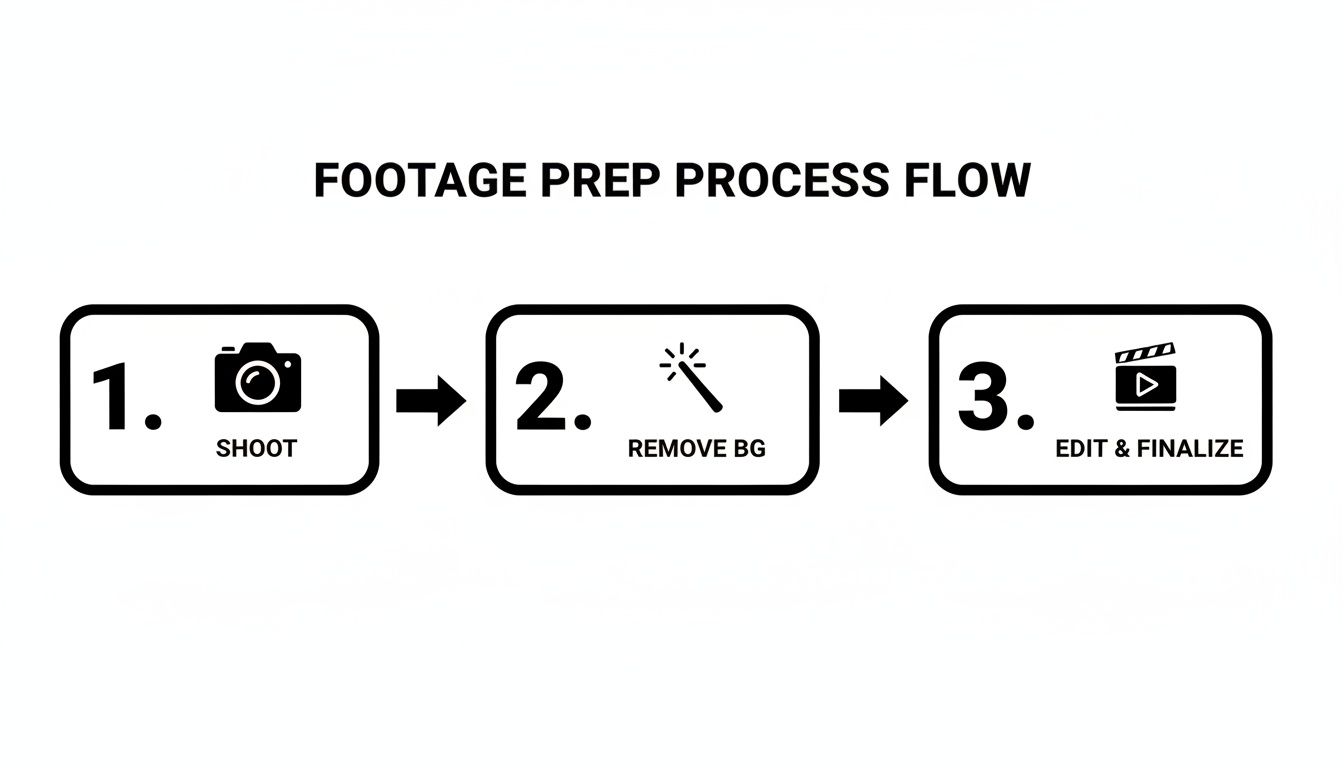
Whether you meticulously shot on a green screen or used a slick AI tool to remove the background, starting with a clean source is non-negotiable for a professional result.
Picking the Right Codec for the Job
Here's a critical piece of information: your standard MP4 file using the H.264 codec is not your friend here. While it's perfect for a final YouTube upload, it does not support alpha channels. If you try to export with these settings, you'll flatten the video and lose all that transparency you worked so hard to create.
You have to be more deliberate and choose a codec built for professional workflows. These are the ones I rely on:
- Apple ProRes 4444: This is my go-to. It's the industry standard for a reason, offering a fantastic balance of high-quality visuals and robust alpha channel support without creating monstrously large files.
- QuickTime Animation: Another great choice inside a QuickTime wrapper. It delivers lossless compression—meaning absolutely perfect quality—but be prepared for file sizes to get very big, very fast.
- GoPro CineForm: Don't let the name fool you. This codec has grown far beyond action cameras into a very capable professional format that handles alpha channels beautifully.
Pro Tip: If you're ever unsure, just start with Apple ProRes 4444. It's compatible with nearly every professional video tool and gives you a reliable, high-quality file. For a deeper dive into how these containers work, check out our guide on MOV file formats.
A Look at Export Settings in After Effects
Let's make this practical with a walkthrough in Adobe After Effects, a powerhouse for this kind of work. Once your animation is looking good and you can see that classic checkerboard pattern signifying transparency, you're ready to export.
First, send your composition over to the Render Queue (Composition > Add to Render Queue). This panel is your mission control for getting the file out correctly.
Look for the "Output Module" settings—it’s usually a blue link. This is where the magic happens. Clicking it opens up the dialog box where you'll define exactly how your video is encoded.
The key thing to spot in the settings is the "Channels" dropdown. It must be set to "RGB + Alpha" to bake that transparency into your final video file.
Here's the checklist for that window:
- Format: Make sure this is set to QuickTime. It's the container that will hold both the video and the alpha data.
- Format Options: A button click here will pop open a new window. Find Apple ProRes 4444 in the Video Codec dropdown.
- Channels: This is the most important step. Switch the dropdown from the default "RGB" to "RGB + Alpha". This is you explicitly telling After Effects to save the transparency.
- Depth: You can usually leave this at "Millions of Colors." Only change it to "Trillions of Colors" if you're working in a higher bit-depth pipeline and know you need it.
Once you’ve locked in those settings, click "OK," tell After Effects where to save the file, and hit that "Render" button. You’ll be left with a beautiful .mov file with a perfectly preserved transparent background, ready to be used as an overlay in another project.
Using Web-Based Tools for Quick Background Removal
Let's be realistic—not everyone has a subscription to the Adobe Creative Suite or the time to get comfortable with the complexities of After Effects. Sometimes you just need a transparent video background fast, maybe for a social media clip or a simple web element. This is where browser-based tools really shine.
These platforms are built for one thing: speed. The whole process is designed to be dead simple. You upload your clip, an AI model does its thing, and a few minutes later, you download a video with a perfectly transparent background. No rotoscoping, no keyframes, no headaches.
This is a game-changer for content creators, marketers, and anyone who needs to pump out professional-looking visuals without a video pro on the payroll. The convenience is undeniable. What used to be a painstaking, hours-long task can now be knocked out before you finish your morning coffee.
How the AI Workflow Actually Works
The magic behind these online tools is surprisingly simple from a user's perspective. Most follow the same basic, three-part process that requires zero technical know-how. It's an incredibly effective way to remove a video background online without getting lost in menus and settings.
- Upload Your Video: Just drag and drop your file—usually an MP4, MOV, or WebM—right onto the web page.
- The AI Takes Over: The platform's algorithm analyzes your footage frame by frame, identifying the subject and neatly separating it from the background. This is the heavy lifting, but it’s all automated.
- Preview and Download: Once the processing is done, you'll see a preview. If it looks good, you can download your new transparent video, typically as a WebM file or a PNG sequence.
Key Insight: The real benefit here isn't just speed—it's accessibility. These tools open up a creative capability that was once locked away for professionals, letting anyone with an internet connection create clean, high-quality cutouts.
The Trade-Off: Convenience vs. Control
While web-based tools are fantastic for a lot of projects, it's crucial to know their limitations. They offer a completely different set of pros and cons compared to traditional desktop software, and understanding them helps you pick the right tool for the task at hand.
The main trade-offs are usually control and final output quality. An AI might get confused by a super busy background or fast-moving subjects, and you don’t have the option to manually clean up the edges like you would with a Roto Brush. That’s the price you pay for automation.
Here’s a quick look at what you're getting into:
| Benefit | Limitation |
|---|---|
| Incredible Speed | Less Manual Control |
| No Software Installation | Resolution or Length Caps |
| User-Friendly Interface | Potential Watermarks on Free Plans |
| Pay-As-You-Go Pricing | Quality Can Depend on Source Footage |
Ultimately, your project's needs will dictate the best approach. For a quick TikTok or a GIF for your email campaign, a web-based tool is almost always the smartest choice. But for that high-stakes commercial project where every single pixel counts, you’ll probably want the fine-tuned control that only professional desktop software can offer.
How to Use Your Transparent Video on Websites and Social Media

Creating that perfect transparent video is a huge win, but it's really only half the battle. The real magic happens when you put it to work, blending your subject seamlessly into a totally new environment. How you do that, though, depends entirely on where it’s going. Getting a transparent video to play nice on a website is a completely different technical puzzle than creating a viral TikTok clip.
So, let's bridge that gap from a finished file to a final, impressive result. I'll walk you through the practical, real-world steps for using your transparent video on the web and on the social media platforms where this effect truly shines.
Putting Your Transparent Video on a Website
When you want to layer a transparent video onto a website, you step into the messy world of competing browser standards. You can’t just upload a massive ProRes file and call it a day; web performance and compatibility are everything. For this reason, the WebM format is usually your best friend.
WebM files are lightweight and built for the web, but getting browsers to agree on alpha transparency can be a headache. While Chrome handles WebM with an alpha channel beautifully, Safari was the odd one out for years, causing all sorts of problems for developers.
The standard solution, and the one I always use, is to provide two different video formats. You let the browser pick the one it supports, which ensures your video works for the widest possible audience, whether they're on Chrome, Safari, or something else.
To make this happen, you just need a simple HTML <video> tag with two source files nested inside. One will be your WebM file for Chrome, and the other will be an HEVC-encoded .mov file specifically for Safari.
Here’s a look at the code snippet you'll need:
Don't forget the attributes: autoplay, loop, muted, and playsinline are absolutely critical for creating that smooth, background-like effect that works reliably on both desktop and mobile.
Dominating Social Media with Transparent Overlays
Websites are just one piece of the puzzle. Transparent videos are incredibly powerful for mastering social media visual content, giving you a dynamic and eye-catching way to grab your audience's attention.
Platforms like TikTok and Instagram are practically built for this kind of visual layering. The workflow here shifts away from code and dives straight into mobile video editing apps. My go-to, along with countless other creators, is CapCut.
Your Mobile Editing Workflow
Let's say you've created a transparent .mov file of yourself dancing and you want to layer it over a cool cityscape video. Here’s how you’d do it.
Get the File on Your Phone: First things first, you need that transparent video file on your mobile device. AirDrop, Google Drive, or a simple USB transfer all work perfectly.
Start Your Project in CapCut: Open up the app and import your background clip first—the cityscape video, in this case. This becomes your base layer.
Add the Overlay: Now, find the "Overlay" feature and use it to add your transparent dancing video on top of the background. CapCut is surprisingly good at recognizing the alpha channel in a compatible
.movfile, like one exported with ProRes 4444.Position and Scale: Once it’s imported, you can just pinch, drag, and rotate your transparent layer to place yourself perfectly in the scene. You could make it look like you're dancing on a skyscraper rooftop or right in the middle of a busy street.
Finishing Touches: From here, just add your text, music, and any other effects you want before exporting. The final video will be a standard MP4 with both layers baked in, ready to upload directly to TikTok, Instagram Reels, or YouTube Shorts.
This simple layering technique is the secret sauce behind countless viral trends. It's an essential skill for anyone who's serious about creating short-form video that actually gets noticed.
Common Questions About Transparent Videos
Even when you follow all the steps, working with transparent video can throw you a curveball. Certain problems pop up all the time, especially when you're navigating this for the first time. Let's walk through some of the most common snags I've seen and how to fix them.
Why Does My "Transparent" Video Have a Black Background?
This one's a classic. You've painstakingly removed the background, exported your video, and when you drop it into your timeline... it has a solid black background. So, what happened?
Nine times out of ten, the culprit is the export format. Your standard MP4 (H.264), the go-to for pretty much everything on the web, simply cannot hold transparency information. It doesn't have a built-in "alpha channel" to store that data. When you export to MP4, the software has no choice but to flatten the video, filling in those transparent areas with black.
My Transparent Video File Is Huge! Is That Normal?
If you're used to the nice, compact file sizes of MP4s, your first transparent export is probably a shock. A quick 10-second clip saved as Apple ProRes 4444 can easily be hundreds of megabytes, while the MP4 version is tiny in comparison.
Don't worry, your computer isn't broken. This is completely normal, and there are two good reasons for it:
- Less Compression, More Data: Formats like ProRes 4444 and QuickTime Animation are built for quality, not for small file sizes. They keep a massive amount of the original visual data to avoid quality loss, which naturally makes the files bigger.
- The Extra "Alpha" Channel: You're not just saving the Red, Green, and Blue (RGB) color data for every pixel. You're also saving a whole fourth channel—the alpha channel—which tells the software what's transparent and what's not. All that extra information adds up.
Think of it like a JPEG versus a Photoshop (PSD) file. The JPEG is small and easy to share, but the PSD is huge because it's holding all the uncompressed layers and editing data. Your transparent video file is the professional, data-rich equivalent.
Can't I Just Use a GIF?
You can, but you probably shouldn't. While animated GIFs do support transparency and might seem like a quick fix for a simple web animation, they come with some serious quality trade-offs.
The biggest problem is color. GIFs are stuck with a maximum of 256 colors. This leads to ugly banding in gradients and blotchy patches where there should be smooth color. They also lack partial transparency—a pixel is either 100% on or 100% off—which creates rough, jagged edges around your subject.
My Two Cents: GIFs have their place for memes and simple icons, but for any kind of professional video work, they're a non-starter. Using a proper transparent video format like WebM or ProRes 4444 will give you the clean, professional look you're actually after.
How Can I Check If My Video Is Actually Transparent?
So you've exported your file, but how do you know if it worked? Most media players on your computer, like VLC or QuickTime Player, will just show a black background by default, which isn't very helpful.
The best way to be sure is to bring the file back into a program that understands alpha channels. Drop it into a project in Adobe Premiere Pro, After Effects, or even a mobile editor like CapCut.
Place your video on a track above another clip or a colorful image. If you can see the background layer through the transparent parts of your video, congratulations—it worked perfectly.
Ready to create stunning transparent videos without the technical headaches of professional software? At VideoBGRemover, our AI-powered tool removes your video background in minutes. Just upload, preview for free, and download a perfect, ready-to-use transparent file. Try it now at https://videobgremover.com.
Tagged with
Ready to Remove Your Video Background?
See a free preview before you buy.
No credit card required • Free preview on every video