Your Ultimate Guide to Using an MKV File Converter to MP4
Learn how to use an MKV file converter to MP4 with this complete guide. Explore online tools, VLC, HandBrake, and FFmpeg for fast, high-quality conversions.
You just downloaded a movie, and it won't play on your phone. Sound familiar? The culprit is almost always the file format, and in this case, it's likely an MKV. The quickest fix is to use an mkv file converter to mp4, which will instantly make your video compatible with just about any device or platform you can think of.
Why You Need to Convert MKV to MP4
Ever wondered why that super sharp video file plays perfectly on your computer but throws an error when you try to upload it to Instagram or play it on your smart TV? The answer usually comes down to the difference between a video container and the video codec packed inside it.
Think of MKV (Matroska Video) as a versatile, open-source shipping container. It’s fantastic because it can hold pretty much anything you throw at it—multiple high-quality video streams, several audio tracks for different languages, and a dozen subtitle files, all bundled together.
This all-in-one flexibility is precisely why MKV is a favorite for archiving high-definition content like Blu-ray rips. It preserves every last bit of original data. But that’s also its biggest drawback. A lot of devices and platforms just aren't built to unpack such a complex container.
On the flip side, you have MP4 (MPEG-4 Part 14). It’s more like a standardized shipping box—universally recognized and accepted everywhere. While it might not have the same extensive multi-track capabilities as MKV, its main selling point is unmatched compatibility.
Unlocking Universal Compatibility
For content creators and casual users alike, converting from MKV to MP4 is often a necessary step. It’s about making sure your video is ready for any destination, whether you're dropping it into an editing project, sharing it on social media, or streaming it to another device.
If you’re a creator, this is non-negotiable. Your workflow depends on files that your editing software can handle and that are optimized for platforms like TikTok, Reels, and YouTube. Even in professional spaces like effective OTT advertising, having your video in a universally accepted format like MP4 is essential for seamless playback.
The demand for these tools is booming. The video converter market, valued at $2 billion, is on track to hit $4.23 billion by 2032. This explosive growth really drives home how critical format conversion has become for making sure videos just work, everywhere.
This simple decision tree can help you figure out if you need a converter.
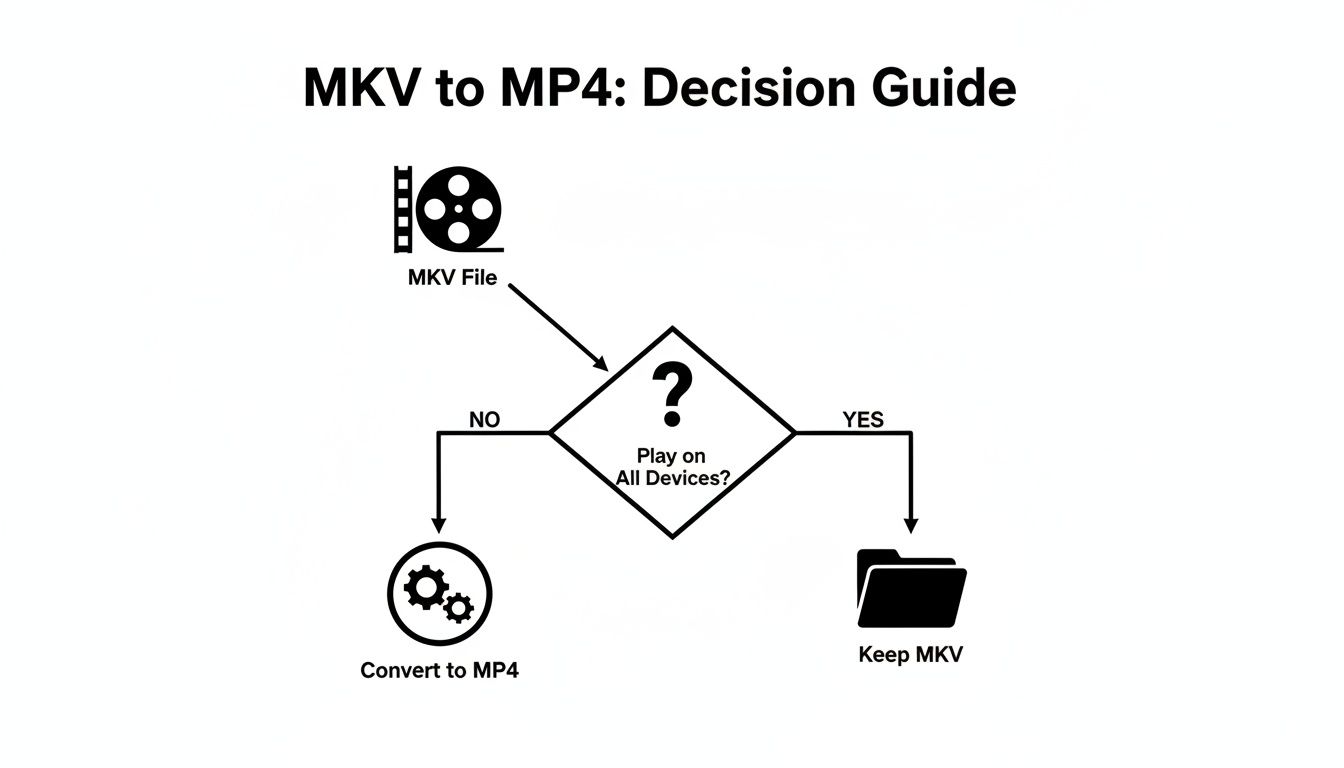
The flowchart gets to the heart of the matter: if universal playback is what you're after, converting to MP4 is your most direct path. It’s the key to making your video content accessible without all the headaches.
Using Quick and Easy Online MKV Converters
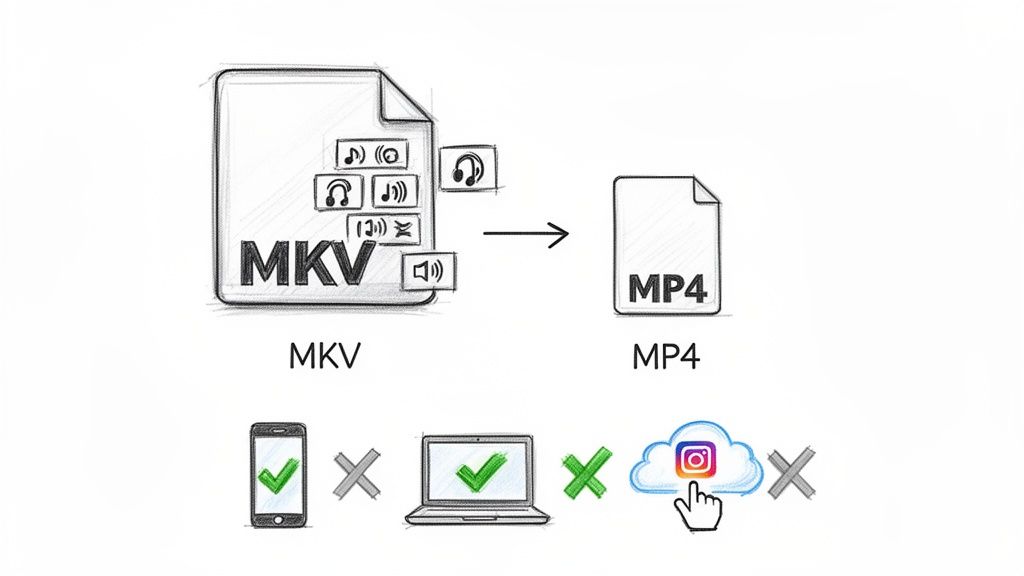
Sometimes you don't need a heavy-duty desktop application; you just need a quick fix. This is where an online mkv file converter to mp4 really comes in handy, offering a no-fuss solution when you’re in a pinch.
The main draw here is pure convenience. There’s zero software to install, which means you can get the job done from any machine with an internet connection, whether it’s your main rig or a public library computer.
It's usually as simple as visiting a website, uploading your MKV file, choosing MP4 as the target format, and hitting download. This makes it perfect for those times you need to convert a single, small video clip to share on social media right away.
Knowing the Trade-Offs
Of course, that simplicity comes with a few trade-offs you need to be aware of. Online converters just aren't built for large files, sensitive content, or mission-critical projects.
First off, nearly all free web-based tools have some pretty strict limitations. You’ll often run into:
- File Size Caps: Most services tap out at a few hundred megabytes, which immediately rules them out for converting full-length movies or high-resolution gameplay footage.
- Daily Conversion Limits: You might find yourself cut off after just a handful of conversions unless you pony up for a subscription.
- Processing Queues: Your "instant" conversion can get stuck waiting in line behind other users, especially during busy hours.
Beyond the practical limits, it’s also smart to think about what happens when you upload your video to a random server.
When you use a free online converter, you are sending your video to someone else's server. For personal, non-sensitive clips, this is rarely an issue. But for confidential business footage or private family videos, the potential privacy risk is something to seriously consider.
The Best Time to Go Online
So, what's the final word? An online converter is a great choice for a short, low-stakes video where speed and ease are your only concerns. It’s the perfect tool for getting a meme-worthy clip ready for Instagram or quickly prepping a video for a presentation.
For anything bigger, more complex, or where you need total control over quality and privacy, you’ll definitely want to use a more powerful desktop solution. Those tools give you the muscle to handle massive files without the frustrating limits and privacy questions that come with web-based services.
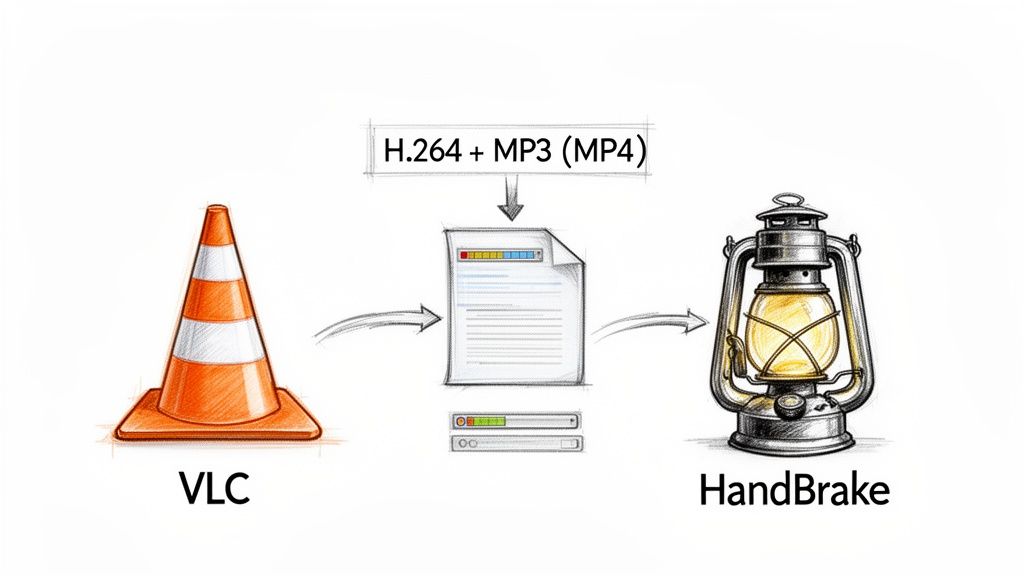
When online tools just don't cut it, it's time to bring in the heavy hitters: VLC Media Player and HandBrake. These free desktop apps are the workhorses of video conversion, giving you way more control over the entire process. They are my go-to choice for bigger files, batch jobs, or any project where quality is non-negotiable.
A lot of people already have VLC on their computer for watching videos but have no idea it’s also a powerful mkv file converter to mp4. For a quick and simple conversion, it’s fantastic. You just open VLC, head to Media > Convert / Save, and pick the standard ‘Video - H.264 + MP3 (MP4)’ profile. That preset is a solid, no-fuss choice that gives you a file that will play on just about anything.
But when you need more firepower, you'll want to graduate to HandBrake.
Gaining Full Control with HandBrake
HandBrake is, without a doubt, the gold standard for free video conversion. It offers a level of control that VLC's simple converter just can't touch. The interface might look a bit busy at first, but its presets alone make it incredibly powerful for everyone, from total beginners to seasoned pros. You can pick from dozens of settings already optimized for an iPhone, an Android tablet, or web platforms like YouTube and Vimeo.
This is where you can really start to fine-tune your video. Let's say your MKV file has multiple audio tracks—maybe one in English, one in Spanish, and a director's commentary. HandBrake lets you pick exactly which ones to keep in the final MP4. The same goes for subtitles, and this is where you get a crucial choice:
- Burn-In (Hardcode): This option permanently writes the subtitles onto the video frames. It's a great move for social media clips where you want to force captions to be visible, no matter what.
- Embed (Softcode): This packs the subtitles into the MP4 as a separate track. Viewers can then decide whether to turn them on or off in their media player.
HandBrake lays everything out clearly, giving you total command over video dimensions, filters, codecs, and a whole lot more.
This view really shows you the core workflow: load your source file, pick a preset, and then dive into the tabs to tweak everything just right before hitting the start button.
Why Desktop Apps Are Often the Smarter Choice
Relying on a desktop app like HandBrake is just smart practice for any serious video work. MP4 is king, after all, compatible with over 99% of devices and platforms out there. It’s no surprise the video converters apps market is on track to hit $1.5 billion by 2033, driven by creators who constantly need to turn MKV rips or downloads into upload-ready MP4s. While MKV is a fantastic container for archiving files with all their tracks intact, its chunky file sizes and spotty web support mean it needs converting in roughly 70% of professional workflows. You can dig deeper into these numbers in this detailed industry report.
The key takeaway is that desktop tools provide the reliability and control needed for high-stakes projects. You avoid the file size limits of online converters, protect your privacy, and gain access to advanced features like batch processing queues.
If you find yourself working with other formats, the core principles of picking the right codecs and containers are pretty much the same. We cover some related challenges in our guide on how to convert MOV files to MP4. At the end of the day, getting comfortable with a tool like HandBrake means you can confidently prep any video for any destination.
Getting Your Hands Dirty with FFmpeg
If you're a video pro, a developer, or just someone who prefers raw power over fancy interfaces, it’s time to meet FFmpeg. This free, open-source command-line tool is the powerhouse engine behind many of the video apps you already use.
By using it directly, you cut out the middleman. Forget clicking through menus; FFmpeg works with simple text commands, making it the fastest mkv file converter to mp4 for many jobs. It just gets the work done without any fuss.
The Secret to a Perfect, Lossless Conversion
The most valuable command you'll ever learn for this task is for "remuxing." This isn't re-encoding; it's just repackaging. Think of it as moving the contents of a box (your video and audio) into a different box (from MKV to MP4). The contents remain untouched, preserving 100% of the original quality.
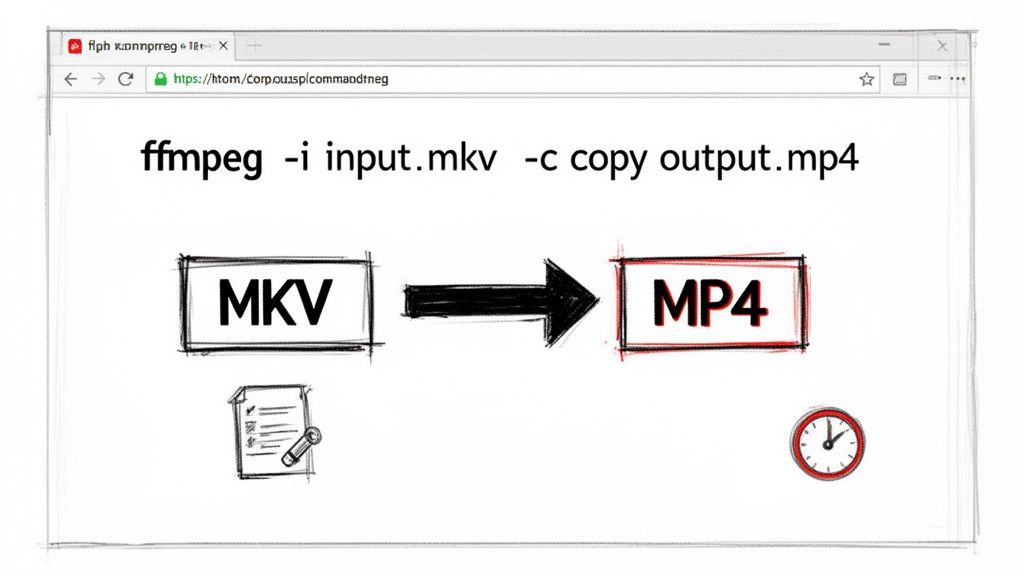
The command itself is beautifully simple:
ffmpeg -i input.mkv -c copy output.mp4
Here's what that's actually telling the computer to do:
ffmpeg: Wakes up the program.-i input.mkv: The-iflag points to your source file.-c copy: This is the magic ingredient. It tells FFmpeg to copy every stream (video, audio, etc.) exactly as it is.output.mp4: And here’s what you want your new file to be called.
This whole process often takes just a few seconds. The computer isn't doing the heavy lifting of re-compressing anything, making it the perfect solution when you just need to fix a compatibility issue.
Taking it a Step Further with Advanced Commands
Once you've got the basics down, you can start unlocking FFmpeg's real power. You can add more flags to the command to handle more complex files with surgical precision.
What if your MKV has multiple audio tracks or subtitles? No problem.
Imagine a file has an English audio track, a Spanish audio track, and English subtitles. With a GUI converter, you might have to dig through menus. With FFmpeg, you just tell it which streams to grab and map to the new file.
FFmpeg offers a level of control that most graphical tools simply can't match. You can pick and choose specific video, audio, and subtitle streams, fine-tune quality with precise bitrate control, or even apply filters—all from a single line of text. This makes it an essential tool for anyone building custom or automated workflows.
Of course, you can also use FFmpeg to re-encode when you actually need to, like when you have to switch from an older codec like MPEG-2 to the more universal H.264. It’s a different process than remuxing and is more akin to what happens when you convert an MP4 to MPEG.
Automate Everything with Simple Scripts
Here's where FFmpeg really starts to shine: batch processing. Instead of converting files one by one, you can write a tiny script to do it all for you.
A simple for loop in a batch file (for Windows) or a shell script (for macOS and Linux) can chew through an entire folder of MKV files, running your conversion command on each one without any more input from you.
This kind of automation can literally save you hours of tedious work. It takes a little practice to get the hang of it, but the payoff in efficiency is enormous, making FFmpeg an indispensable tool for managing large video libraries.
Pro Tips for a Flawless Conversion
Getting your video into an MP4 container is a good start, but it's really only half the job. The real craft lies in creating a perfect file that keeps its quality, includes the right assets, and is already optimized for where it's going next. This is where you graduate from a basic conversion to a professional, time-saving workflow.
To really get this right, you need to understand the critical difference between remuxing and re-encoding.
Think of remuxing as simply moving your video and audio data from an MKV "box" to an MP4 "box." The contents inside—the actual video and audio streams—are untouched. Because nothing is being re-processed, this method is incredibly fast and results in zero quality loss. It’s a pure container swap.
Re-encoding, however, is a different beast entirely. It’s like unpacking that box, compressing the contents to make them smaller or more compatible, and then packing them into the new MP4 box. This is what tools like HandBrake often do by default. It's essential when you need to shrink the file size or change the underlying video codec, but it always comes at the cost of some quality.
Remuxing vs Re-encoding When to Use Each
Knowing when to remux versus re-encode is key to an efficient workflow. A quick look at their core differences makes the choice pretty clear.
| Attribute | Remuxing (e.g., ffmpeg -c copy) |
Re-encoding (e.g., HandBrake) |
|---|---|---|
| Speed | Extremely fast (seconds to minutes) | Slower (minutes to hours) |
| Quality | 100% identical to the original | Some quality loss is inevitable |
| Use Case | When you just need to change the container for compatibility | When you need to reduce file size or change the video/audio codec |
| File Size | Remains almost identical to the source MKV | Can be significantly smaller than the source |
Ultimately, if your goal is just to make an MKV file play nice with another program or device, always try remuxing first. You'll save a ton of time and keep the quality pristine.
Handling Subtitles Like a Pro
Subtitles are another one of those details that can trip people up. MKV files are fantastic for holding multiple subtitle tracks, and a good mkv file converter to mp4 lets you decide their fate. Your choice should come down to how the final video will be watched.
- Hardcoding (Burn-in): This process permanently etches the subtitles onto the video frames themselves. It’s the go-to choice for platforms like Instagram or TikTok where you need to guarantee the captions are always visible, no matter what.
- Softcoding (Embed): This tucks the subtitles into the MP4 file as a separate, selectable track. This is far more flexible, letting viewers on sites like YouTube or in media players like VLC decide whether to turn them on or off.
Deciding on your subtitle method upfront is a huge time-saver. If you're prepping a social media ad, hardcode it. If it's a movie for your personal library, softcode it for maximum flexibility down the road.
Building an Efficient Batch Workflow
If you're staring down a folder full of MKV files, converting them one by one is a recipe for a wasted afternoon. This is the perfect time to build a batch conversion workflow.
For anyone who prefers a graphical interface, HandBrake's "Queue" feature is a lifesaver. You can simply add an entire folder of MKVs, apply a single conversion preset to all of them, and let the software chew through the list while you do something else. For the command-line pros, a simple FFmpeg script can automate the entire process, giving you complete control over a massive library.
This kind of efficiency is non-negotiable for modern content creators. Converting MKV to MP4 solves a huge compatibility headache—MP4 is supported on virtually 100% of major streaming platforms, while MKV can fail on up to 60% of devices. For those of us using tools like VideoBGRemover, starting with a clean, compatible MP4 is essential. It ensures the AI can do its job and deliver a precise cutout, especially since the conversion can often be a quick, lossless remux.
If you're looking for a deeper dive into market trends driving this need, you can find more in this comprehensive video converter report.
And for more tips on keeping your files looking sharp through these processes, don't miss our guide on video compression without losing quality.
Frequently Asked Questions
Diving into video conversion can feel a bit technical, and it's natural to have questions. I've been working with these formats for years, so let's clear up some of the most common things people ask when they need to turn an mkv file into an mp4.
Will I Lose Quality When I Convert MKV to MP4?
Not necessarily, and this is a really important distinction. It all comes down to how you convert the file.
If your MKV file already uses video and audio codecs that the MP4 container supports (like H.264 video and AAC audio), you can just remux it. Think of this as simply moving the contents from one box (MKV) to another (MP4) without touching what's inside. It's lightning-fast and results in zero quality loss.
However, if you need to change the codecs or drastically shrink the file size, you’ll have to re-encode. This process does involve some quality loss, but with a good tool like HandBrake, you can use high-quality settings that make the difference practically invisible to the human eye.
How Do I Keep Subtitles When Converting?
You've got a couple of solid options here, and the right choice really depends on where your video will be seen.
- Burn-in (Hardcode): This method permanently prints the subtitles onto the video frames themselves. It’s a great, no-fuss solution for platforms like Instagram or TikTok, guaranteeing everyone sees the captions.
- Embed (Softcode): This is more flexible. The subtitles are included as a separate track within the MP4 file. Viewers using a compatible player (like VLC or QuickTime) can then choose to turn the subtitles on or off.
HandBrake makes this easy. Just head to its "Subtitles" tab, where you can select either method and get exactly the result you need.
Which Converter Is Best for Batch Processing?
When you’re staring down a folder full of MKV files, doing them one by one is a nightmare. You need a tool built for bulk work.
For anyone who prefers a straightforward visual interface, HandBrake is the undisputed champion. Its "Queue" feature is fantastic—just add all your files, pick a conversion preset, and let it run through the whole batch automatically.
If you're comfortable working in a terminal, nothing beats the power and speed of FFmpeg. With a simple script, you can tell it to convert every single MKV in a directory, making it the ultimate solution for large-scale projects where automation saves you hours of manual clicking.
Ready to take your new MP4 video to the next level? VideoBGRemover is the perfect next step. Upload your clip, and our AI will handle the tricky background removal for you, delivering a professional, clean result in minutes. Give it a try for free at https://videobgremover.com.
Tagged with
Ready to Remove Your Video Background?
Upload your video and see the exact price before processing.
No subscription • Exact price before processing