Pro Video Background Remover Guide Without a Green Screen
Discover how a video background remover uses AI to create professional clips without a green screen. Learn practical tips and workflows to master this tool.
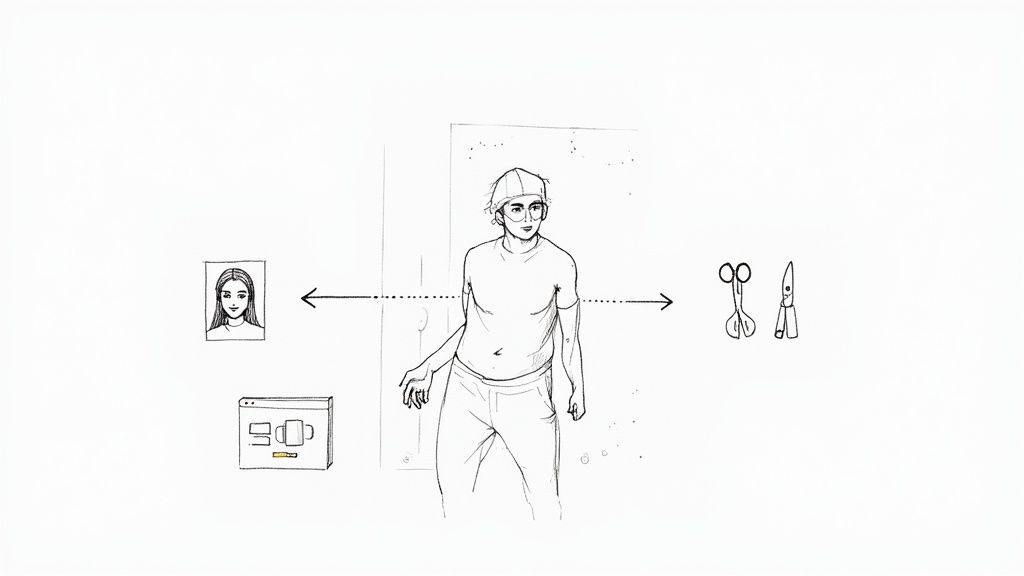
Ever wished you could digitally lift a person out of a video and drop them into a completely new scene, all without the hassle of a green screen? That’s exactly what a video background remover does. It’s an AI-powered tool that acts like a pair of smart scissors, automatically isolating your subject from their surroundings in every single frame of a video.
What Is a Video Background Remover
If you’ve ever used portrait mode on your phone, you’ve seen a basic version of this idea in action. That feature blurs the background to make you stand out. A video background remover takes this concept to a whole new level, but for video. Instead of just blurring, it erases the background entirely, leaving you with a clean, transparent layer to build upon. This tech is a game-changer because it sidesteps the cost, space, and technical headaches of traditional green screen setups.
The whole point is to bring professional video effects to everyone, not just those with big budgets and studio space. It’s about making high-end production accessible.
The Problem It Solves
At its core, this technology tackles three big hurdles in video production: time, cost, and complexity. Anyone who's tried setting up a green screen knows it demands perfect lighting, a lot of room, and serious editing skills to pull off a convincing effect. Video background removers let you skip all that.
- Saving Time: It automates a process that used to mean tedious, frame-by-frame manual editing. What took hours now takes minutes.
- Reducing Costs: Forget about buying expensive screens, lighting kits, or renting out a dedicated studio.
- Unlocking Creativity: You can film anywhere you want and then, later on, place your subject into any setting you can dream up—whether that's a professional office backdrop or a breathtaking mountain view.
This isn't just a minor convenience; it's a major shift in the industry. The market for these tools is expected to explode, growing from $10 million in 2025 to a staggering $723 million by 2033. This growth is all thanks to the relentless demand for more video content everywhere online. You can dive deeper into the numbers behind this trend over at Archive Market Research.
In short, these tools tear down the technical walls between a great idea and a finished video. They let creators, marketers, and teachers focus on their story, not on the gear. It’s like having a full production studio right in your web browser.
How AI Actually "Sees" Your Video to Remove the Background
Ever wonder how a tool can so cleanly separate a person from their background in a moving video? It’s not magic, but it’s close. The core technology is a sophisticated AI process called semantic segmentation.
Think of it like teaching a computer to see the world less like a bunch of pixels and more like we do—as a collection of distinct objects. The AI is fed millions of videos, and through this massive training process, it learns to tell the difference between a 'person,' a 'chair,' a 'car,' or the 'sky.'
This isn't just about recognizing shapes; it's about understanding context. The AI learns to identify countless hairstyles, how different fabrics hang and move, and the subtle ways people gesture. It’s the same kind of highly precise subject isolation used in advanced applications like AI clothing try-on technology. Once it understands what the subject is, the AI creates a pixel-perfect digital outline around them for every single frame. This outline is called a mask.
The End of Frame-by-Frame Torture
Before AI came along, removing a background was a brutal, manual process known as rotoscoping. An editor had to physically trace the subject's outline, one frame at a time. It was mind-numbingly tedious.
Just think about it: a single minute of video at 30 frames per second meant an artist had to draw 1,800 individual masks. This work was incredibly expensive and slow, which is why you only saw it in big-budget films.
An AI-powered tool is like having a master rotoscope artist who works at superhuman speed. It automates the entire process, making what was once an exclusive special effect something anyone can do in minutes. Different AI models approach this in unique ways, as we explore in our guide to RunwayML’s video AI, a pioneer in this space.
The key takeaway is this: the AI isn't just blindly "cutting out" pixels. It’s making intelligent decisions based on a deep understanding of what it’s seeing, allowing it to isolate your subject cleanly and preserve every important detail.
Tackling the Toughest Visual Challenges
The real difference between a basic tool and a professional one becomes clear when you throw a tricky video at it. Top-tier AI models are specifically trained to handle the complex visual problems that make background removal so difficult.
These are the hurdles that truly test an AI's power:
- Fine Details: Can it isolate every wisp of hair or the fluff on a sweater without making it look like a chunky, blocky helmet?
- Motion Blur: When a subject moves quickly, can the AI create a clean edge instead of a blurry, ghost-like artifact?
- Transparent Objects: How does it handle a wine glass, a sheer scarf, or a window? A great tool will preserve that transparency.
When an AI can master these challenges, you get a cutout that looks completely natural and believable. It’s this ability to handle the hard stuff that separates the truly great background removers from the rest.
Real-World Uses for Background Removal
Okay, so we've covered the tech behind it, but where does the rubber really meet the road? The true magic of a video background remover isn't just in the special effects; it's how people are using it every day to solve practical problems and make their content look incredible. This is the tool that closes the gap between a simple home recording and a polished, professional-looking video.
Think about a social media influencer. They can shoot a TikTok in their bedroom and, with a few clicks, make it look like they're in a Parisian cafe. This is a go-to strategy for many of the over 200 million influencers out there trying to create more engaging content without a travel budget. Marketing teams are all over this, too, especially since video ad spending is expected to blow past $200 billion by 2026. A clean, professional look is proven to lift engagement by as much as 30%, which is a massive win.
Making E-commerce and Education Shine
The applications go way beyond just social media. For e-commerce brands, consistent, clean product videos are everything. You can take a video shot in a cluttered warehouse and instantly swap that background for a sleek, branded one. Suddenly, every product is shown in its absolute best light. It's the same core technology that's making other cool e-commerce solutions possible, like the AI-powered virtual dressing rooms you might have seen.
This diagram breaks down how the AI "sees" and separates the subject from its surroundings, creating that perfect digital mask.
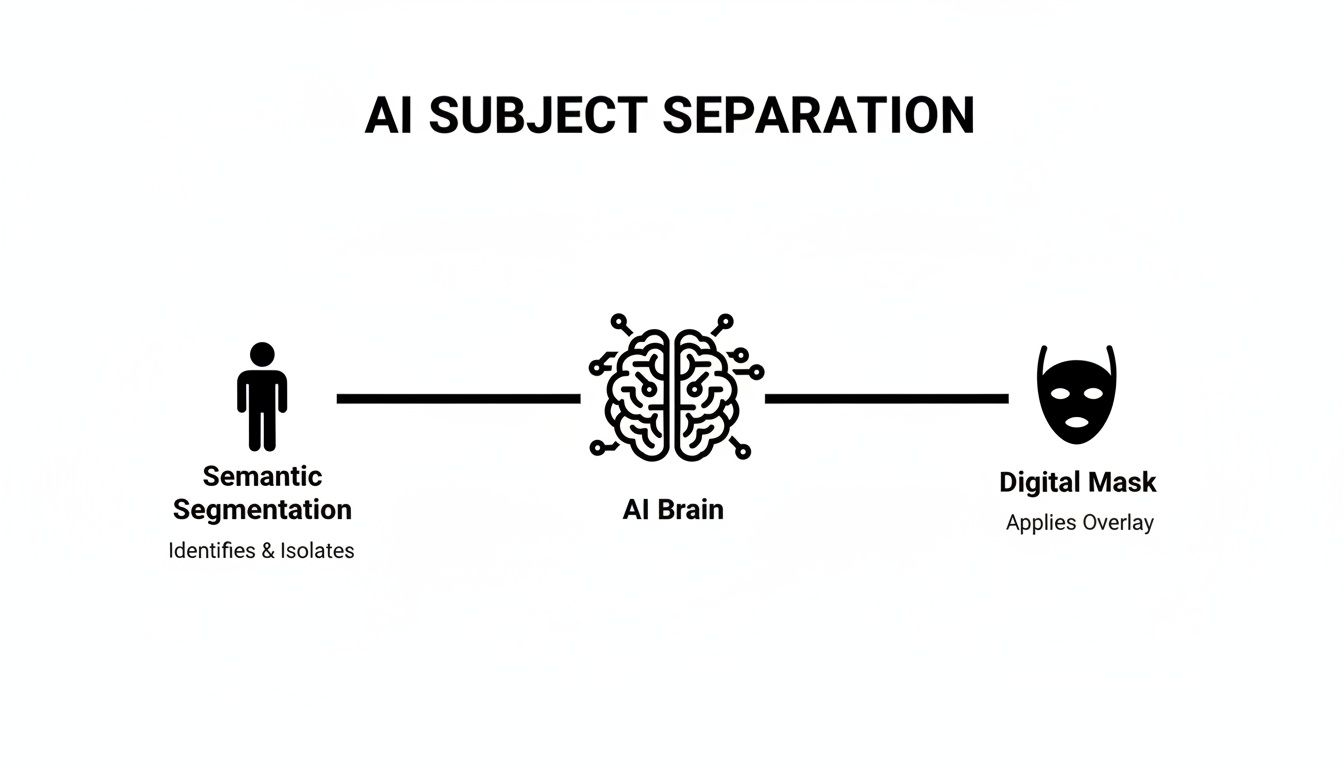
This process is the engine that drives all these real-world uses, from better product videos to more effective training materials.
Speaking of training, the e-learning world, which now serves well over 100 million learners, relies on clear, crisp tutorial videos. Corporate trainers and online teachers can record lessons from their home office but replace a distracting bookshelf with professional slides or a clean, branded visual.
It completely changes the feel of the content. You go from "I'm working from my spare room" to a focused, distraction-free learning environment that feels much more authoritative.
Crafting Dynamic Marketing and Ads
Marketers are also having a field day with these tools, creating ads that actually stop people from scrolling. By isolating a person or product, they can layer them onto eye-catching motion graphics or other video clips. This makes it super easy to A/B test different backgrounds to see which one performs best with their target audience.
Here are just a handful of ways this plays out:
- Product Demos: Drop a presenter and their product into a slick virtual studio.
- Testimonial Videos: Give all your customer testimonials a consistent, on-brand look.
- Facecam Overlays: Gamers and streamers can ditch the green screen and cleanly overlay their facecam right onto their gameplay footage.
Every one of these examples points back to the same core advantage: you can create high-quality, professional video quickly and affordably, no physical studio required.
Choosing Your Output Format and Workflow
So, the AI has done its magic and cleanly cut your subject out of the background. Now what? You’ve reached a crucial fork in the road that will define the rest of your creative process: what do you want your final video to be?
This decision shapes everything that comes next—how you edit, layer, and finalize your project.
Think of it like getting a custom-cut piece of glass. You can have it delivered with a beautiful design already etched into it, ready to display. Or, you can get a perfectly clear pane to install into a larger, more complex window frame. The same idea applies to your video.
Understanding Your Output Options
The two main paths you can take are exporting a finished video with a new background already baked in, or exporting just your subject on a transparent background. Each has its own distinct advantages depending on what you're trying to accomplish.
For a lot of social media content, the most common workflow is to just replace the background right inside the tool and export a ready-to-post MP4 file. It's the fastest, most direct route from recording to sharing. Simple.
But for professional video editing, you need maximum flexibility. That’s where exporting with a transparent background—powered by something called an alpha channel—is an absolute game-changer.
The alpha channel is the secret sauce. It’s an extra layer of information in the video file that tells editing software which pixels are transparent. This lets you stack your subject on top of other layers without any background attached, giving you total creative freedom in post-production.
Transparent Formats vs. All-In-One Exports
Let's break down when to use each approach. Picking the right format is the key to a smooth and efficient workflow.
Here’s a quick comparison to help you decide which output format is the right fit for your project.
Choosing the Right Video Output Format
| Output Format | Key Feature | Best For | Common Use Case |
|---|---|---|---|
| MOV (ProRes 4444) | High-quality with transparency (alpha channel) | Professional video editors, animators, VFX artists | Layering a presenter over a slide deck in Adobe Premiere Pro |
| PNG Sequence | Frame-by-frame images with transparency | Complex visual effects and rotoscoping workflows | Integrating a CGI character into live-action footage |
| MP4 (H.264) | High compression, universal compatibility | Quick social media posts, simple presentations | Replacing a messy home office with a clean virtual background for a TikTok video |
| GIF | Short, looping, animated clips | Memes, web banners, email marketing | Creating a reaction GIF of a person shrugging with a transparent background |
Ultimately, choosing between these formats comes down to one question: where does your editing process start and end?
Transparent Backgrounds (.MOV, PNG Sequence): This is the go-to for anyone working in software like Adobe Premiere Pro or After Effects. Exporting as a .MOV with a ProRes 4444 codec is the professional standard for a reason—it preserves both transparency and quality. If you want to learn more, check out the benefits of using transparent MOV ProRes files to keep your projects looking sharp. This format is what allows you to seamlessly layer your isolated subject over other videos, graphics, or special effects.
New Backgrounds (MP4): This route is all about speed and convenience. If you’re a content creator cranking out a quick tutorial, a social media ad, or an internal corporate video, just upload a new image or video background and export a finished MP4. It's an all-in-one solution that doesn't require any other editing software.
The best video background remover is one that slots right into your existing creative process. Whether you need a quick-turnaround video for TikTok or a high-quality asset for a major editing project, understanding these output options ensures you get the exact result you need without any headaches.
Tips for Flawless Background Removal
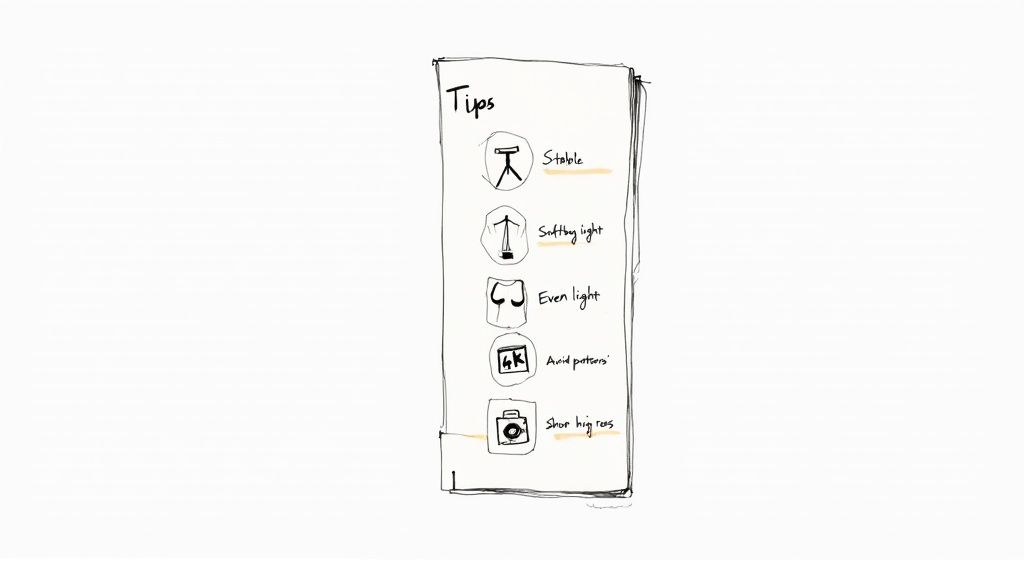
Even the smartest AI appreciates a little help. While a video background remover gets rid of the need for a green screen, you can get a much cleaner result by paying attention to how you shoot. Think of it as giving the algorithm a clear, easy-to-read map instead of a crumpled, blurry one.
Your main goal is simple: create as much contrast as you can between your subject and whatever is behind them. When you do this, the AI doesn’t have to guess, especially around tricky spots like hair or the edges of fabric. The cleaner the video you feed it, the more polished the final cutout will be.
Set the Scene for Success
Lighting is everything. Seriously. Good, even lighting is your best friend. You want to light your subject clearly without creating harsh, distracting shadows, which helps define their silhouette for the AI.
Also, be mindful of what’s behind your subject. A busy, patterned background or a wall color that’s too similar to your clothing can confuse the software. Imagine wearing a blue shirt while standing against a blue wall—you're basically asking the AI to solve a camouflage puzzle. A plain, solid-colored wall is always your safest bet.
This whole approach is becoming more common, especially with the explosion of remote work—where over 25% of the global workforce is hybrid—and the massive growth in live streaming. Creators on platforms like Twitch, which hit 140 million monthly users in 2024, need simple ways to produce professional-looking content without dropping $5,000 on a full green screen setup. AI tools make that possible, and you can learn more about this growing AI video technology trend.
Your Pre-Production Checklist for Clean Cutouts
Before you press that record button, take a minute to run through a quick checklist. A little prep work upfront can save you a world of headaches later. Getting these basics right gives any background remover the best possible footage to analyze.
- Lock it Down with a Tripod: A stable camera is non-negotiable. Any shakiness introduces motion blur, which smears the edges of your subject and confuses the AI. A crisp, steady shot always produces the sharpest cutouts.
- Shoot in High Resolution: Always film in the highest quality your camera can handle, ideally 1080p or 4K. More pixels mean more information for the AI to work with, leading to a much more precise result.
- Watch Out for Backlighting: Filming with a bright window directly behind your subject is a classic mistake. It creates a silhouette, plunging your subject into shadow and making it nearly impossible for the AI to pick out their details.
- Scan for Reflections: Keep an eye out for mirrors, shiny picture frames, or even a glossy coffee mug in the background. Reflections can throw off the AI and create weird artifacts in your final video.
How to Select the Right Background Remover
With so many tools on the market, picking the right video background remover can feel a bit overwhelming. The key is to cut through the marketing noise and focus on what actually matters for your projects and your workflow. After all, the perfect tool for a TikTok creator is probably not the same one a professional video editor needs.
The absolute first thing you should look at is accuracy. This is non-negotiable. A great tool will nail the tricky details, like individual strands of hair, without giving your subject that weird, blocky "helmet" look. It also needs to handle motion blur gracefully and keep the edges of your subject looking natural as they move.
Evaluating Key Performance Factors
Beyond just how clean the cutout is, you have to think about processing speed. How long are you willing to wait for the tool to render your video? If you're churning out daily content, a slow, clunky tool that takes forever is a deal-breaker. You want to find that sweet spot between high-quality results and a processing time that doesn't kill your momentum.
Ease of use is another huge one. The software should just make sense. A clean, straightforward workflow is essential—can you upload your video, swap the background, and export it without having to hunt through confusing menus or watch a dozen tutorials? For most people, a simple browser-based tool is perfect for quick edits and avoids a steep learning curve.
The ideal tool combines precision with practicality. It should be accurate enough for professional-looking results, fast enough to keep up with your content schedule, and simple enough that it doesn’t interrupt your creative flow.
Finding the Right Price and Fit
Finally, take a hard look at the pricing model. Does it actually fit how you work? A lot of services push subscriptions, which can be great if you’re a power user. But what if you only need to remove a background once in a while? For that, a pay-as-you-go model is often a much better fit, giving you the flexibility to only pay for what you actually use.
Choosing the right tool really boils down to matching its strengths to your specific needs. If you prioritize accuracy, speed, a user-friendly design, and a fair pricing structure, you’ll find a tool that consistently delivers. For a head-to-head comparison, check out this breakdown of the 7 best video background removal tools for content creators to see how the top options stack up.
Got Questions? We’ve Got Answers
Thinking about trying a video background remover but have a few questions? You're not alone. Here are the answers to some of the most common things people ask.
Do I Really Need a Green Screen for This to Work?
Nope, not at all. That’s actually the whole point! Modern AI-powered tools are trained to identify and separate a subject from whatever is behind them, which means you can finally ditch the bulky green screen and complicated lighting rigs.
Of course, a clean, uncluttered background with good contrast never hurts and can help the AI work a little faster. But it's absolutely not a requirement. These tools are built to handle real-world footage, whether you’re in a busy office, your living room, or even outdoors.
What’s the Best Type of Video File to Use?
For the sharpest results, you'll want to start with the best quality video you have on hand. Think high-resolution formats like 1080p or even 4K. The more pixel detail you give the AI to analyze, the cleaner and more precise the final cutout will be, especially around tricky edges.
Most common video formats like MP4 and MOV are perfect and widely supported. The key takeaway is to use a clear, well-lit video that hasn't been overly compressed. Better input simply equals better output.
At the end of the day, a crisp source video gives the AI the best possible chance to work its magic. More detail means more accuracy, particularly with fine details.
Can These Tools Actually Handle Tricky Stuff, Like Hair?
Yes, but this is where you can really see the difference between a good tool and a great one. The most sophisticated video background removers have been trained on massive amounts of data, teaching them to handle incredibly complex and fine details. We're talking about individual strands of hair, wispy fabrics, and even semi-transparent objects.
That said, things like heavy motion blur or really poor lighting can still be a challenge for any AI. The best platforms are the ones that not only produce a fantastic result automatically but also give you the ability to fine-tune it if needed, so you always get a perfect final cut.
Ready to create professional-looking videos without the green screen headache? Give VideoBGRemover a try and see for yourself how simple it is to swap out any background. Get started in just a few clicks at https://videobgremover.com.
Tagged with
Ready to Remove Your Video Background?
See a free preview before you buy.
No credit card required • Free preview on every video