How to play mov files: The Ultimate Guide to Playing MOV on Any Device
Learn how to play mov files on any device with simple steps, tips, and troubleshooting to ensure smooth playback.
Ever tried to play a MOV file and been met with an error message? It’s a frustratingly common problem, but the fix is usually quick. The fastest way to solve this is to grab a universal media player like VLC Media Player. It’s packed with built-in codecs, meaning it can handle just about any video format you throw at it, no extra installations needed. This single step solves playback headaches on both Windows and Mac in less than five minutes.
Why Your MOV File Won't Play
So, why the error message? The issue usually stems from the fact that MOV is a container format built by Apple for its QuickTime framework. It’s perfectly at home on macOS and iOS, but other operating systems often don't have the right software—called codecs—to unpack and play what's inside.
Think of the MOV file like a box. The problem isn't the box itself; it’s that your player can't figure out how to open it and understand the video and audio streams packed within. One MOV might play just fine, while another gives you a black screen because they use different codecs.
The usual suspects behind playback failure are:
- Missing Codecs: Your media player is missing the specific decoder needed for the video or audio track. It’s like having a key that doesn’t fit the lock.
- Outdated Media Player: An older player might not recognize newer codecs, such as HEVC (H.265) or Apple ProRes, which are common in high-quality MOV files.
- OS Incompatibility: Windows and Android systems don't natively support all the codecs that Apple devices do, leading to playback failures right out of the box.
This simple flowchart can help you decide which path to take depending on your operating system.
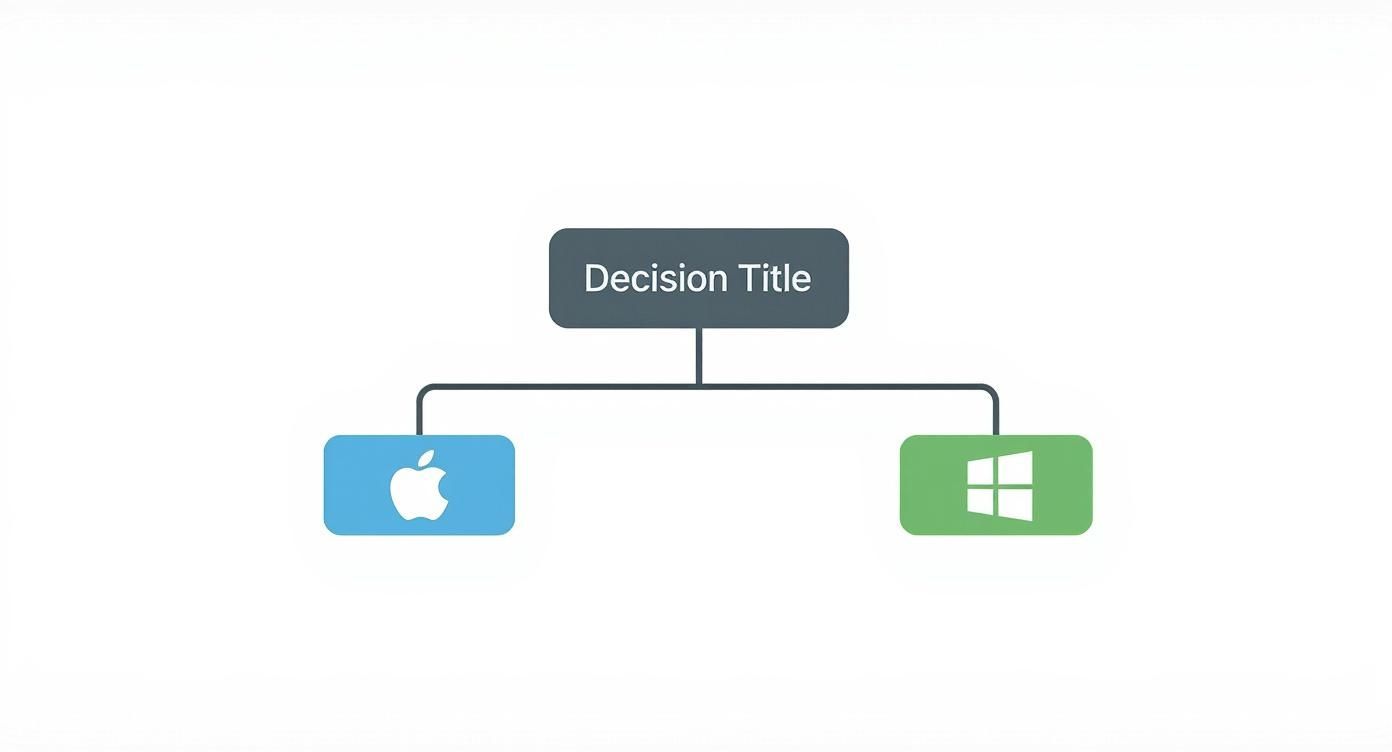
It’s a straightforward visual guide to point you toward the most effective solution, whether you're on a Mac or a Windows PC.
Quick Fixes for Playing MOV Files
Sometimes, all you need is the right tool for the job. This table breaks down the best players for each operating system to get your MOV files working instantly.
| Operating System | Recommended Player | Key Benefit |
|---|---|---|
| macOS | QuickTime Player (built-in) | Native support for virtually all MOV codecs, including ProRes. |
| Windows | VLC Media Player | Plays everything out-of-the-box with no need for extra codec packs. |
| All Platforms | IINA (Mac) / PotPlayer (Win) | Modern interfaces with powerful features and broad codec support. |
Ultimately, installing a versatile player like VLC is the most reliable fix and prevents future headaches with other obscure file types you might encounter.
A Format That Shaped Modern Video
Believe it or not, the MOV file format has been around since 1991. Apple created it as part of its QuickTime multimedia framework, making it a true pioneer in digital video. This architecture was so foundational that it later became the basis for the MPEG-4 standards, which led to the creation of the universally loved MP4 format in 2001.
While MOV files can be quite large, that size often translates to high-quality video data. If you find your files are getting too big to store or share easily, you might want to look into shrinking them. Check out our guide on how to compress MOV files without sacrificing visual quality—it’s a simple trick that makes your videos much easier to handle.
Getting Flawless MOV Playback on Windows PCs
If you're on a Windows machine, you've probably felt the frustration of trying to play MOV files. Since the format was born in Apple's ecosystem, Windows doesn't always know what to do with it right out of the box. You might get an error message, or worse, hear the audio perfectly while staring at a completely black screen.
The issue usually boils down to a missing codec—think of it as a special translator your PC needs to decode the video data packed inside that MOV file. Luckily, getting things to work is straightforward and doesn't require a computer science degree.
The Easiest Fix: VLC Media Player
Honestly, for a quick and painless solution, just install VLC Media Player. I can't recommend it enough. VLC is like the Swiss Army knife of media players; it's designed to open virtually any video or audio file you throw at it, including MOVs, without any extra fuss.
There are a few solid reasons why it's the go-to for most people:
- It’s Self-Contained: VLC brings its own library of codecs and doesn't mess with your core Windows files. This makes it incredibly safe and prevents it from causing strange conflicts with your other software.
- Massive Format Support: It handles everything from common codecs to professional-grade ones like Apple ProRes and HEVC (H.265), which are often found in high-quality MOV files from cameras and editing software.
- Completely Free & Clean: As open-source software, it's 100% free, with no ads, spyware, or strings attached.
Just grab it from the official VideoLAN website, run the installer, and you're set. You can then open any MOV file by simply double-clicking it or dragging it into the VLC window. Problem solved.
Using Native Apps with Codec Packs
What if you really prefer using the built-in Windows "Movies & TV" app or the classic Windows Media Player? In that case, you'll need to give your system a little boost by installing a codec pack. This is essentially a bundle of those "translators" that integrates directly into Windows, teaching your native apps how to read new formats.
The most trusted and long-standing option is the K-Lite Codec Pack. It’s been around for years and is well-maintained, bundling decoders for almost any format imaginable.
A Quick Word of Warning: When you download a codec pack, always get it from the official source. Sketchy third-party sites are notorious for bundling malware or annoying adware with their downloads, which can create a whole new set of problems for your PC.
The main benefit here is convenience—once installed, almost any media player on your system can handle MOVs. The potential downside is that it directly modifies your system files, which, in rare cases, can lead to software conflicts if you're not careful during installation.
Standalone Player vs. Codec Pack: Which Should You Choose?
So, should you go with a standalone player like VLC or a system-wide codec pack? It really depends on your needs and how comfortable you are with tinkering with system settings.
Here’s a quick breakdown to help you decide the best way to play MOV files:
| Feature | VLC Media Player | K-Lite Codec Pack |
|---|---|---|
| Safety | Very High. It's a self-contained application. | High (from official source). Modifies system files. |
| Ease of Use | Excellent. Just install and play. | Good. Requires installation and careful setup. |
| System Impact | Low. Does not change system settings. | Medium. Integrates into the operating system. |
| Best For | Users who want a simple, reliable solution. | Users who want native app playback. |
For 99% of users, VLC is the clear winner. It's the simplest, safest, and most reliable way to guarantee that any MOV file you come across will play perfectly, every single time.
Decoding the Mystery of Video Codecs
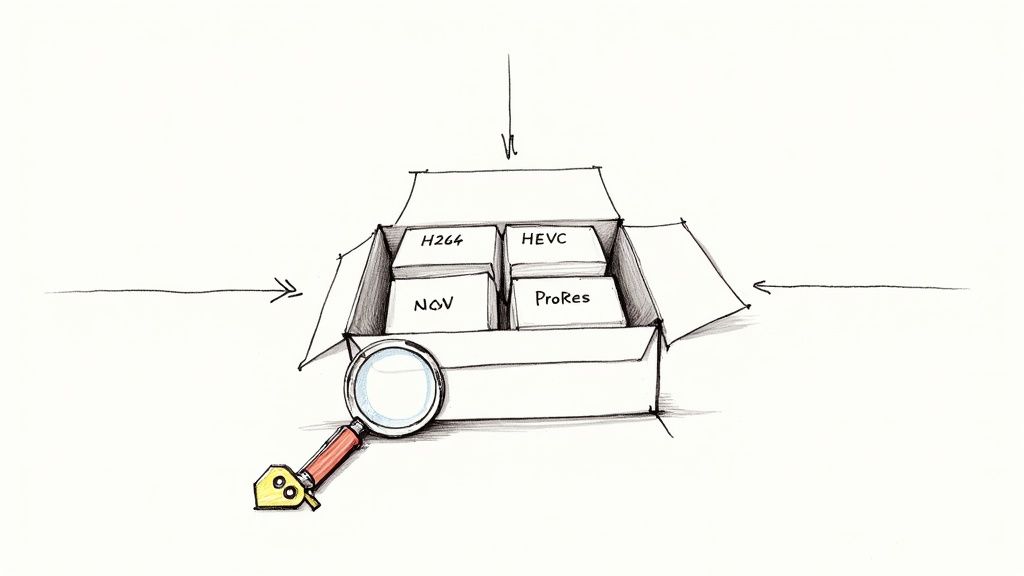
When you hit a snag trying to play MOV files, it's almost never the file itself that’s broken. The real culprit is usually a tiny, invisible piece of software called a codec. Grasping this one concept is the key to solving nearly any video playback problem for good.
Think of a MOV file as a shipping container. The container's label (.mov) tells your computer what kind of package it is, but it doesn't tell you what's actually inside. The video and audio data are compressed to keep file sizes manageable, and that’s where codecs come into play.
A codec—short for compressor-decompressor—is basically the instruction manual for shrinking the video for storage and then expanding it again for playback. If your media player doesn't have the right "key" (the matching codec) to unlock the container's contents, you're left with a black screen or a frustrating error message.
Why Every MOV File Is Different
This container-and-codec relationship is why one MOV file can play perfectly on your machine while another one won't even open. That first file might be compressed with a universal codec like H.264, which virtually every modern device understands. But the second file could be using a professional-grade codec like Apple ProRes—fantastic for video editing, but not something your average media player knows how to handle.
Initially, the MOV format used an older codec called Cinepak. Over the years, it's evolved to support a huge range of codecs, from the universally accepted MPEG-4 to high-definition standards like H.264 and Apple’s own ProRes. This flexibility is a huge advantage, but it’s also the source of most playback headaches. To dig deeper into how these formats are structured, check out this guide where video file types explained in detail.
Identifying the Required Codec
So, how can you figure out which codec your stubborn MOV file is hiding? You don't have to guess. Free tools like MediaInfo can peek inside the file and give you a detailed report.
It’s a simple process to diagnose the issue:
- First, download and install MediaInfo from its official website.
- Next, launch the app and open the MOV file that’s giving you trouble.
- MediaInfo will immediately show you a summary. Just look for the "Video" section and find the "Codec ID" or "Format." It will tell you exactly what you're dealing with—AVC (another name for H.264), HEVC, ProRes, or something else.
Once you know the specific codec, the solution is straightforward. You can either find a player that supports it (like VLC, which we'll cover next) or convert the file to a more universal format. This quick diagnostic step removes all the guesswork.
The Special Case of Alpha Channels
Another common challenge crops up when you try to play MOV files that contain an alpha channel. An alpha channel is extra data that stores transparency information, which is critical for video editors creating overlays, special effects, or graphics with clear backgrounds.
The problem is, most standard media players—including QuickTime and Windows Media Player—aren't built to render transparency. When they open a MOV with an alpha channel, they usually just show the transparent areas as a solid black or white background. You lose the effect completely.
To actually see the transparency as intended, you typically need to open the file in professional editing software like Adobe Premiere Pro or After Effects. If you work with these kinds of files, it's helpful to understand their specific nuances, which you can read about in our detailed guide to various MOV file formats.
How to Convert MOV Files Without Sacrificing Quality

When you're constantly fighting to play MOV files, sometimes the simplest long-term fix isn't to find another player—it’s to change the file itself. Converting your MOV to a universally accepted format like MP4 can save you a world of trouble, especially when sharing videos or uploading them online.
The trick is doing it without turning your sharp video into a pixelated mess. Luckily, there are fantastic free tools that give you full control. My go-to is HandBrake, an open-source transcoder that lets you dial in the settings to make sure your converted video looks just as crisp as the original.
Simple Conversions for Everyday Use
If you just need to get your video ready for YouTube, social media, or to email to a colleague, converting to an MP4 with the H.264 codec is the way to go. It’s the universal language of video.
HandBrake makes this dead simple with its built-in presets. You don't have to be a video engineer to get it right.
- Just open your MOV file in HandBrake.
- Head to the "Presets" menu and pick something from the "Web" or "General" categories. The "Fast 1080p30" preset is a solid, reliable choice for almost anything.
- Set a destination for your new file and hit "Start Encode."
These presets are expertly balanced for great quality and manageable file sizes, making them perfect for most situations. If you want a more detailed look, our guide on how to convert a MOV file to MP4 walks you through every step.
Preserving Transparency with Alpha Channels
Now, things get a bit more specialized when you’re dealing with MOVs that have an alpha channel. This is the transparency data used for things like motion graphics, lower-thirds, or visual effects that need to be layered over other footage.
A standard MP4 conversion will completely flatten this transparency, usually turning it into a solid black background. I've seen this trip up countless creators—it instantly ruins the effect you were going for.
To keep that transparency intact, you need to convert to a format that understands it. Your choice depends entirely on where the video is headed next. The key is to match your conversion format to your workflow.
MOV Conversion Options for Different Needs
Choosing the right format is critical. The table below breaks down the best options based on what you're trying to accomplish.
| Target Format | Best For | Quality Preservation | Alpha Channel Support |
|---|---|---|---|
| MP4 (H.264) | Web uploads, sharing, general playback | Excellent (with right settings) | No |
| Apple ProRes 4444 | Professional editing, visual effects | Lossless | Yes |
| WebM (VP9) | Websites, web applications | Very Good | Yes |
| PNG Sequence | Archiving, complex VFX work | Lossless | Yes |
As you can see, for any serious editing or effects work, Apple ProRes 4444 is the industry standard for maintaining both quality and transparency. But if your goal is to put a video with a transparent background on a website, WebM is the modern, browser-friendly solution.
Picking the right format from the start ensures your creative work looks exactly as intended, whether you're sending it to a collaborator or publishing it online.
How to Play MOV Files on Mobile and Web Browsers
Getting your videos to play perfectly on the go isn't just a nice-to-have anymore—it's essential. But when you try to play MOV files on a phone or in a web browser, the experience can be a real coin toss. Sometimes it works, and sometimes... well, it just doesn't.
For anyone in the Apple world, playing a MOV file on an iPhone or iPad is usually a non-issue. The tight integration between macOS and iOS means these devices are built from the ground up to handle the MOV container and its most common codecs. Given Apple's massive market share, this makes life easy for millions. You can learn more about the MOV format's role in Apple's ecosystem and why it's so seamless.
Of course, there's always an exception. Even iPhone users can run into trouble with MOVs that use professional-grade codecs like Apple ProRes, which are meant for high-end video editing, not casual playback on a mobile device.
Playing MOV Files on Android Devices
Android is a completely different ballgame. Native support for the MOV container is spotty at best, varying wildly between phone manufacturers and even different versions of the Android OS. This is why one MOV file might play just fine on your device while another one flat-out refuses to open—it all comes down to the specific video and audio codecs packed inside that MOV container.
Instead of fighting with your phone's built-in video player, your best bet is to grab a more capable, third-party app from the Google Play Store.
- VLC for Android: This is my go-to recommendation. Just like the desktop version, the VLC for Android app is a powerhouse of built-in codecs. It can handle practically any MOV file you can find, sidestepping your device's limitations entirely.
- MX Player: Another fantastic option is MX Player. It boasts wide codec support and adds some nice touches like hardware acceleration and gesture controls, making for a really smooth viewing experience.
Installing one of these apps is the simplest fix to ensure you can play MOV files without any fuss.
The Challenge of MOV Files on the Web
Trying to embed a MOV file directly on a website? It's generally a bad idea. Sure, it might work for someone using Safari on a Mac, but you're leaving a huge chunk of your audience out in the cold. Anyone visiting with Chrome on a Windows PC or Firefox on their Android phone will probably just see a broken video player or, worse, a prompt to download a file they can't open.
The rule of thumb for web video is simple: always convert. By re-encoding your MOV into a web-friendly format, you create a fast-loading, consistent experience for every visitor, no matter what device or browser they're using.
For universal compatibility, your best move is to convert your video to MP4 (with the H.264 codec). It’s the undisputed king of web video for a reason. And if your video has a transparent background (an alpha channel), the modern solution is WebM (with the VP9 codec), which preserves that transparency beautifully in the browser. A quick conversion is the secret to avoiding a world of playback headaches online.
Got More Questions About Playing MOV Files?
Even with the best guides, some common questions always pop up when you're wrestling with MOV files. Let's tackle some of the most frequent sticking points to get you sorted out for good.
MOV vs. MP4: What’s the Real Difference?
On the surface, MOV and MP4 files look almost identical. That’s no accident—the MP4 format was actually built on Apple's MOV container technology. The main difference really comes down to compatibility versus specialized features.
- MOV (QuickTime File Format): This is Apple’s baby. It shines in professional editing suites because it supports high-end codecs like Apple ProRes and advanced features like alpha channels for transparency.
- MP4 (MPEG-4 Part 14): This is the international standard, and its superpower is that it just works. Everywhere. An MP4 will play on almost any device, browser, or platform you can think of, making it the undeniable king of web video.
So, which one should you use? For sharing videos online or with friends, MP4 is the no-brainer. But if you’re deep in a professional video workflow, especially on a Mac, MOV is often the format you need.
Why Does One MOV File Play and Another One Won’t?
This is easily the most common headache, and the answer is all about what’s inside the file. Think of the MOV format as just a box. That box can hold video and audio that have been compressed in dozens of different ways, using what we call codecs.
Your media player might have the codec needed to play a MOV file encoded with H.264 video—which is incredibly common. But if you try to open another MOV file encoded with a more niche codec like HEVC or ProRes, your player might not have the right "key" to unlock it. Both files end in .mov, but their internal guts are completely different.
A file's extension just tells you the container type. The real compatibility battle is won or lost based on the specific video and audio codecs tucked inside.
Are Codec Packs Safe to Download?
Tread carefully here. While well-known packs like the K-Lite Codec Pack are generally safe, many download sites bundle them with malware, adware, or other junk you definitely don't want on your system. It's an old trick that can create far more problems than it solves.
If you absolutely must install one, only download it directly from the developer's official website. But honestly, there's a much safer and simpler way to go. Just use a media player that brings its own codecs to the party.
A player like VLC Media Player is completely self-contained. It doesn’t mess with your system files, so you don't have to worry about creating software conflicts or opening security holes. With VLC, you can play MOV files of all stripes without ever having to hunt down a single codec pack. It's the most secure and hassle-free solution out there.
At VideoBGRemover, we believe working with video should be simple. If you need to remove the background from your MOV file for a project, our AI tool can handle it in minutes—no green screen required. Give it a try for free and see for yourself.
Ready to Remove Your Video Background?
See a free preview before you buy.
No credit card required • Free preview on every video